Signed changes and trust
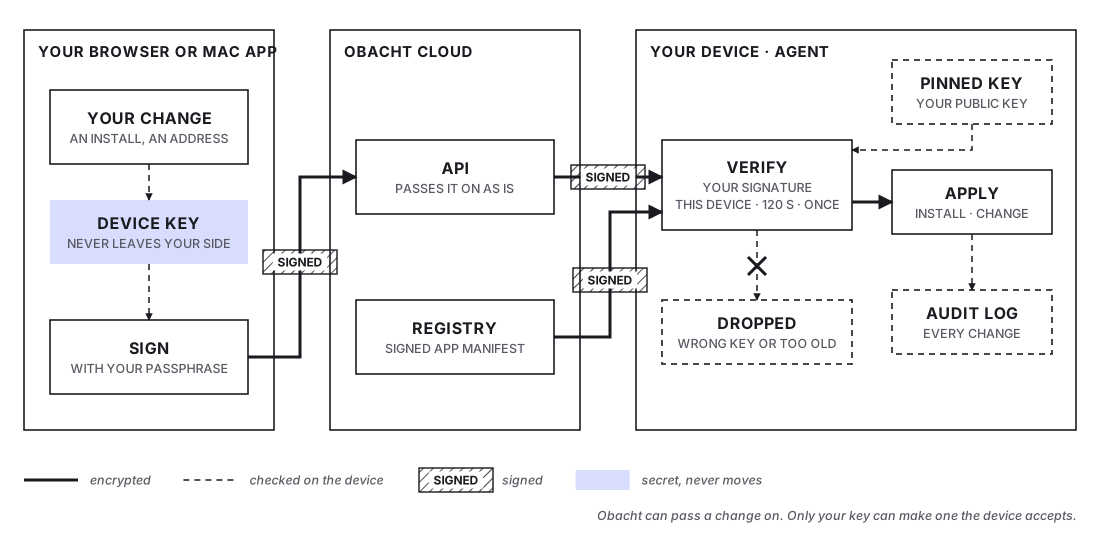
Every change to your device is signed with your device key before it leaves your browser or the Mac app. The device checks that signature itself, so it only acts on what you asked for, and Obacht's servers cannot push a change on their own.
Your device key signs every change
Your device key (an SSH key, ed25519) is created in your browser the first time you add a device. The private half is encrypted with your passphrase and only the encrypted form is stored. Obacht never has the usable key.
When you install an app, add or remove a web address, bind an address, or turn on Password protection, the dashboard builds a small plan describing the change and signs it with your key. Signing means attaching a proof that only the holder of the key could have produced. The signed plan travels through Obacht's API to your device over the control channel.
On the device, the agent holds a copy of your public key, pinned at setup. On a Raspberry Pi or Linux PC the install command pins it, on a Mac you confirm the fingerprint during pairing. The agent only accepts a plan whose signature matches that pinned key. Everything else is dropped, including anything an Obacht server might send on its own.
Two more rules keep old plans from being reused:
- A signed plan is valid for 120 seconds. After that the device refuses it.
- A plan that was already applied cannot be replayed.
This is why the dashboard asks for your passphrase before an install or a change. The lock icon in the topbar shows whether the key is unlocked for this tab.
Installs carry two signatures
An app install has to pass two checks, not one.
- Your signature on the plan, as above.
- The registry's signature on the app manifest. Every app in the catalogue is published with a manifest signed by the Obacht registry (minisign key
obacht-registry-prod-1). The manifest names the exact container images by digest, a fingerprint of the image contents. The agent refuses a manifest without a valid signature or with unpinned images.
So even if someone could alter traffic between the registry and your device, the device would notice. What runs is what the registry reviewed, started by you.
The trust card on your device
Each device shows a trust card in its Settings (called "Device key" in easy mode, "Management key" in advanced mode). It tells you which key the device has pinned.
| Status | Meaning | What to do |
|---|---|---|
| Trusted | The pinned key matches your current device key | Nothing |
| Not pinned | The device has no key yet | Pin my key |
| Key mismatch | The device pinned a different key, for example after you created a new one | Re-pin my key |
| Extra keys | More keys than yours are pinned | Check where they came from |
A device without a pinned key cannot receive changes. On a Mac this shows as "This device can't install anything yet. Open the Mac app and trust your management key, then come back." More on keys and passphrases on Your device key.
If you lose your passphrase, there is no reset. You create a new key and pin it again on every device. Until then, no device accepts a change from you.
Power Mode is the second gate
A fresh device runs the agent unprivileged. It can run normal apps but not touch the operating system. The Terminal tab, the Files tab, the Services tab and apps that need hardware or a desktop session (kiosk, camera) all stay locked until you unlock Power Mode in the device Settings. That unlock is itself a signed change. Details on Power Mode and system services.
Every change is logged on the device
The agent writes every change it applies to an audit log on the device itself, at /var/log/obacht/audit.log on a Pi or Linux PC. Terminal sessions are logged as events in the device's Events tab. You can read the audit log without asking Obacht, see Paths, logs and the installer.
The security page at obacht.dev/security states the same model in a shorter form. Next: Where your data lives.