Your device key
Your device key (an SSH key of the ed25519 kind) is what makes your devices listen to you and to nobody else. You create it once, the first time you add a device, and you type its passphrase whenever something on a device is about to change.
What it is
A key pair. The public half goes onto every device you set up. The private half is created in your browser, encrypted with your passphrase and stored encrypted in your account. Obacht's servers only ever see the encrypted version and cannot open it.
Installs, web addresses and password protection are signed with this key in your browser; the key itself never leaves the browser. The device checks each signature against the public half it has pinned. No valid signature, no change. The terminal and the file browser log in to the device with the same key. More on Signed changes and trust.
Create it
The key step appears the first time you add a device: "Your device key first". Enter a passphrase of at least 8 characters and click Create key.
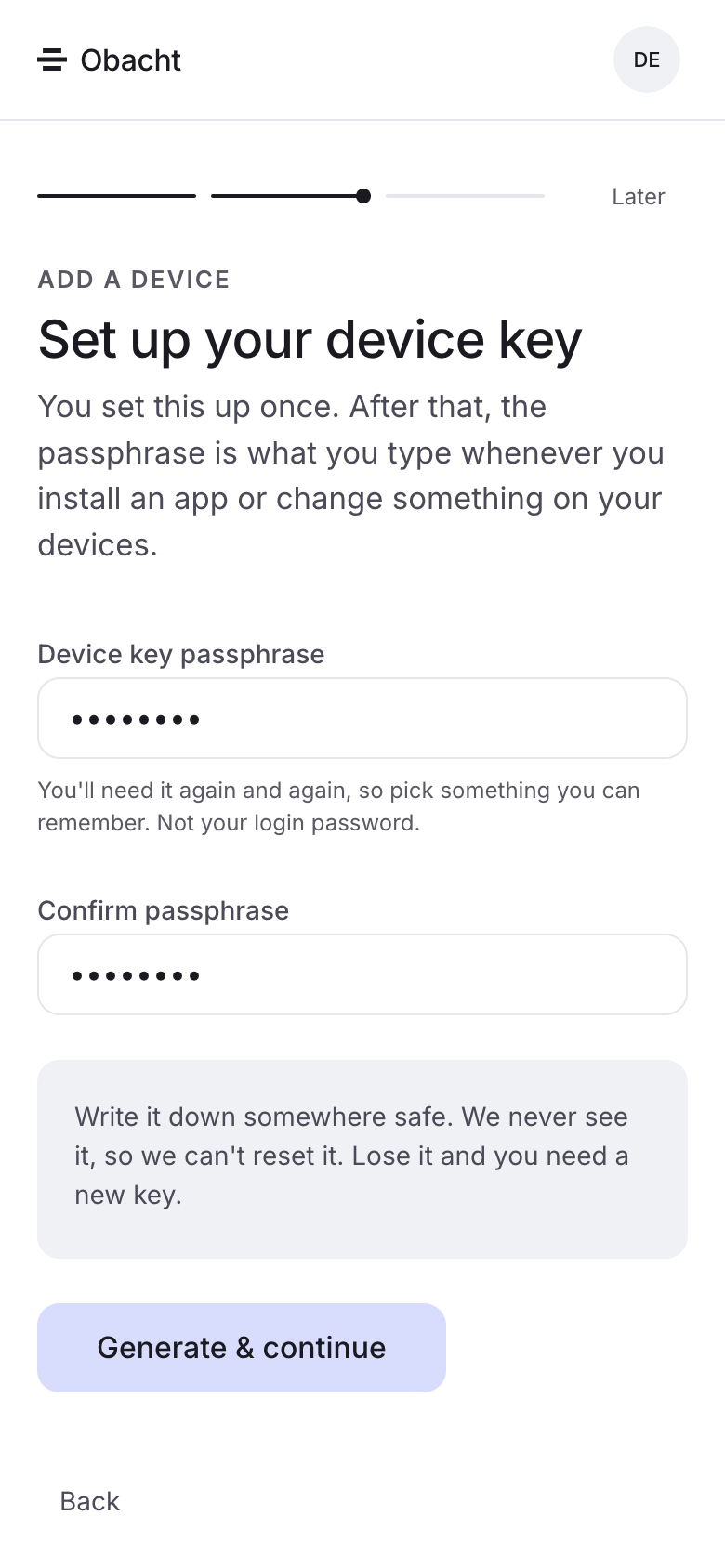
The passphrase cannot be reset. Obacht cannot read it and cannot recover it. Write it down or put it in a password manager before you click Create key.
Unlock it
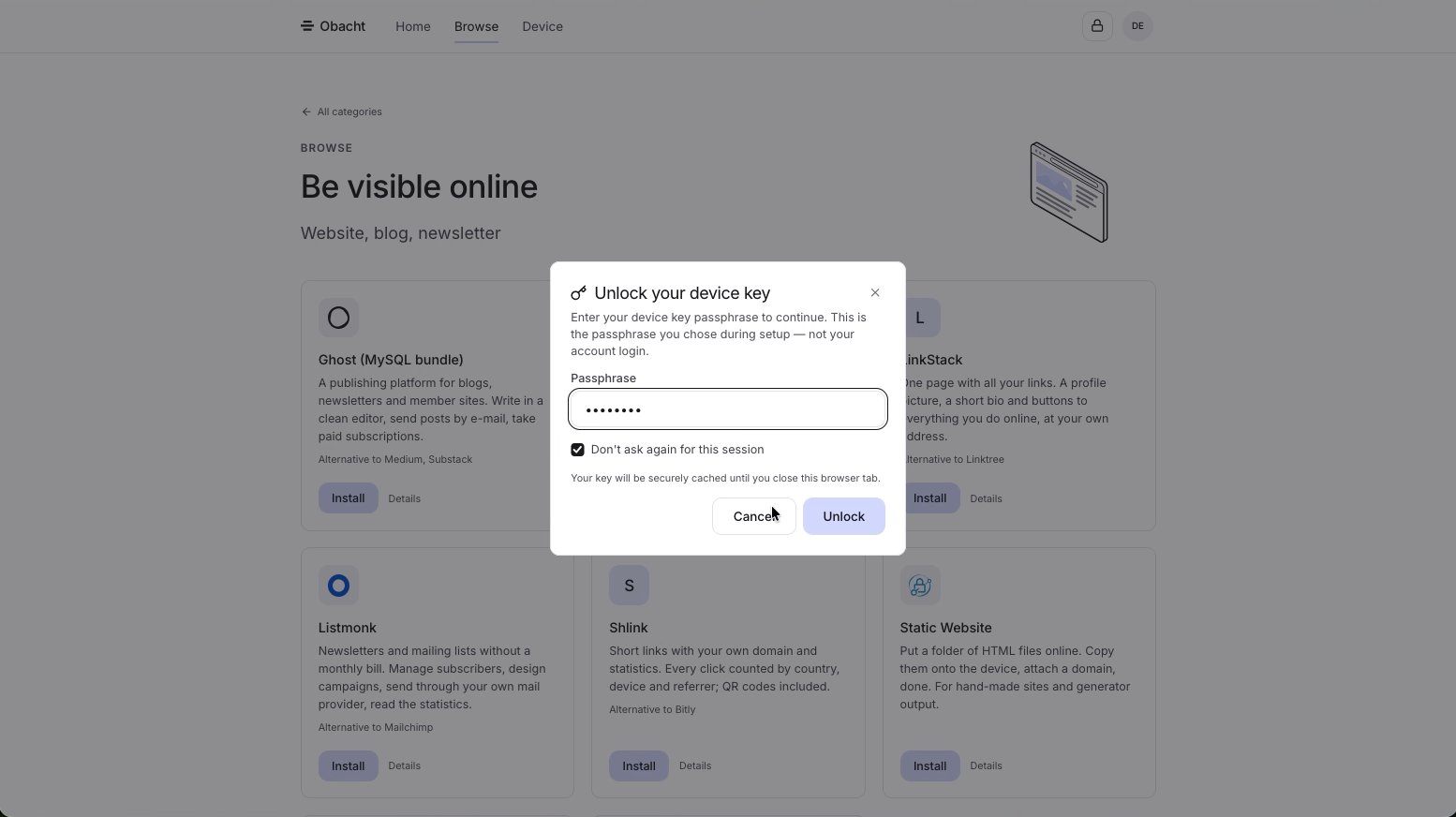
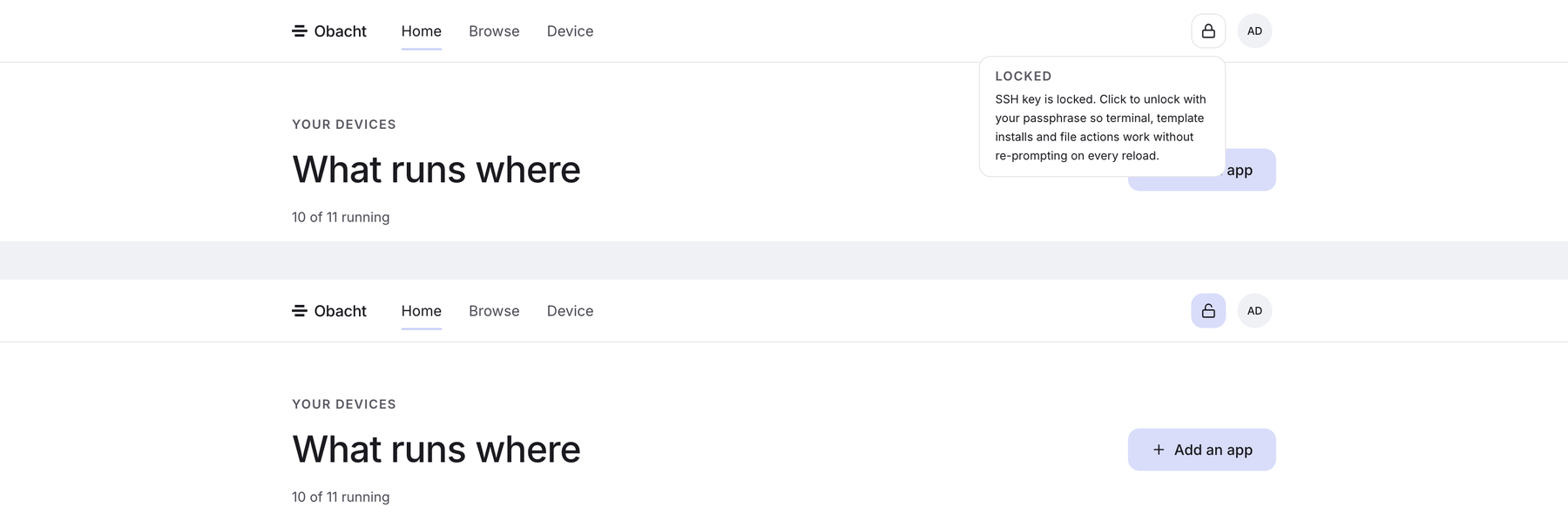
A lock icon sits in the top bar. Locked means the key is not open in this tab. Click it and enter the passphrase. The icon turns yellow while the key is unlocked; click it again to lock.
The prompt also appears on its own whenever an action needs the key: installing an app, changing a setting, opening the terminal, touching files. Don't ask again for this session is on by default and keeps the key open for this browser tab. Close the tab and it is locked again.
Trust on each device
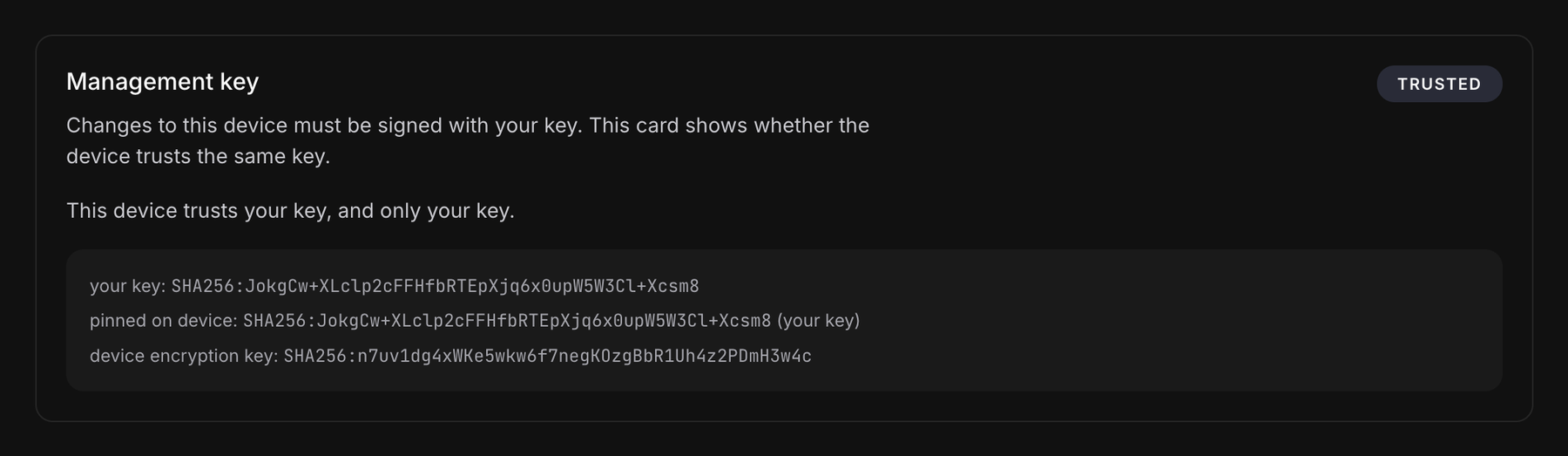
Every device keeps a copy of your public key and refuses changes signed by anything else. The state is on the device's Settings tab, in the card called Device key (easy) or Management key (advanced):
| State | Meaning | What to do |
|---|---|---|
| Trusted | The device has your current key pinned. | Nothing. |
| Not pinned | The device has no key yet. | Click Pin my key. |
| Key mismatch | The device has a different key pinned, for example after you made a new one. | Click Re-pin my key. |
| Extra keys | More keys than yours are pinned. | Check who added them. The card shows an obachtctl trust unpin hint for removing one on the device. |
| Unknown | The agent on the device is too old to report. | Update the agent. |
Pi and Linux devices pin your key during setup. A Mac pins it in the app when you confirm the trust step. Pinning needs the device online. If it is offline the card tells you so and asks you to retry later.
Import a key you already have
If you already use an ed25519 SSH key and want the same one here, import it on the SSH keys page (Settings → Security links to it). The file has to be an OpenSSH ed25519 private key without a passphrase. After importing, pin it on every device as above.
The keys page also shows your public key (Show public key, copy) and its SHA256 fingerprint, and has Delete key.
If you lose the passphrase
There is no reset. Make a new key on the keys page, then open every device's Settings tab and click Re-pin my key. Until you do, the device shows Key mismatch and refuses installs and changes. Apps that are already running keep running.
Next
Install an app. Technical background: Signed changes and trust.