Clone from GitHub
Install the GitHub CLI (gh) on a Raspberry Pi or Linux PC through the Obacht web terminal, authenticate with a GitHub Personal Access Token, and clone a private repository. You need a device that is online with Power Mode on, and a GitHub account.
Open the Terminal
The Terminal tab only works while Power Mode is unlocked for the device. If it is greyed out, unlock it first in the device's Settings tab, see Power Mode and system services.
Open the device in Obacht and confirm it is Online. Go to the Terminal tab and click Connect. If your SSH key is locked, enter the passphrase when prompted.
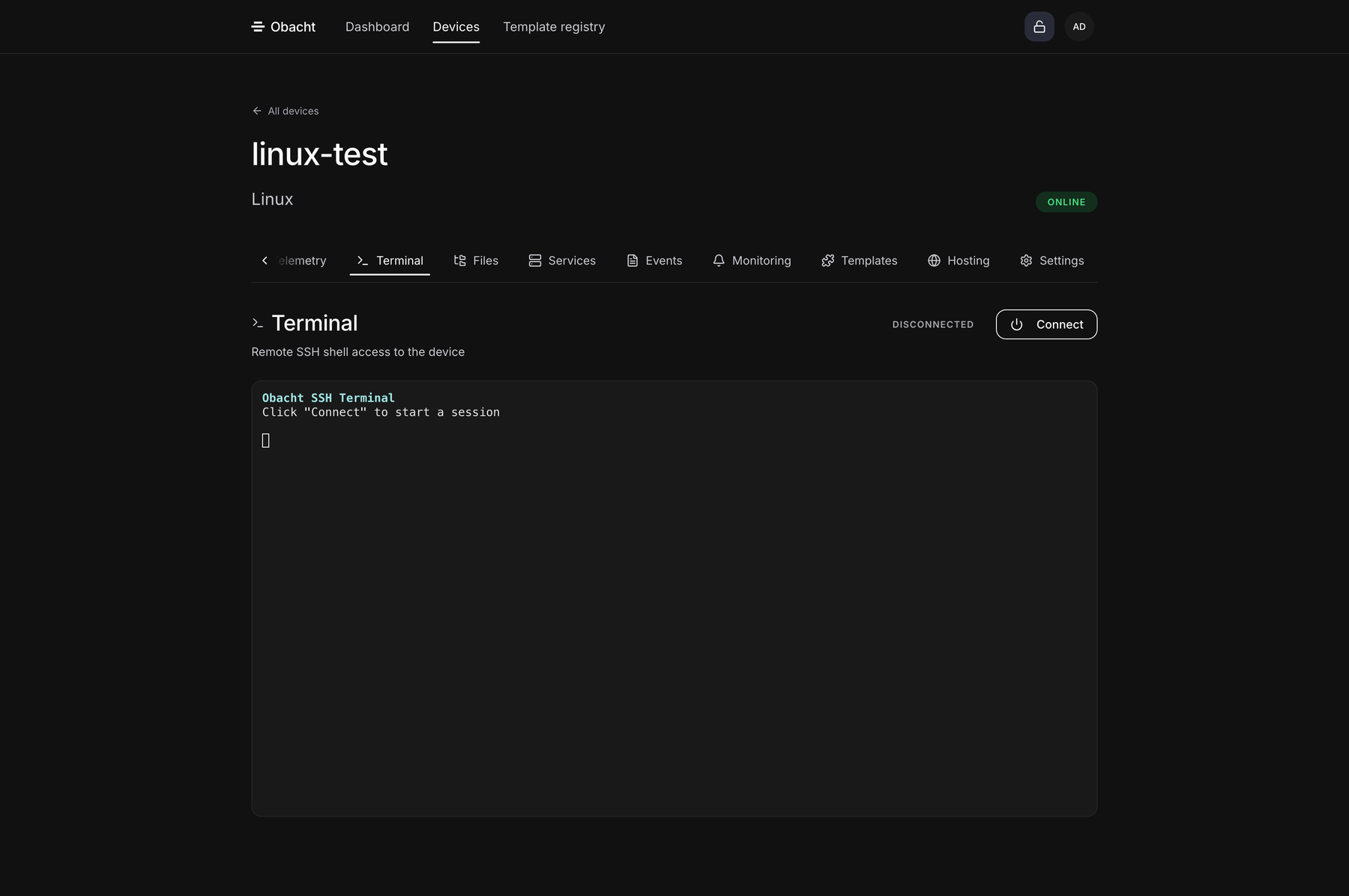
The terminal connects to the device through the Obacht SSH gateway. Once connected you have a full shell as the obacht user. If the shell is new to you, read Terminal basics first.
Install the GitHub CLI
Update the package index and install gh:
sudo apt update && sudo apt install gh -y
Installation takes about 30 seconds.
sudo asks for a password unless you turned on "Make the obacht user an admin" when you created the install command. Without it, admin jobs go through your own user account on the device. See Paths, logs and the installer.
Authenticate with GitHub
Start the interactive login:
gh auth login
Answer the prompts:
- What account do you want to log into? Select GitHub.com.
- What is your preferred protocol for Git operations on this host? Select HTTPS.
- Authenticate Git with your GitHub credentials? Confirm with Y.
- How would you like to authenticate GitHub CLI? Select Paste an authentication token.
The "Login with a web browser" option needs a browser on the device and does not work on a headless Pi. Use a token.

Create a Personal Access Token
In a separate browser tab, go to github.com/settings/tokens and click Generate new token → Generate new token (classic).
Give the token a name, set an expiration, and check the repo scope. This grants full access to private repositories.
Scroll to the bottom and click Generate token. Copy the token right away, GitHub does not show it again.
Paste the token
Back in the terminal, paste the token at the Paste your authentication token: prompt and press Enter. Use the clipboard icon in the terminal toolbar or right-click → Paste, Ctrl + V does not work in the terminal.
gh validates the token and stores the credentials. You are now authenticated.
Clone a private repository
Use gh repo clone followed by the repository name (or owner/repo for repositories outside your account):
gh repo clone <repository-name>
The repository is cloned into the current directory, your home folder /home/obacht by default. You can now work with it directly on the device.
Next: Run your own software.