Password protection
Password protection (HTTP Basic Auth) puts a login box in front of a web address. Whoever opens the address has to enter a username and a password before the app loads. It works per address, so every app with an address can have its own.
Turn it on
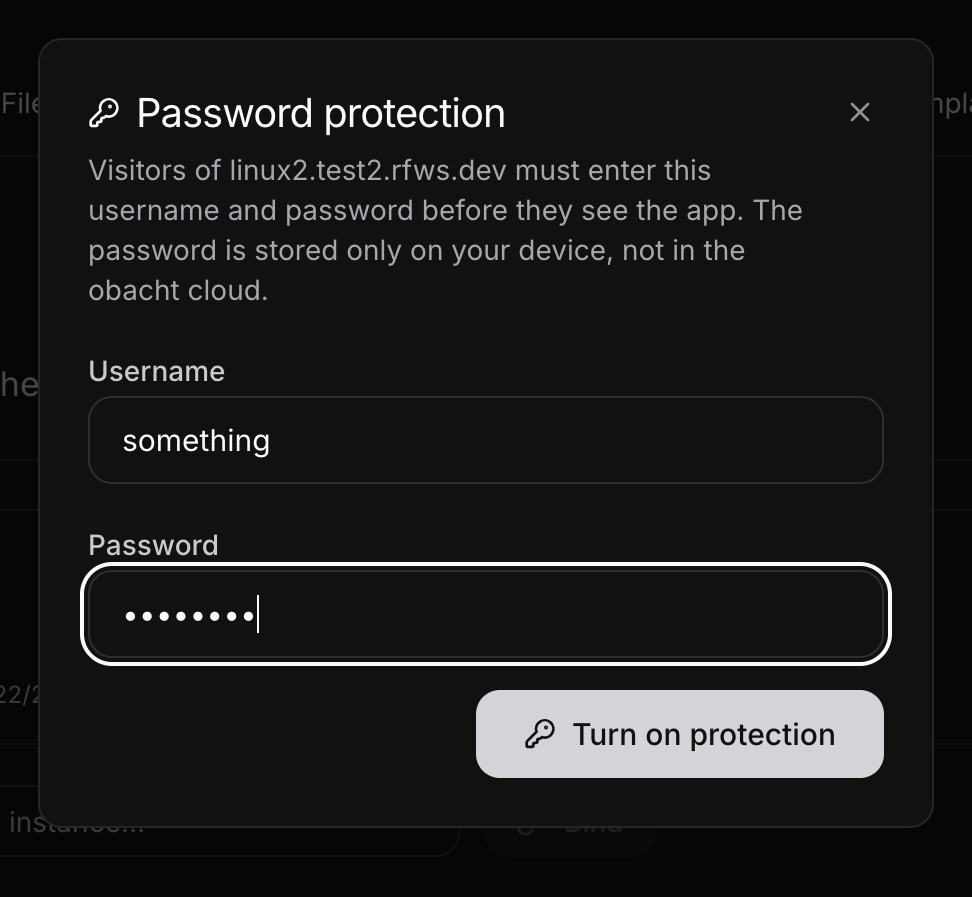
- Open the app page and find the Password protection row. It says "Off. Anyone with the address can open it."
- Click Add a password.
- Choose a username (1 to 64 characters, letters, digits and
. _ @ -) and a password (8 characters or more, at most 72 bytes). - Click Turn on protection and unlock your device key when asked.
The row now says "On · user X". In easy mode the install sheet offers the same block when the app recommends it, so you can set it during install.

Change or remove
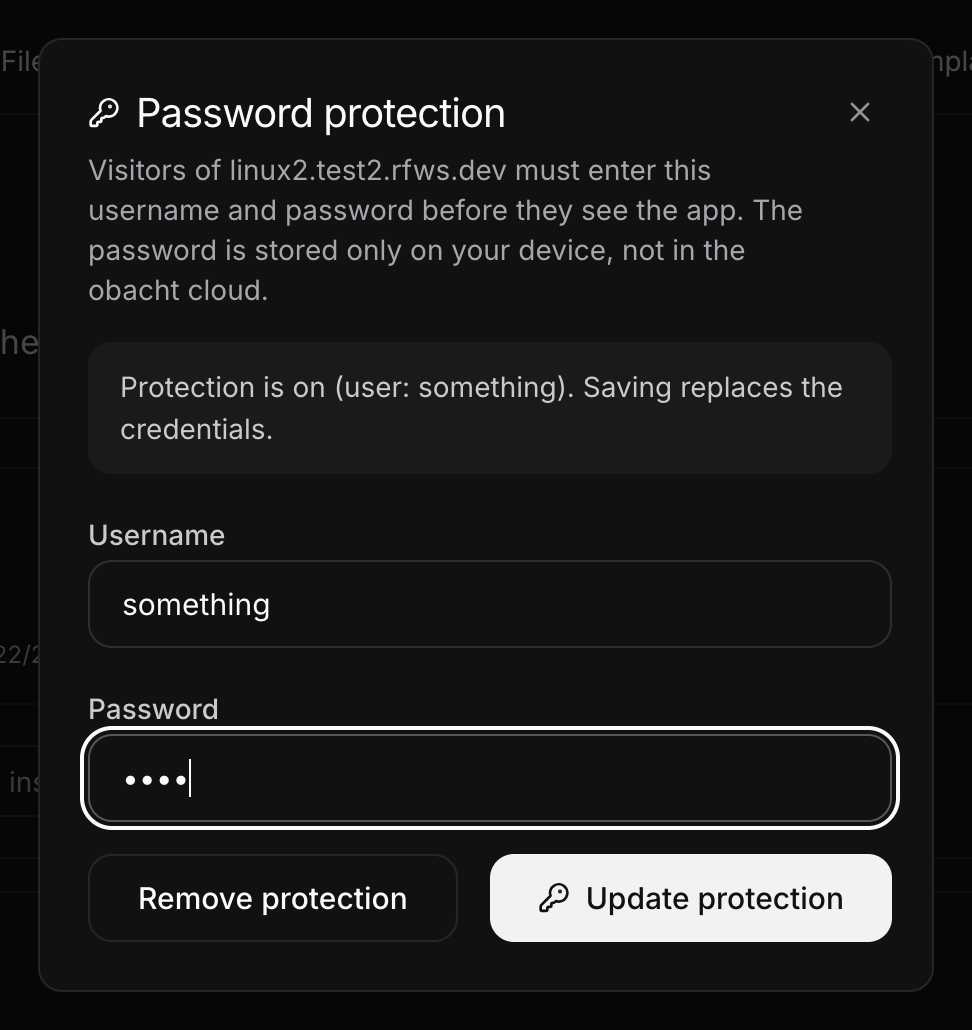
Click Change in the row. Update protection saves a new username or password. Remove protection takes the login box away again.
Good to know
- "The password stays on your device." Obacht's servers never see it. Your device checks it.
- It needs a current agent on the device ("Needs a newer obacht agent on this device", see Update, restart, remove) and a device that trusts your device key ("Needs this device to trust your key first", see Your device key).
- If the device is offline you see "The device did not confirm the change…". Bring it online and try again.
- Apps with their own login keep it. You then log in twice, once at the door and once in the app.
Next: How web addresses work.