Easy and advanced mode
Every account has a mode. Easy is the default and what these docs describe. Advanced shows the same product with every tab open and technical words on the labels.
What is different
| Easy | Advanced | |
|---|---|---|
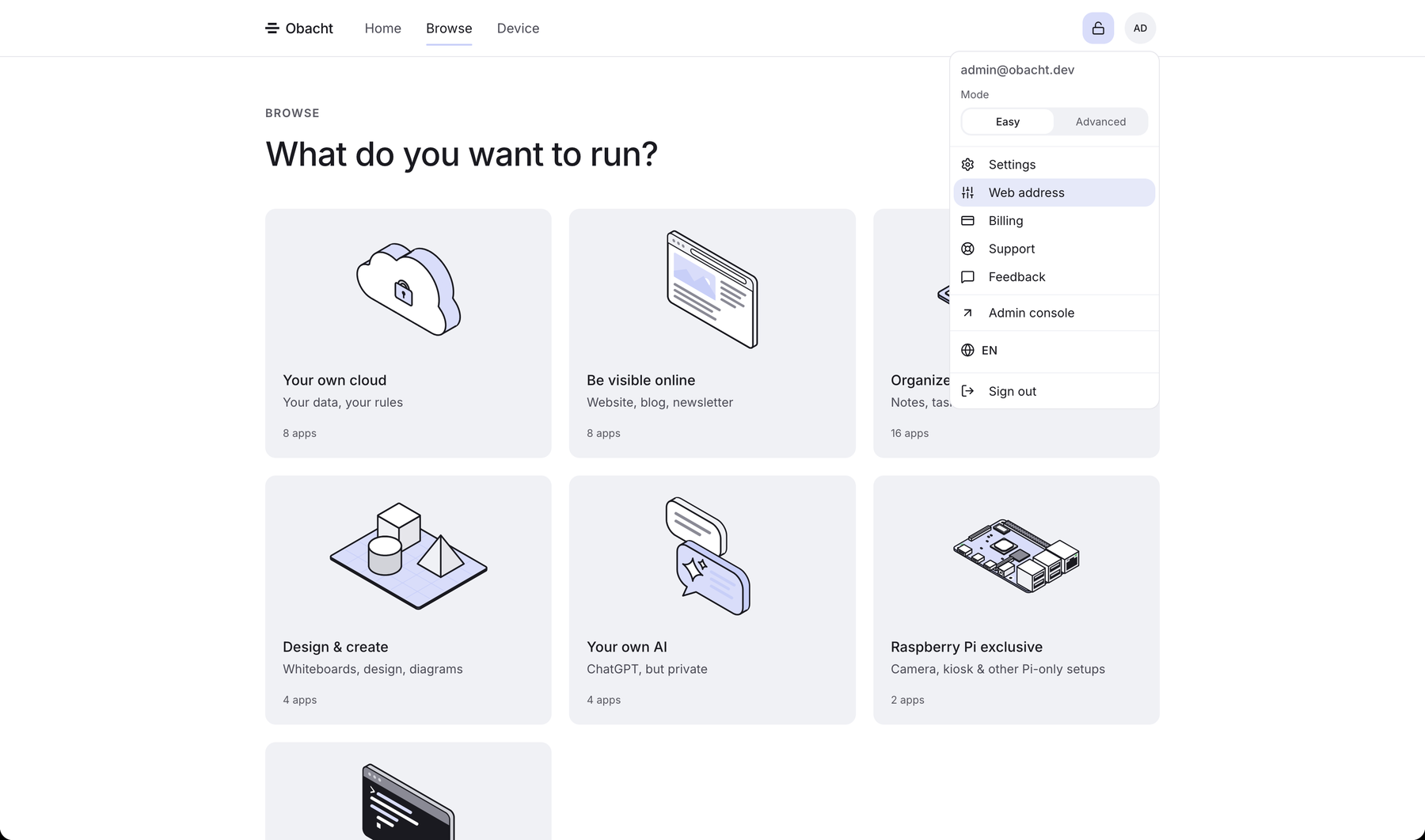
| Look | Light | Dark |
| Navigation | Home, Browse, Device | Dashboard, Devices, Template registry |
| Install sheet | Address and settings on one screen. Fields marked advanced are folded behind Advanced options | Separate Address step, a Name field, every field visible |
| Password protection | Asked during install | A hint; set it later in the Hosting tab |
| Device setup | Pi goes straight to the SD card, Linux PC to the command | You pick SD card or command |
| Progress | A passphrase prompt | A floating "Running on the device…" card with a step log |
The full device view with all tabs exists in both modes. Easy reaches it through Open advanced view on the device page.
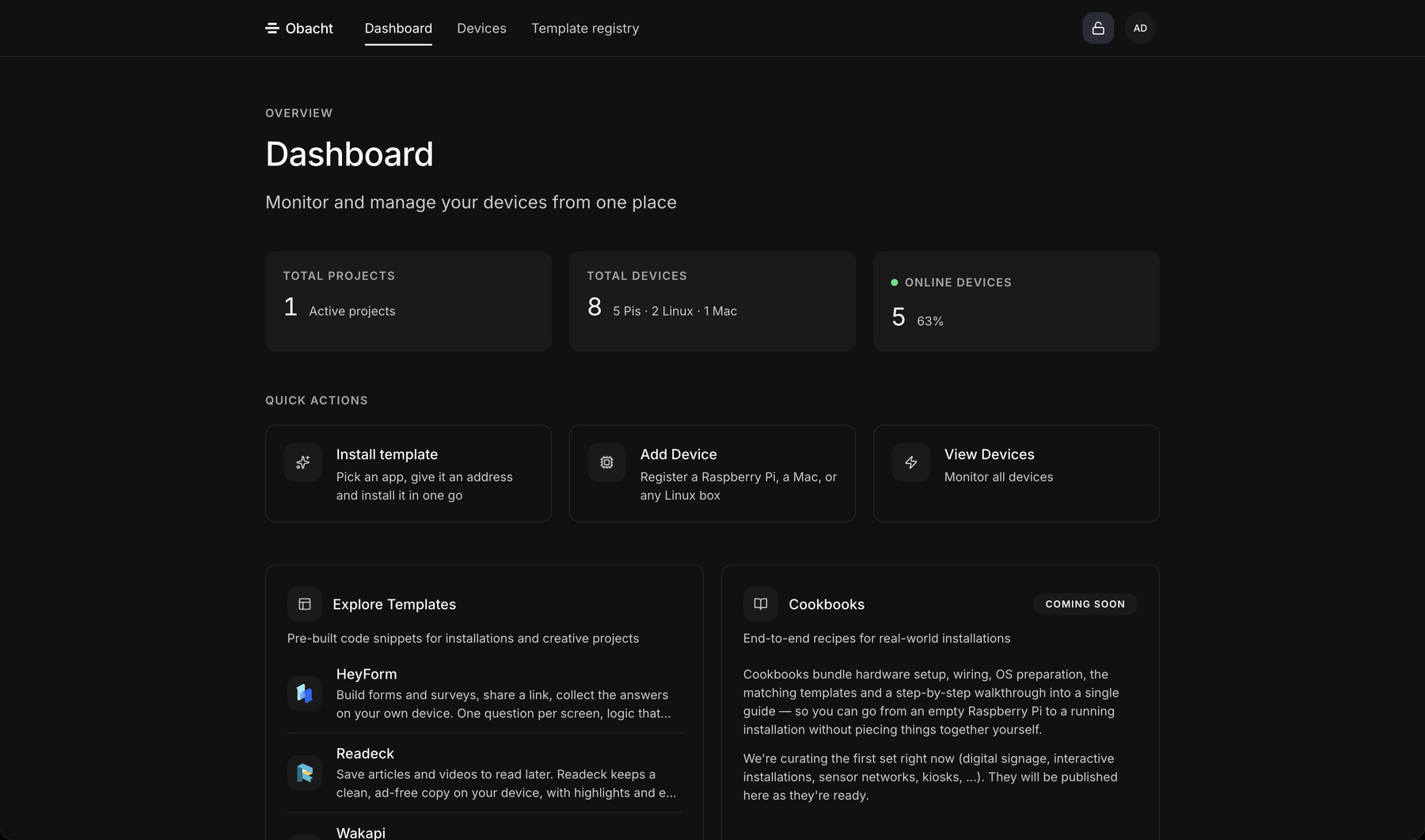
Where to switch
Click your avatar and use the Mode switch, Easy | Advanced. Or open Settings → Preferences. The theme swaps with it.
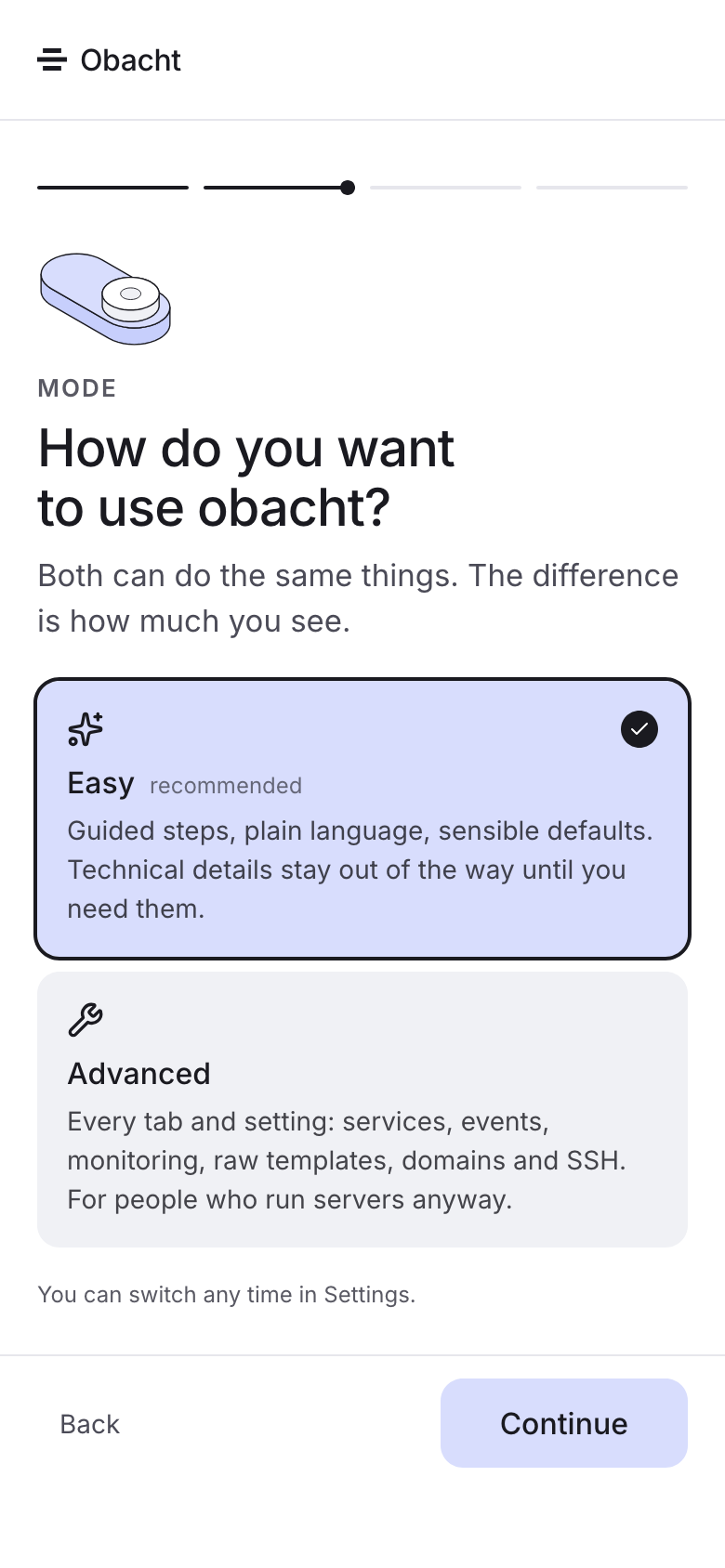
The words
Same thing, two names. These docs use the easy word and put the technical one in brackets once.
| Easy word | Technical word |
|---|---|
| App | Template. The store is the Template registry |
| Web address | Domain |
| Device key | SSH key. The dialog says "Unlock your device key" or "Enter SSH Key Passphrase" |
| Obacht network | The WireGuard connection |
| Your Obacht address | Platform zone, <username>.obacht.space |
| Password protection | HTTP Basic Auth |
The trust card on a device is "Device key" in easy and "Management key" in advanced. Same key.
Next
Create your account if you have not, otherwise Install an app.