Manage an app
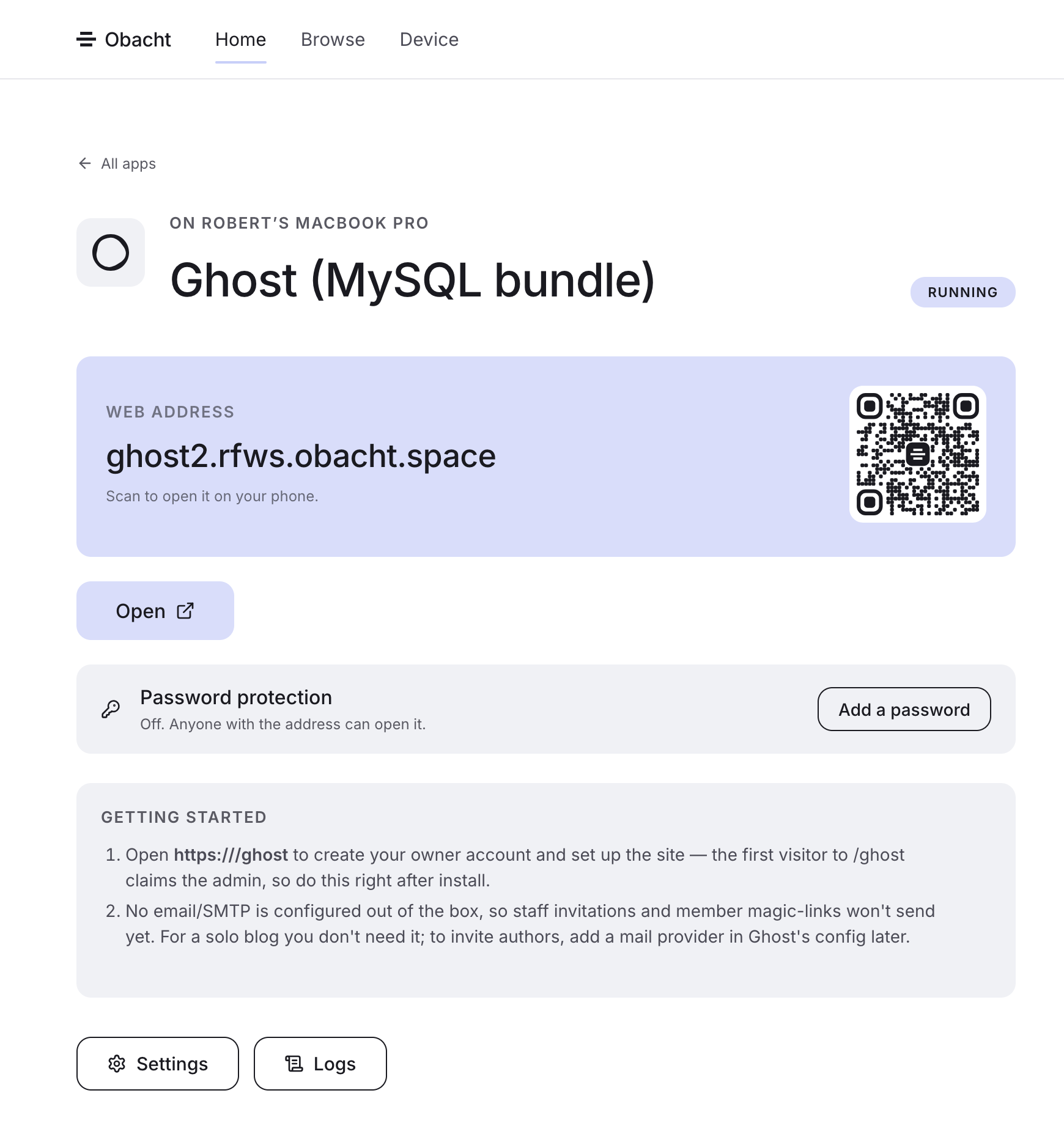
Every installed app has its own page. From there you open it, change its settings, read its logs and, under technical details, start, stop, update or remove it. You reach the page from Home (click Manage next to the app) or from the device page under "Apps on this device".
The app page
- Web address card with Open. The button waits until the certificate is on the device; until then it says "This address is still being set up". An app without an address shows "No web address yet" and Add a web address.
- Password protection row with Add a password or Change. See Password protection.
- Getting started: the app's own first steps, for example the default login.
- Settings: the fields from the install.
- Logs: the last lines the app wrote (the tail of the container log). First place to look when something is off.
On a Mac, Logs currently stays empty and shows "Failed to load logs". That is a known bug, being fixed. On a Raspberry Pi or Linux PC logs work.
Change settings
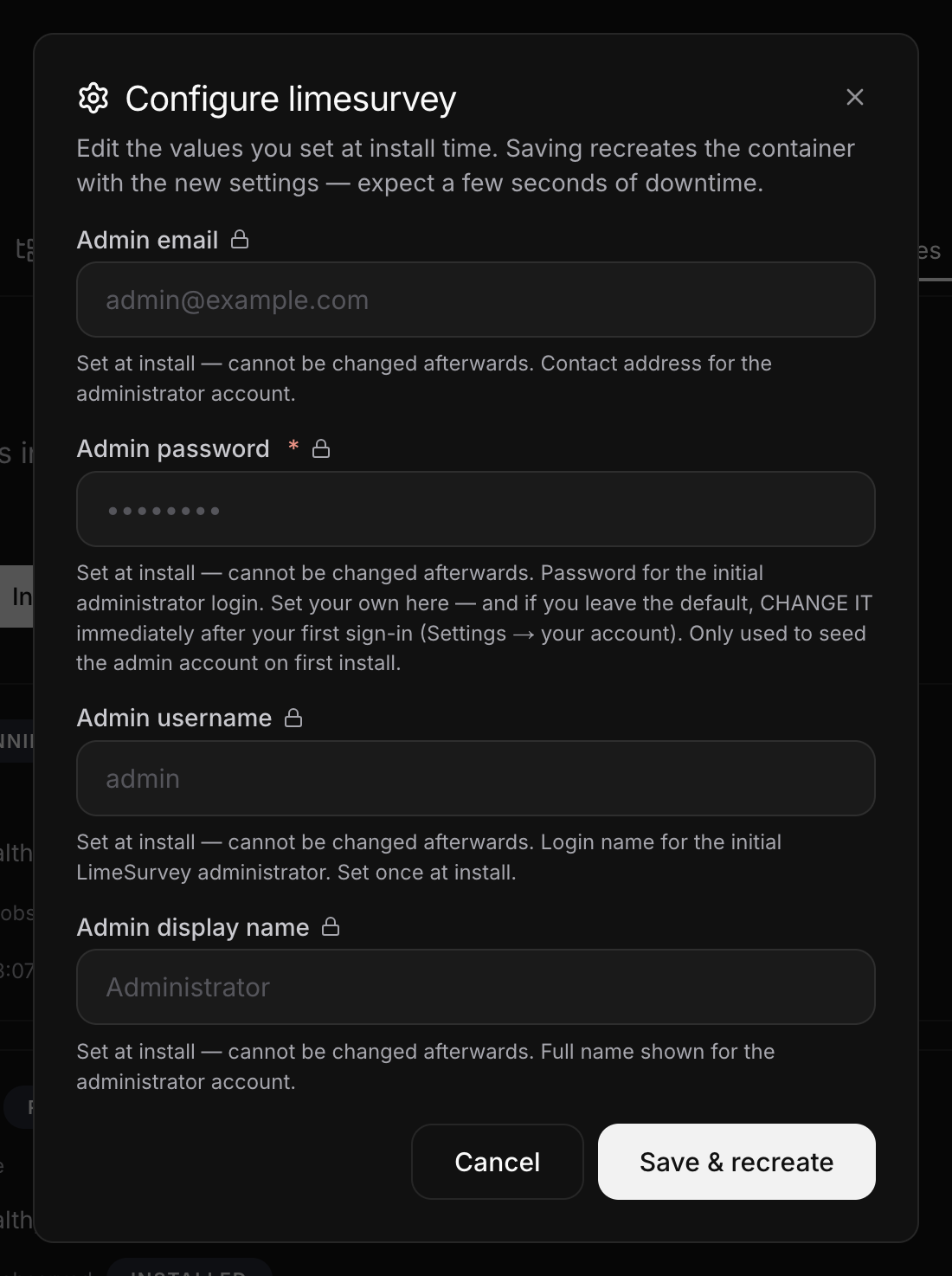
Open Settings, change a value, save. You are asked for your device key, then the device rebuilds the app with the new values ("Configuration updated"). The app is unavailable for a moment while that happens. Its data stays.
Two kinds of fields behave differently:
- Passwords and other secrets are shown masked. Leave the field blank to keep the current value.
- Fields marked "Set at install" are locked and cannot be changed afterwards. To change one, remove the app and install it again.
Start, stop, update, remove
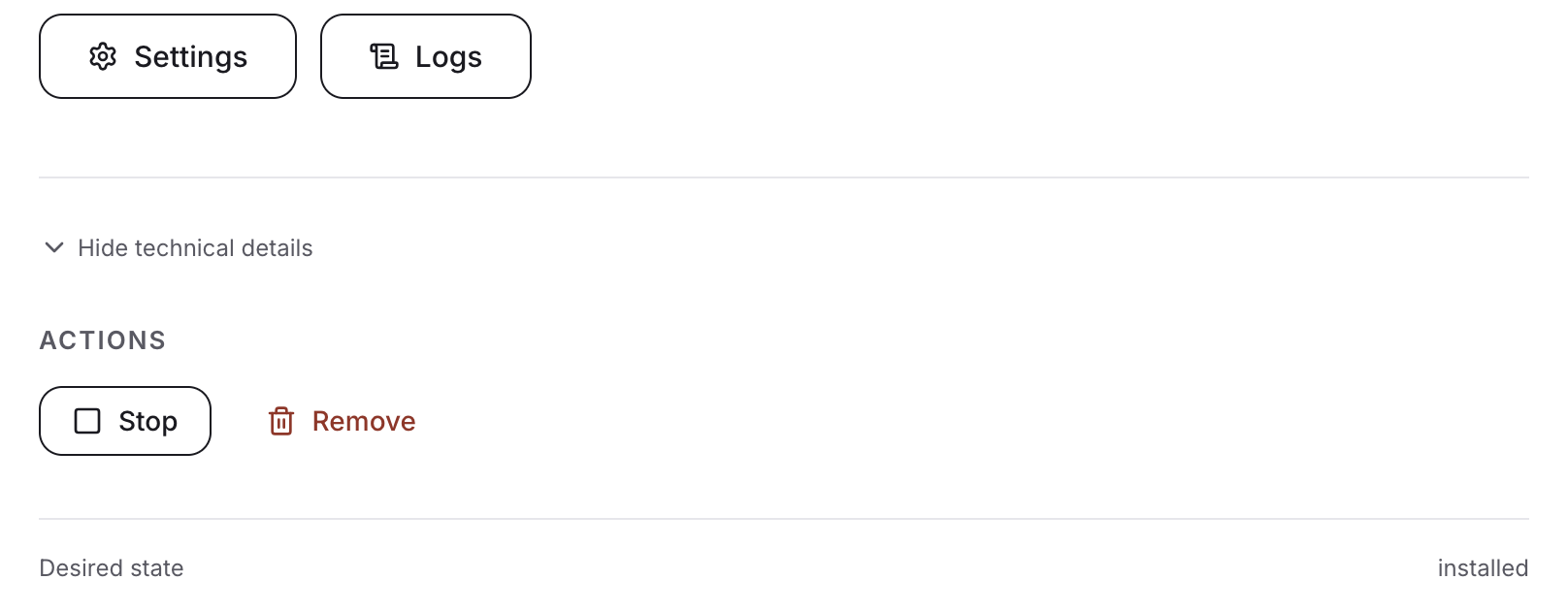
Click Show technical details. It shows the desired and the current state, the version and the instance ID, plus four actions.
| Action | What happens |
|---|---|
| Start | Starts a stopped app. |
| Stop | Stops the app. It stays installed with its data, and it does not come back after a reboot of the device until you start it. |
| Update to v2.1.0 (the new version number) | Only shown when the catalogue has a newer version. The device pulls the new version and recreates the app. Large bundles take 10 to 30 minutes. |
| Remove | Removes the app and its data. |
There is no restart button. To restart an app, click Stop, wait until it shows as stopped, then click Start.
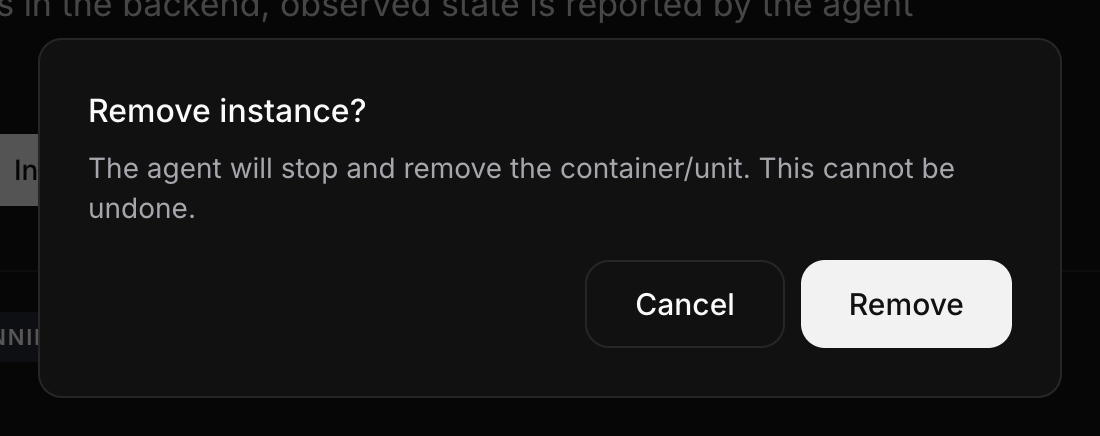
Remove deletes the app's data on the device. The dialog says so: "Remove this app?… its data will be removed… can't be undone". Obacht keeps no backup. Export anything you want to keep from inside the app first. The web address stays yours and points at nothing until you use it again, see Remove an address.
The Templates tab in advanced mode
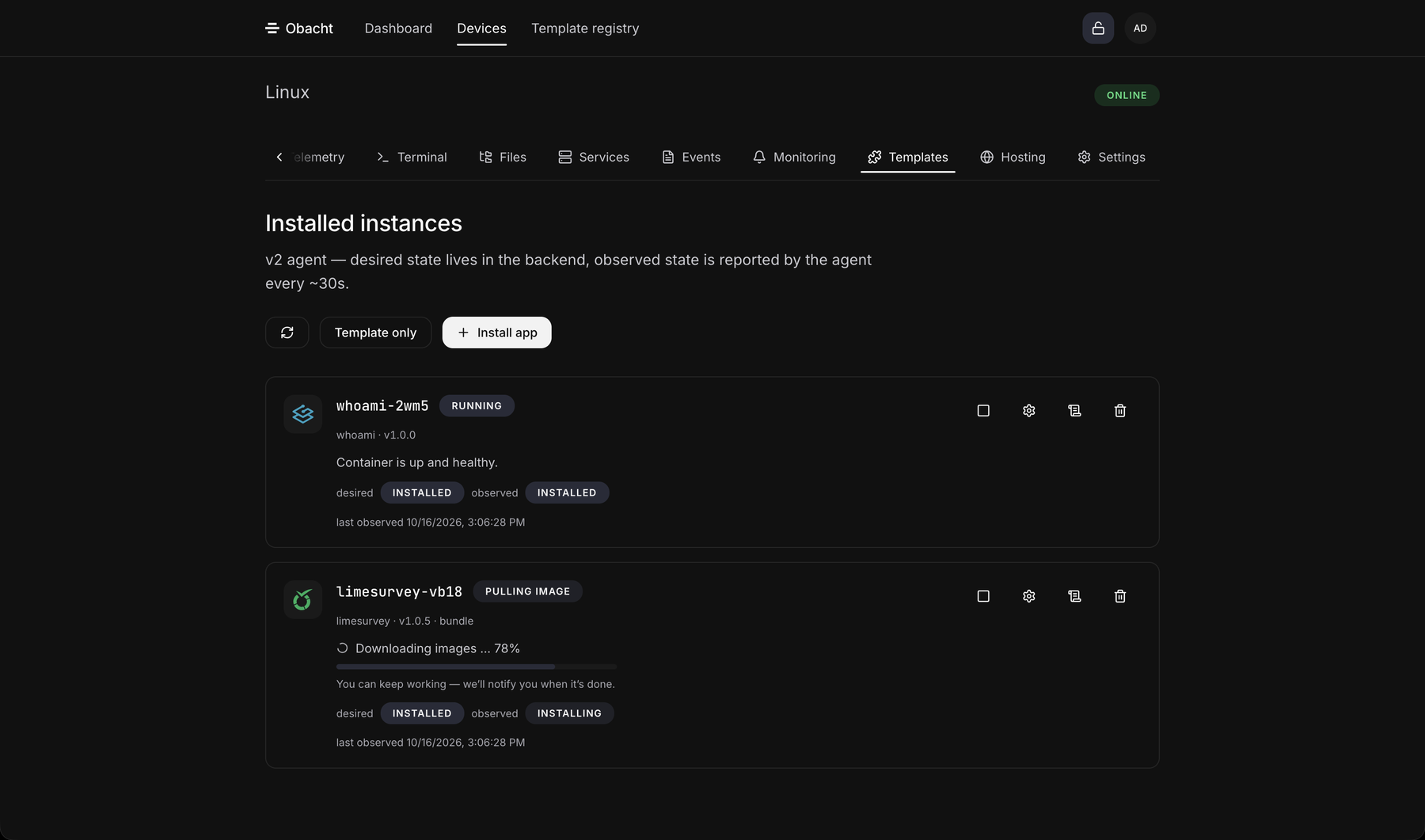
Manage (advanced) on the app page, or Devices → your device → Templates, lists every app on the device with a status line: "Installing …", "Pulling image …", "Updating …", "Removing …", "Something went wrong", "State mismatch", or stopped. Each row has Start, Stop, Update, Getting started, Configure, View logs and Remove. After an action the tab answers "Accepted" and the device does the work in the background.
Browse files appears only for static-site apps. It lets you upload your pages straight into the app, 25 MB per file.
"State mismatch" means the device reports something other than what you asked for, for example a container that stopped on its own. Check the logs, then try Start. If it keeps happening, see Install problems.
Next: Password protection.