Mac with the Obacht app
When you are done your Mac is an Obacht device and apps you install from the web dashboard run on it. You need an Apple-silicon Mac (M1 or newer) with macOS 26 Tahoe or newer, ideally one that stays on, and your Obacht account.

The whole path, from sign-in to a running AI chat on the Mac, is in the demo video (2:35, no sound). Step by step with stills: Example: a Mac with its own AI in three minutes.
Download and install
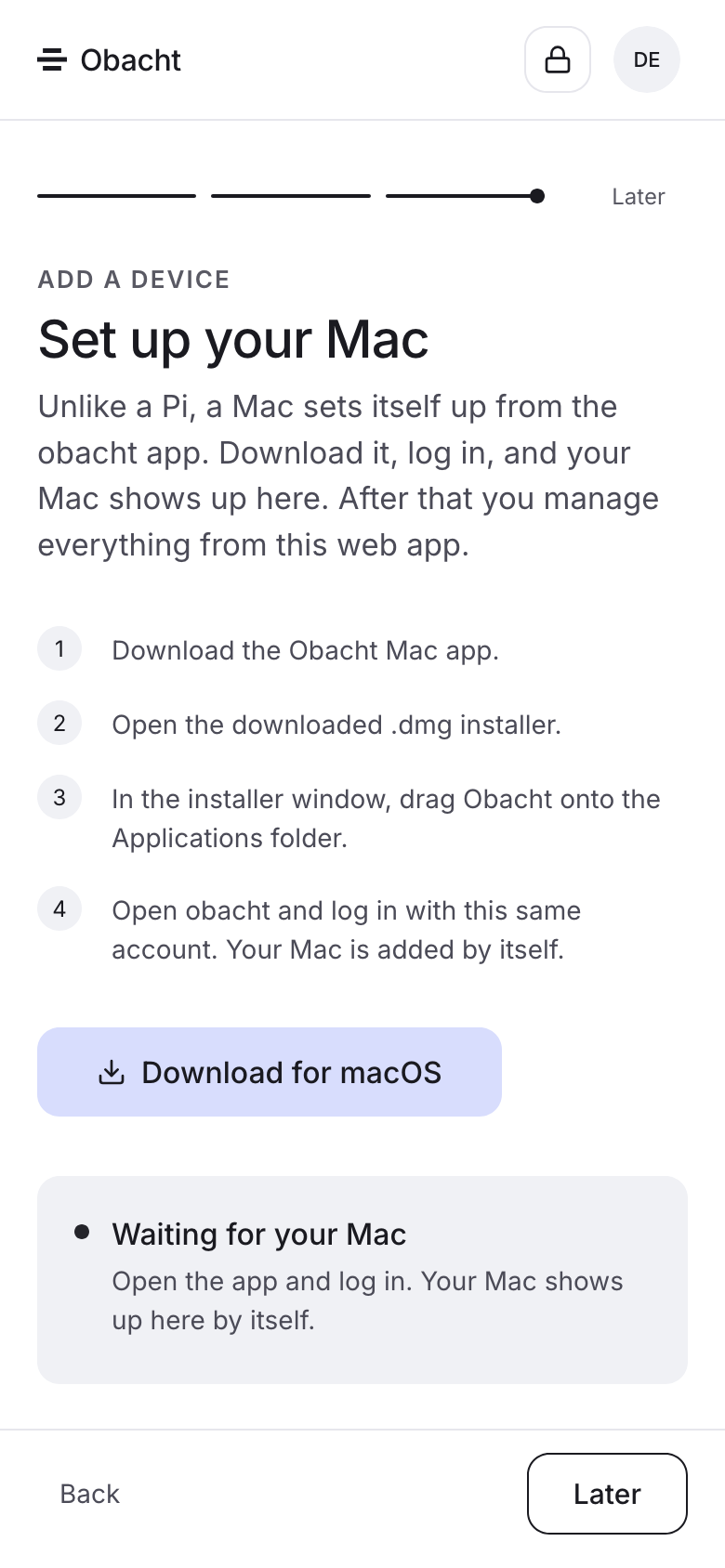
- In the web dashboard, open Device, click Add a device and pick Mac. On a Mac the card is already first: "You're on a Mac right now. Want to use this one?"
- If you have no device key yet, create one now (passphrase of at least 8 characters, Create key). See Your device key.
- Click Download for macOS (direct link: Obacht.dmg).
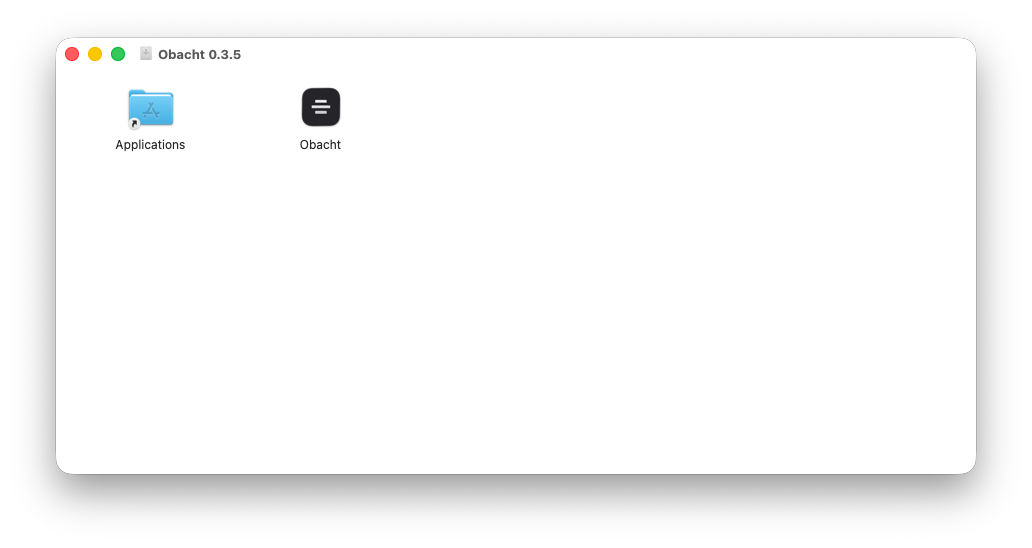
- Open the
.dmg, drag Obacht into Applications, open it from there.
Install from the .dmg. If you ever get the app as a zip, unpack it with Finder, never with unzip in a terminal. That breaks the signature and macOS calls the app "damaged".
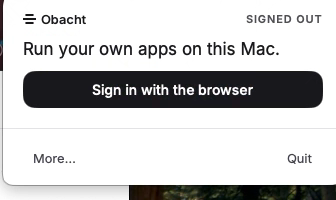
Sign in with the browser
The app lives in the menu bar. On first start it shows Sign in with the browser.
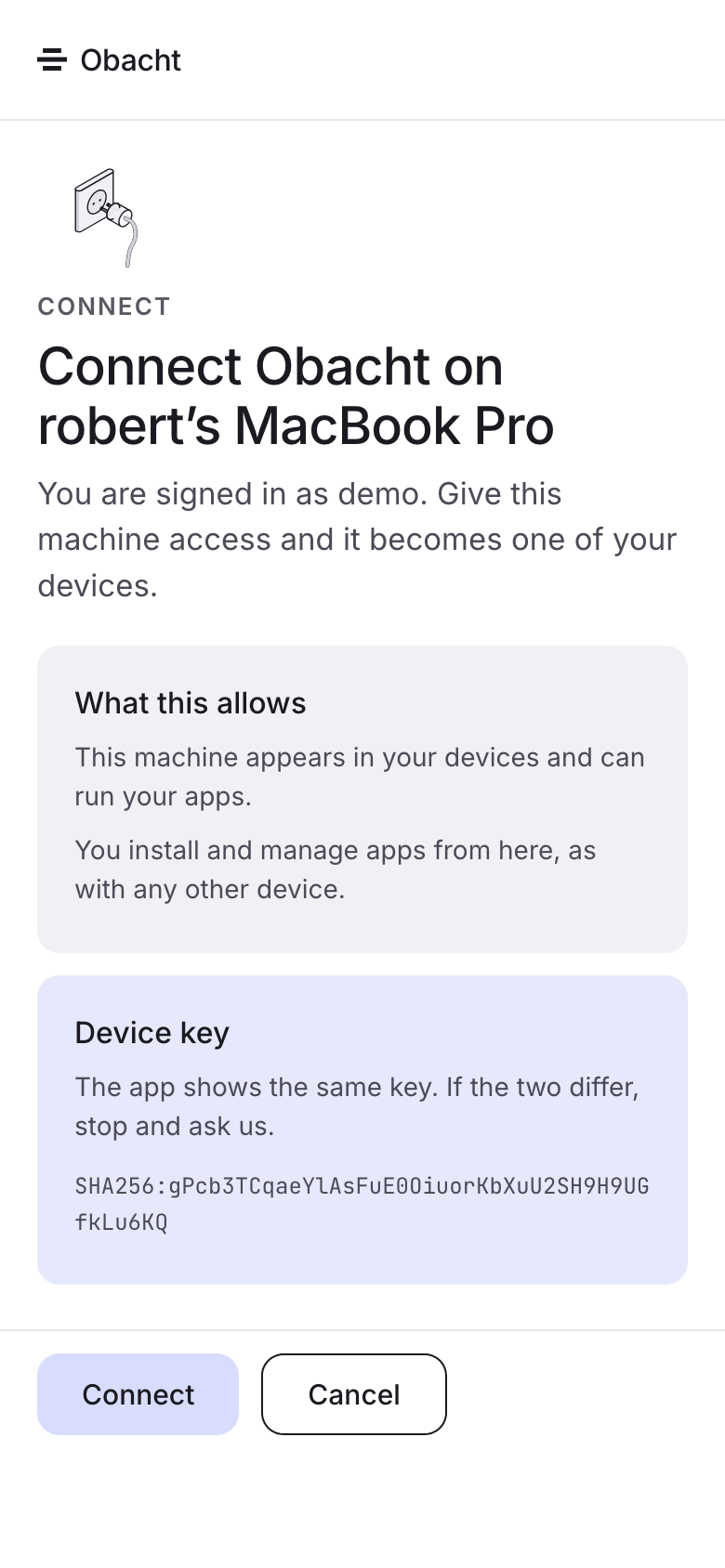
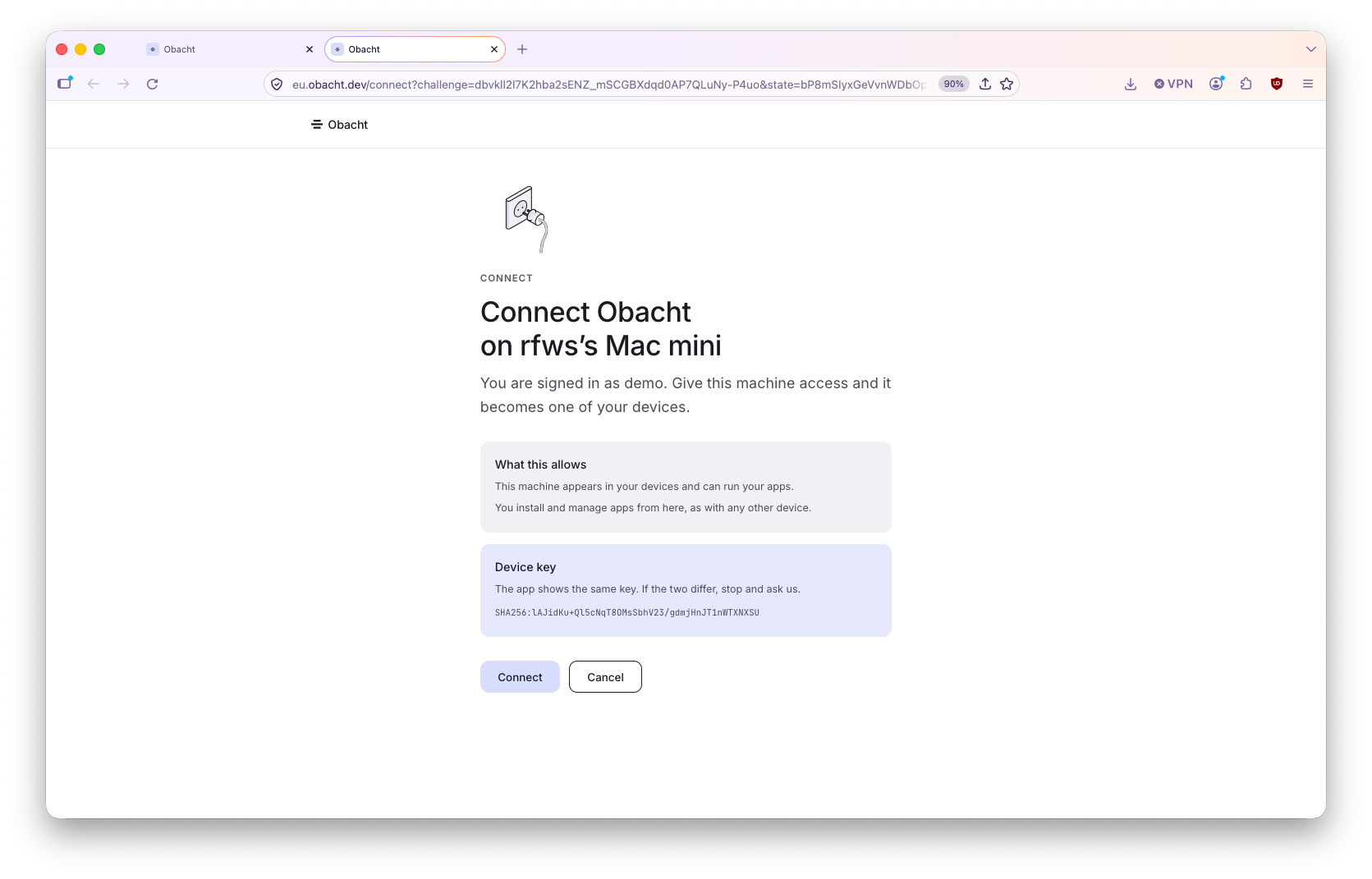
- Click it. Your browser opens the Obacht connect page for this Mac, signed in as your account, with a list of what connecting allows.
- The page shows a key fingerprint (a short code that identifies your device key). The app shows one too. Compare them. If they differ, stop and ask us.
- Click Connect. The page says "Switch back to Obacht".
Register and trust
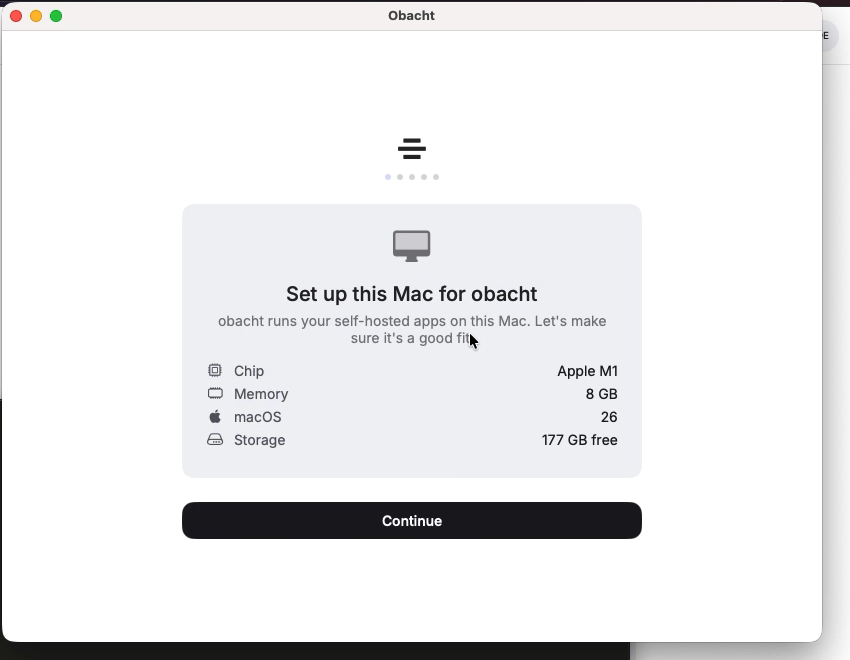
Back in the app: "Set up this Mac for obacht". Click Use this Mac, then Register this Mac. The app creates the device in your account and the keys for the Obacht network.
The trust step happens on the connect page: when the fingerprint in the browser matches the one in the app and you click Connect, the Mac pins your device key. From then on it only accepts changes signed with that key. Without a pinned key the Mac cannot receive any change from the dashboard, and installs stop with "This device can't install anything yet."
If the app finds data from an earlier installation it says "Old data is still on this Mac" and offers to clear it.
Back in the browser
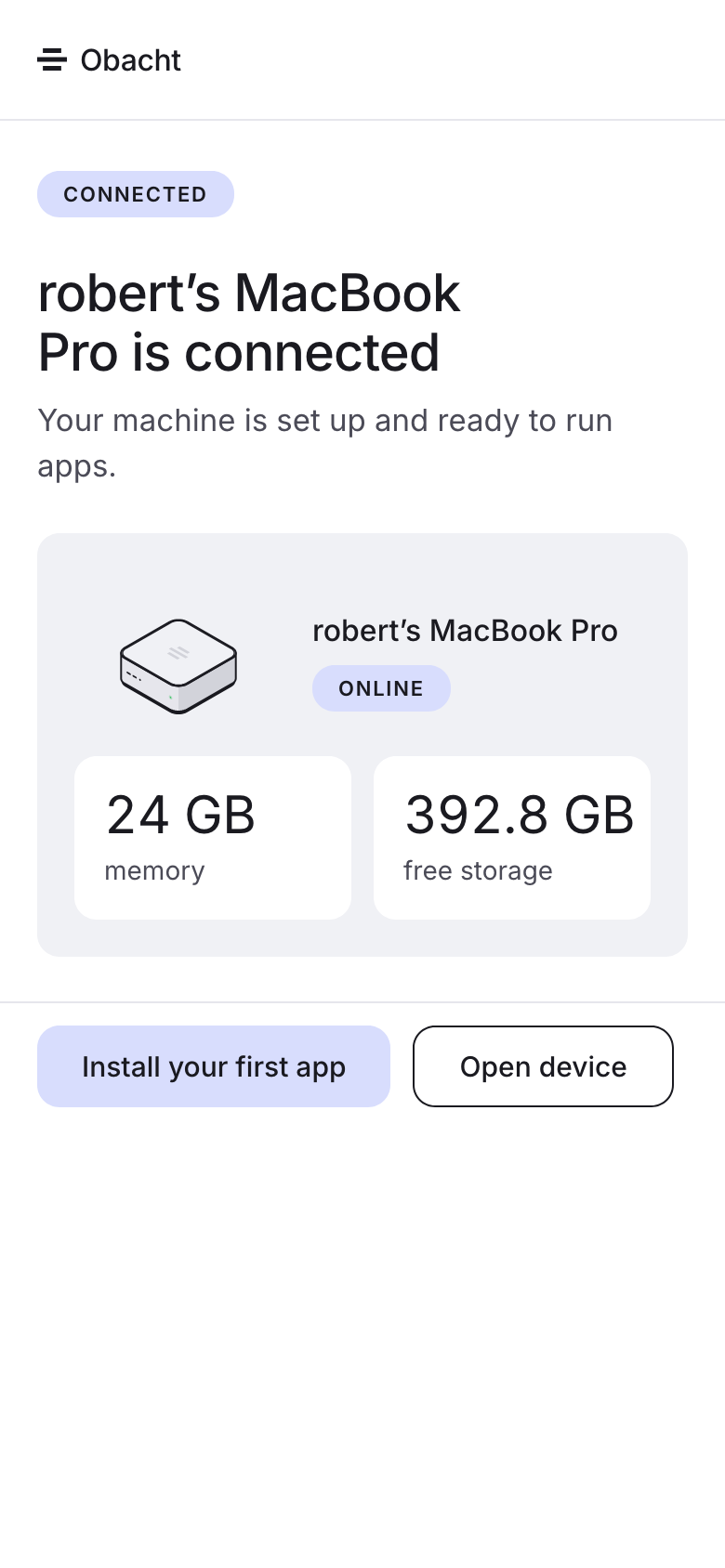
The add-device page waits ("Waiting for your Mac…") and then says your Mac is connected, with Add an app. From here on, installing apps and connecting web addresses happens in the dashboard. The app shows status and holds the controls for the Mac itself.
Two permissions
- Local Network. The app shows "Local Network access needed" with Open Local Network settings. Allow it; the notice clears itself.
- Login Items & Extensions. The app installs a small helper with elevated rights. If macOS blocks it, the app points you to Open Login Items & Extensions where you switch it on.
The menu-bar panel
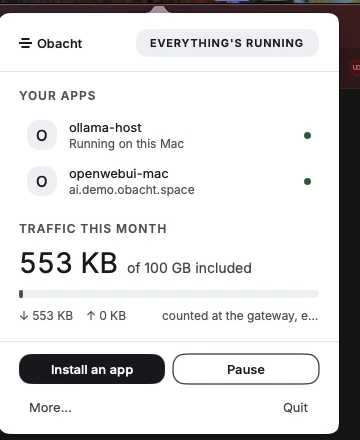
Click the Obacht icon in the menu bar. The panel shows your apps, your addresses and "Traffic this month", plus a status: Serving, Starting, Paused, Error or Ready. Actions: Pause / Resume, Open dashboard, More… and Quit Obacht.
Pause stops serving without removing anything. A notch can hide the icon; opening Obacht from Finder, Spotlight or the Dock shows the window.
The window and its settings
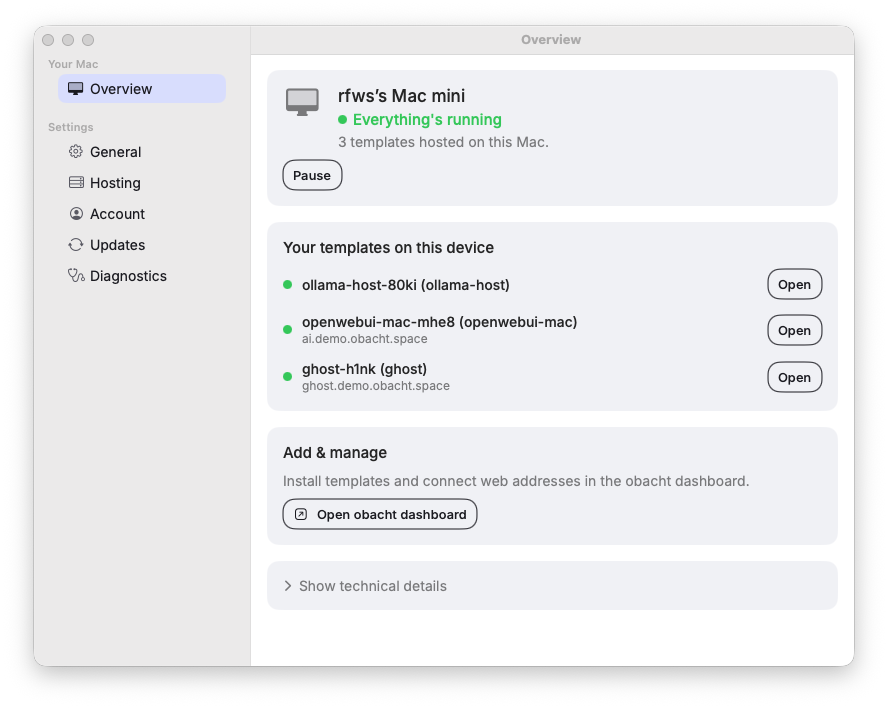
More… opens the window. Overview shows this Mac, whether everything is running, Pause, the templates on it with Open, and a button to the dashboard. Below that, Settings has General, Hosting, Account, Updates and Diagnostics.
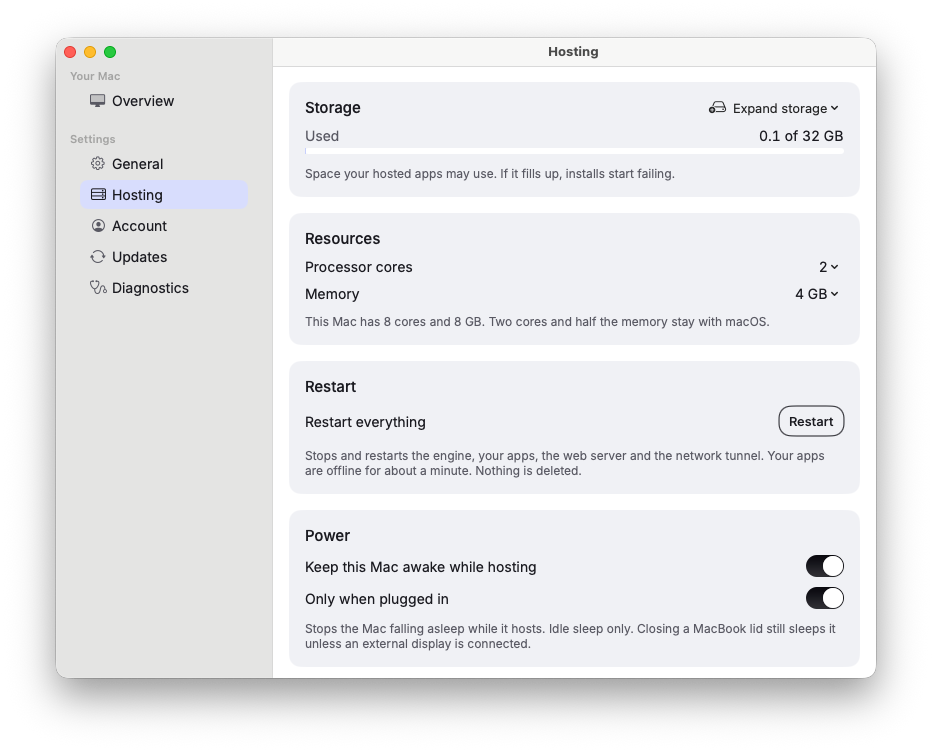
Hosting is the page you will need:
- Storage. Apps get 32 GB by default. When it fills up the app warns ("Storage is filling up", then "Storage is almost full") and installs start failing. Expand storage grows it; the hosting engine restarts briefly. It never shrinks again.
- Resources. Processor cores and Memory for the hosting engine (a small Linux virtual machine that runs your apps). Defaults are 2 cores and 4 GB; two cores and half the memory always stay with macOS.
- Restart everything. Stops and restarts the engine, your apps, the web server and the Obacht network. Apps are offline for about a minute, nothing is deleted. Use it when something is stuck.
- Power. Keep this Mac awake while hosting, optionally Only when plugged in. This stops idle sleep only: closing a MacBook lid still puts it to sleep unless an external display is connected.
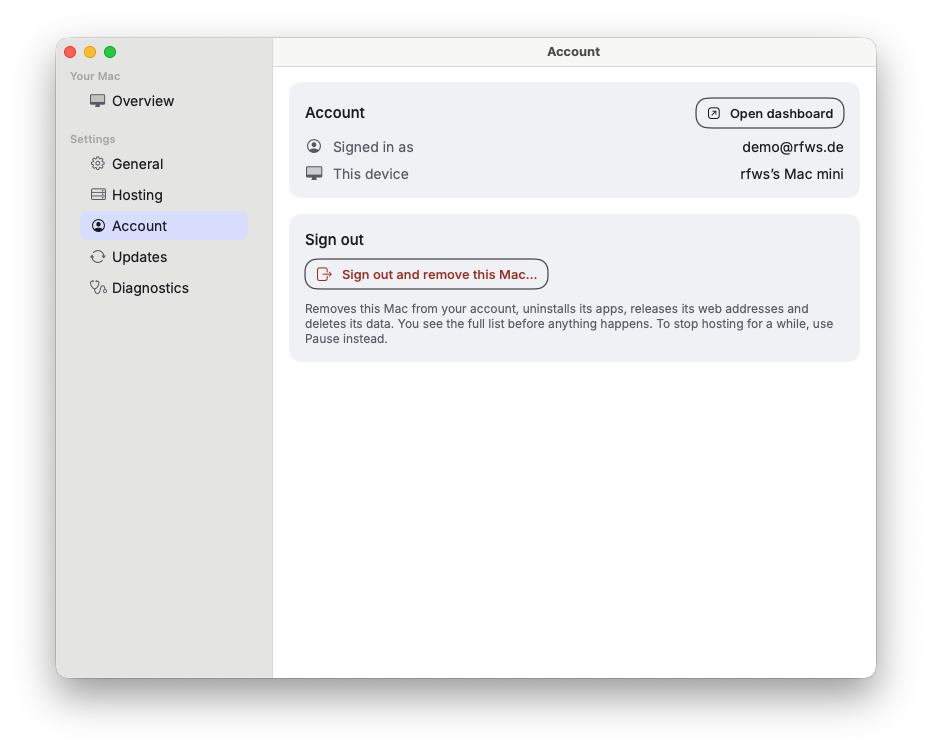
Account is where you sign out and remove this Mac (below). Diagnostics has Export logs for support.
Updates
The app checks daily and asks before installing. Check for Updates… in the app menu does it now; Install updates automatically in Settings skips the asking. The agent inside updates on its own.
Pause, sign out, remove
Pause in the panel is the gentle option: apps stop serving, nothing is deleted, Resume brings them back.
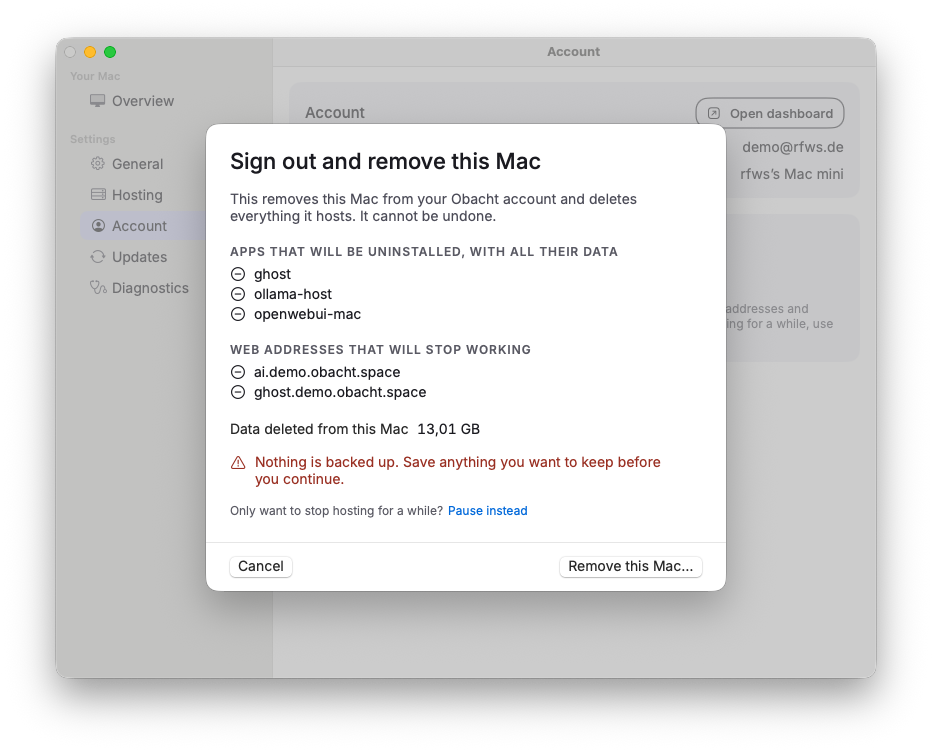
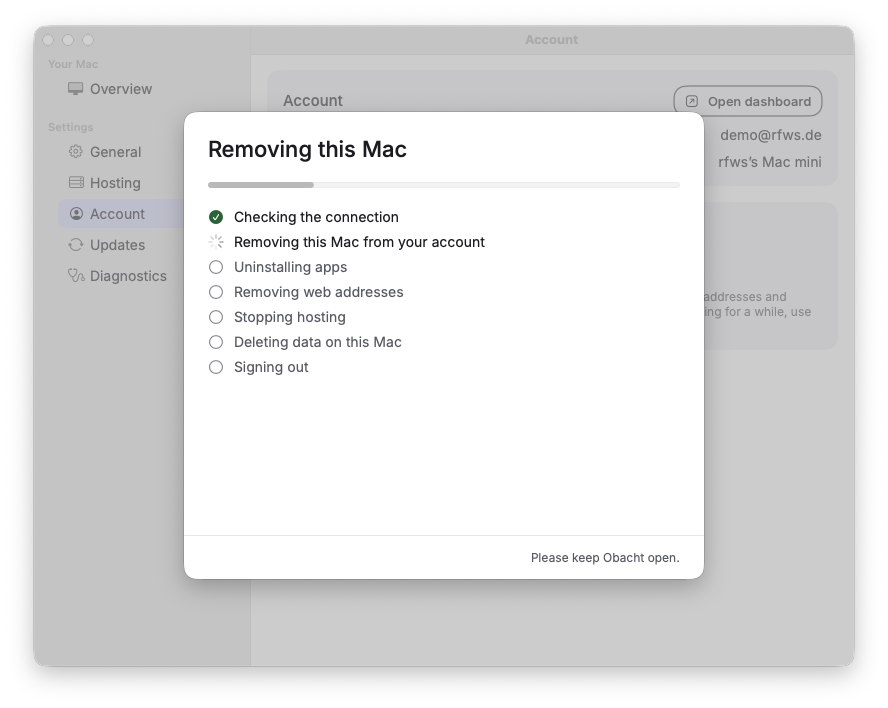
Sign out and remove this Mac… deletes everything: the apps, their data and the device in your account. The dialog lists the apps and "Web addresses that will stop working" and asks for Touch ID or your Mac password. Nothing is backed up first. It offers Pause instead and Remove from this Mac only as alternatives.
"Your session ran out. Hosting stays down until you sign in." means exactly that: sign in again through the browser and your apps come back.
What a Mac cannot do
No terminal, no file browser and no system services from the dashboard (those tabs say "not available for Mac devices"). No kiosk or camera apps. Apps that run right on the Mac rather than inside the engine (the Mac AI apps) install once per Mac, where a Pi can run several copies. Apps inside the engine see only their own data folder, never your home folder or your home network.
Next
Install an app. Problems: Mac app problems.