Terminal and files
On a Raspberry Pi or Linux PC you can open a command line and a file browser right in Obacht. Both need the device online and Power Mode turned on. The Mac app does not offer either.
Before you start
Both tabs live in the advanced view: open your device, click Advanced: Open advanced view, then pick Terminal or Files.
The tabs are greyed out unless all of this is true:
- the device is Online
- it is connected to the Obacht network (the encrypted connection to Obacht)
- Power Mode is on
Power Mode is switched on in the device's Settings tab. The greyed-out tooltip points you to the Overview tab, but the switch is under Settings. How it works and why it exists: Power Mode and system services.
Terminal
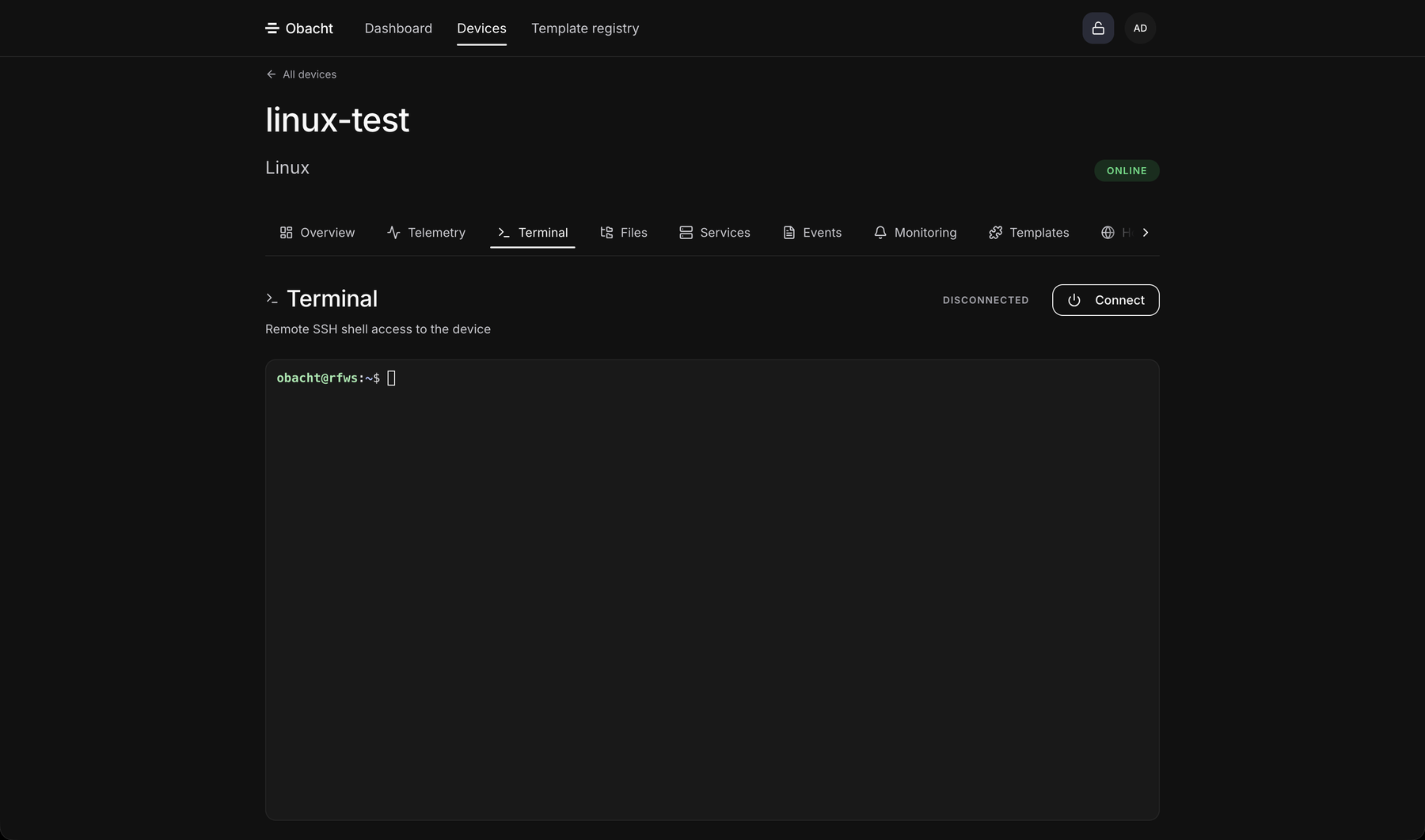
The Terminal tab opens an SSH session (a secure remote command line) to the obacht user on your device. It runs in your browser, nothing to install.
- Open the Terminal tab and click Connect.
- Enter your device key passphrase when asked. The dialog is called Unlock your device key in easy mode and Enter SSH Key Passphrase in advanced mode. Leave Don't ask again for this session ticked and you will not be asked again in this browser tab.
- You get a prompt. Type commands and press Enter.
Every terminal session is written to the device's event log, so you can see in the Events tab when someone opened a shell.
A few things that trip people up:
- Ctrl+C does not copy. In a terminal it cancels whatever is running.
- To paste a command you copied elsewhere, use the clipboard button in the terminal toolbar or right-click and choose paste. Text you select in the terminal is copied for you in most browsers.
- Close the tab and the session ends. Long jobs stop with it.
More commands and the editor are on Terminal basics.
Files
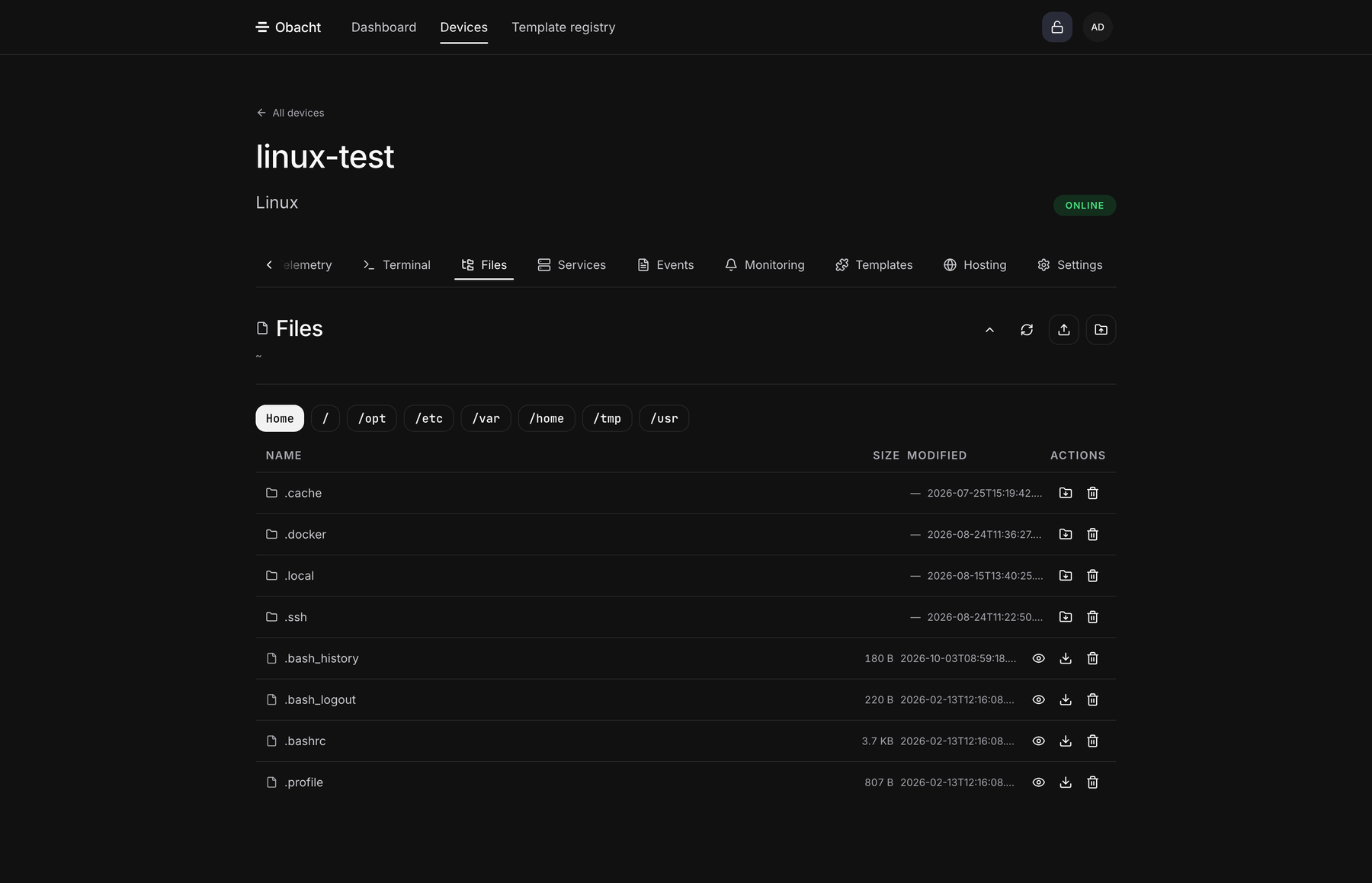
The Files tab is a file browser for the same obacht user. It starts in that user's home folder.
You can:
- open folders and go back up
- preview small text files
- download a file, or a whole folder as a zip
- upload files
- create a new folder
- replace a file with a new upload
- delete files and folders
Some folders are marked Protected folder. Those belong to the system or to Obacht itself and cannot be changed from here.
| Limit | Value |
|---|---|
| Upload | 25 MB per file |
| Folder download as zip | 500 MB, 2000 files, 25 folder levels deep |
Anything larger goes over the terminal, for example with scp from another machine, or in several smaller uploads.
Delete has no undo and no bin. Obacht makes no backups of your device. If a file matters, download it first.
Files of a website app
Static website apps have their own small file browser on the app page: Browse files in the app's row on the Templates tab. The same 25 MB upload limit applies. See Manage an app.