Power Mode and system services
A fresh device keeps Obacht on a short leash. Power Mode lengthens it. Turn it on when you need the terminal, the file browser, system services, or an app that drives the Pi's screen or camera.
What Power Mode is
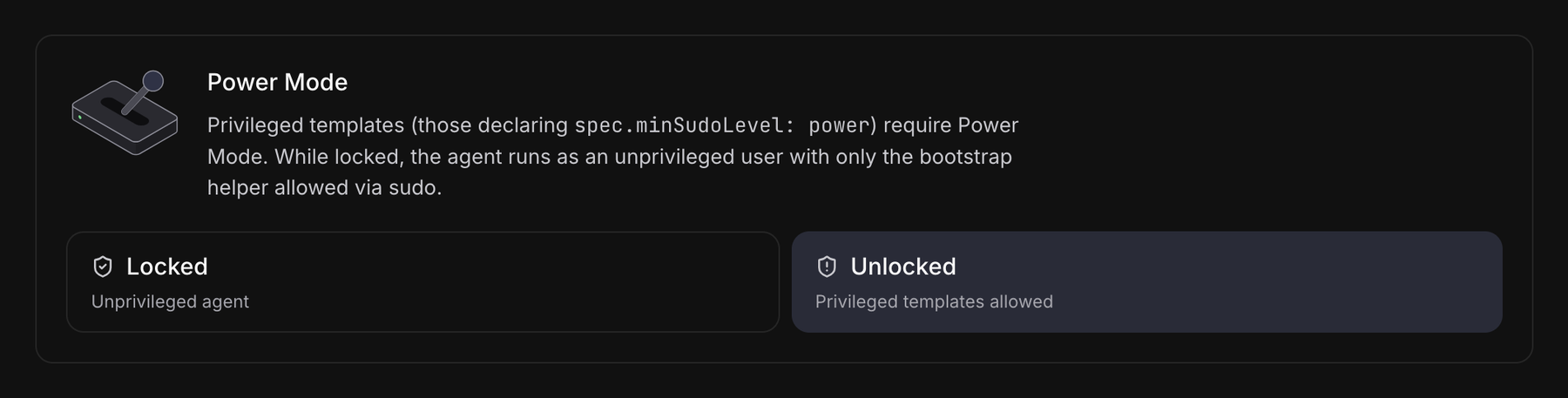
The Obacht agent, the small program on your device, starts in a restricted state. In the device Settings tab this shows as Unprivileged agent. In that state it can install and run normal apps in containers, but it cannot touch the operating system itself.
Switch Power Mode on and the state becomes Privileged templates allowed. Now the agent may:
- open a terminal and the file browser for you
- start, stop and enable system services
- install apps that need to run outside a container, for example the Pi kiosk and camera apps
Nothing else changes. Your apps keep running either way.
Why it exists
Most apps never need more than a container. So the agent stays restricted by default and only gets the extra reach into the operating system when you ask for it. You can lock it again afterwards.
Power Mode is a Pi and Linux feature. The Mac app has no equivalent, which is why a Mac has no terminal, file browser or services tab.
What needs it
| Feature | Needs Power Mode |
|---|---|
| Installing and running normal apps | No |
| Web addresses, password protection | No |
| Terminal tab | Yes |
| Files tab | Yes |
| Services tab | Yes |
| Pi kiosk and camera apps | Yes |
When an app in the store needs it, its page says "Requires Power Mode" and tells you to unlock it in the device settings first. More blockers on When an app cannot be installed.
Unlock and lock
- Open your device and click Advanced: Open advanced view.
- Pick the Settings tab and find the Power Mode section.
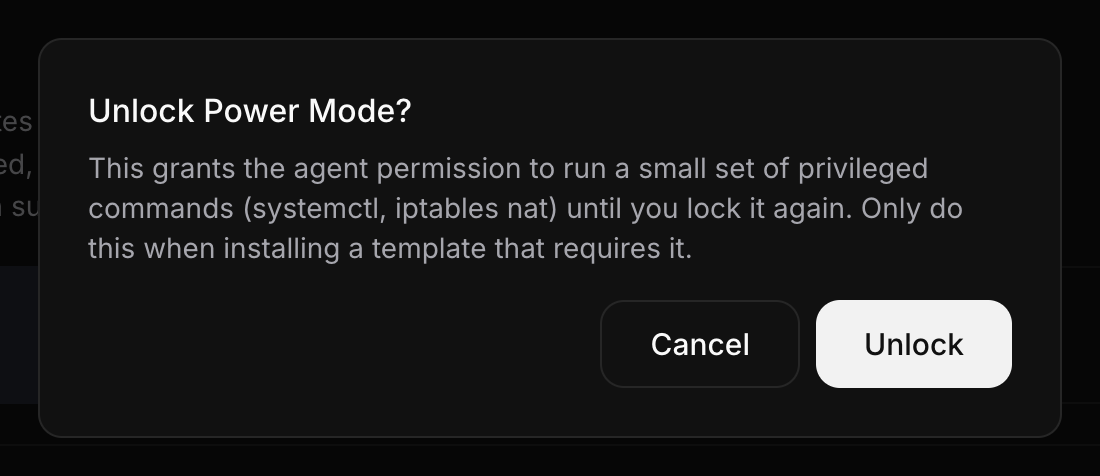
- Click the switch. A dialog asks Unlock Power Mode? (or Lock Power Mode? when turning it off). Confirm.
- Enter your device key passphrase if the browser asks for it. The change is signed with your key like every other change to the device.
The state line flips between Unprivileged agent and Privileged templates allowed. Locking again does not stop apps that are already installed.
Lock Power Mode again when you are done with the terminal. Unlocking takes two clicks the next time.
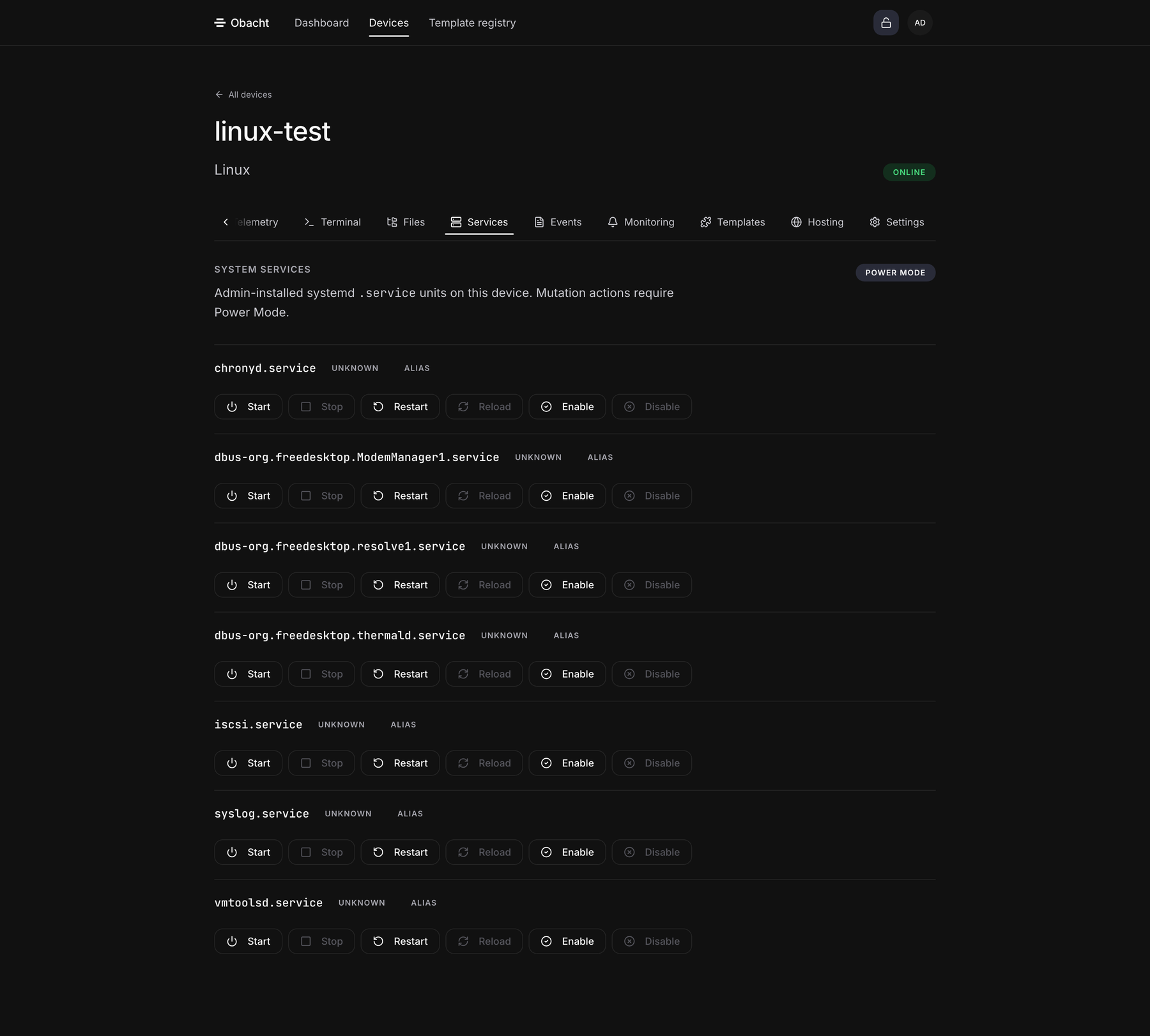
Services tab
With Power Mode on, the Services tab lists the system services on your device (systemd units, the background programs the operating system runs). For each one you can:
- Start and Stop it now
- Restart it, which stops and starts it in one go
- Reload it, which makes a service re-read its settings without a full restart
- Enable it so it starts at every boot, or Disable it so it does not
Each action needs your passphrase if the key is locked.
Stopping or disabling the wrong service can take the device offline. Leave obacht-agent, wg-quick@wg0, docker and ssh alone unless you know why you are touching them.
Your apps are not listed here. Start and stop them from the app page, see Manage an app.
Next: Update, restart, remove.