Raspberry Pi or Linux PC with one command
When you are done your Pi or Linux PC is online in Obacht. You need a device that is already running Linux and that you can type into, either directly or over SSH (a remote terminal), plus a user that is allowed to use sudo.

Requirements
- Operating system: Raspberry Pi OS (Bookworm or newer, 64-bit), Debian or Ubuntu Server. It has to use
aptandsystemd, which all three do out of the box. Other Linux families do not work. - Hardware: Raspberry Pi 4 or 5, or an x86_64 PC. About 2 GB of RAM and 4 GB of free disk.
- Access: a terminal on the device and a user with
sudo. - Docker: not needed in advance. The command installs it if it is missing. If Docker came from Snap, the command refuses to run and tells you to
sudo snap remove dockerfirst.
Create the command
- Sign in at eu.obacht.dev, open Device and click Add a device.
- Pick Raspberry Pi or Linux PC.
- If you have no device key yet, create one: passphrase of at least 8 characters, Create key. See Your device key.
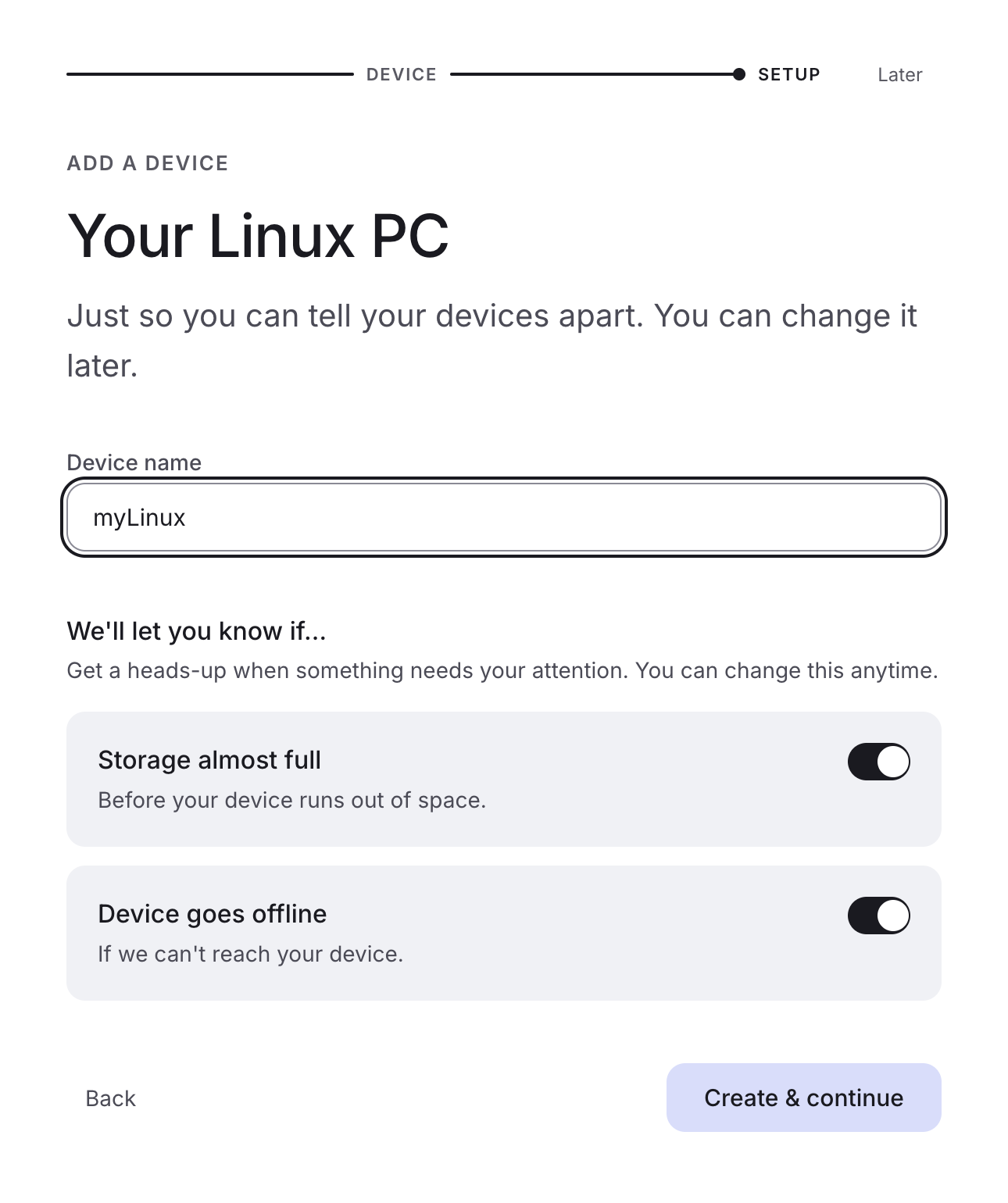
- Name the device, leave the alert toggles as they are, click Create & continue.
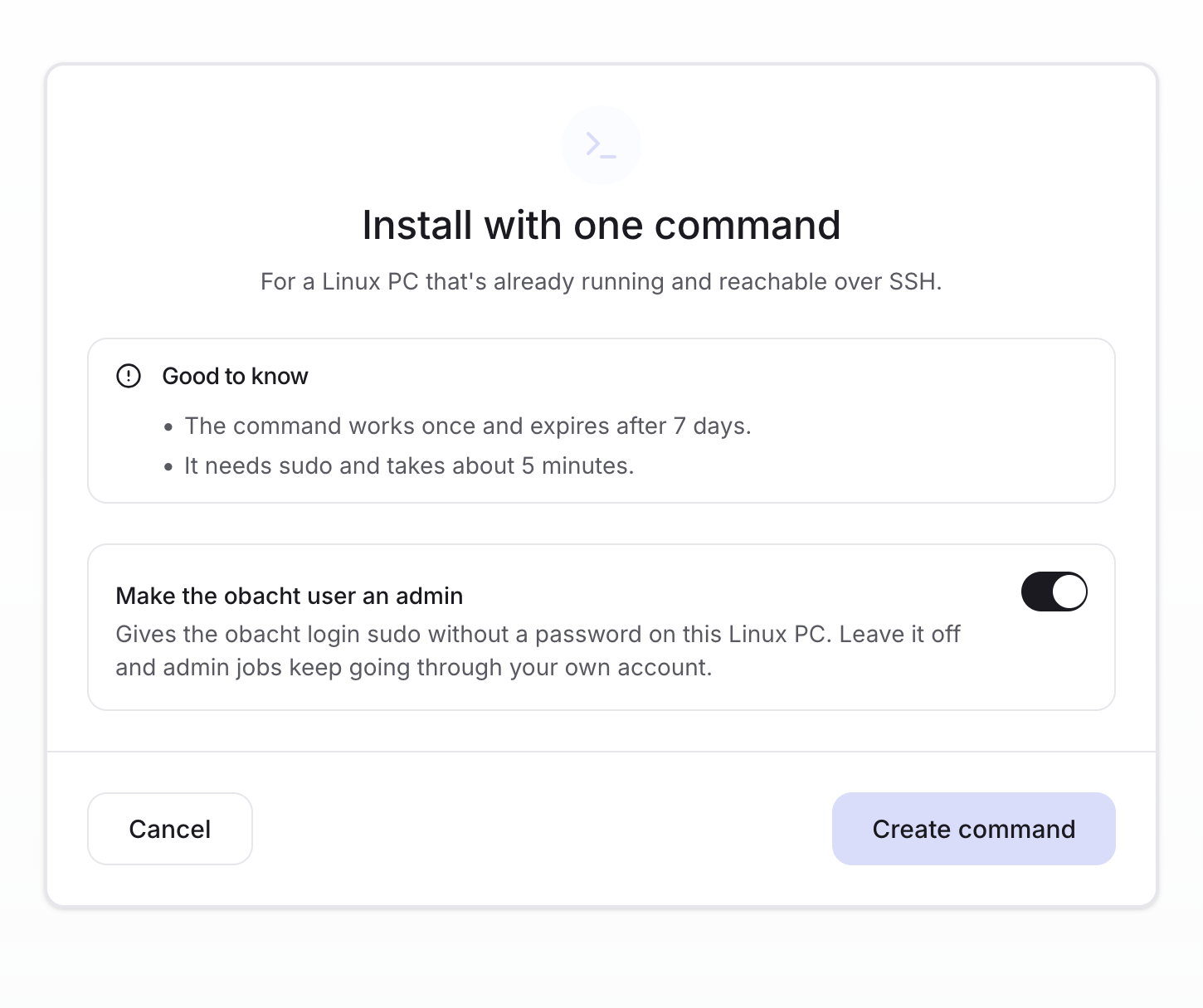
- A Linux PC goes straight to "Install with one command". For a Pi in easy mode the wizard offers the SD card; in advanced mode pick Install command.
- Decide on the admin toggle (below), then click Create command and Copy.
The admin toggle
Make the obacht user an admin is off by default. The command creates a login user called obacht on the device. With the toggle on, that user can run sudo without a password ("Gives the obacht login sudo without a password on this device. Leave it off and admin jobs keep going through your own account.").
Leave it off unless you know you want it. Everything in Obacht works without it. Turn it on if you plan to use the web terminal for system administration and do not want to switch to your own user for every sudo.
Run it on the device
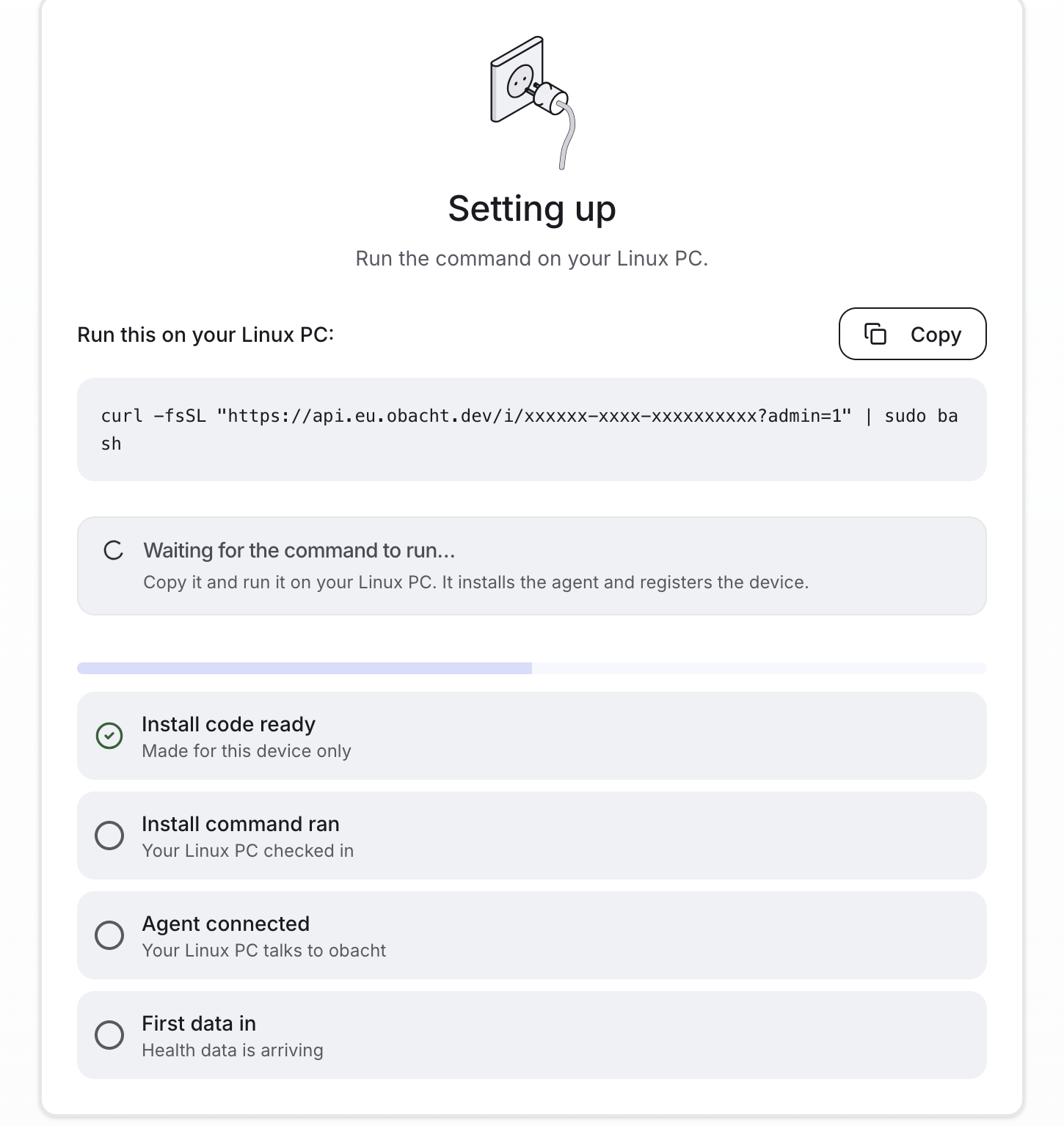
Open a terminal on the device, paste the command, press Enter. It looks like this:
curl -fsSL "https://api.eu.obacht.dev/i/<your-code>" | sudo bash
With Make the obacht user an admin switched on, the address ends in ?admin=1. Copy the command with Copy instead of typing it.
It asks for your sudo password once, then runs for about 5 minutes. What it does, in short: it installs a few tools and Docker if missing, creates the obacht user, joins the device to the Obacht network and starts the Obacht agent (the program that talks to Obacht and runs your apps). The agent is checked against a signature before it starts. Step by step on Paths, logs and the installer.
The command works once and expires after 7 days. If it stops halfway, fix the cause (the last lines in the terminal say what went wrong) and run the same command again on the same device. That is safe. You do not need to watch the terminal: the checklist in the browser moves on by itself once the device has checked in.
The command is kept only until you reload the wizard page. If the page says "Your install command is gone", click Create a new one. The old one stops working.
Watch the checklist
Back in the browser the wizard ticks off:
- Install code ready
- Install command ran
- Agent connected
- First data in
The page checks every 10 seconds. When the last one is ticked it says your device is online. Easy mode: Add your first app. Advanced: Open device.
If it does not finish
- "Install command ran" never ticks: the command did not reach the end. Read the last lines in the terminal. Snap Docker and a 32-bit OS are the usual causes.
- "Agent connected" never ticks: the device cannot reach Obacht. A router that blocks UDP, or no internet at all. See Device shows offline.
- You are reusing hardware that had Obacht before: see Reuse a device or start over.