Remove an address
Removing an address takes the name off your device and frees it at the Obacht gateway. The app stays installed. Afterwards the name is free, and any account can claim it again, including yours.
Remove it
- Open the device, in easy mode Open advanced view, then the Hosting tab.
- In the row of the address click Remove domain and unlock your device key when asked.
- The device drops the site and its certificate, then the gateway releases the name.
An app without an address keeps running. Its page shows "No web address yet" and Add a web address.
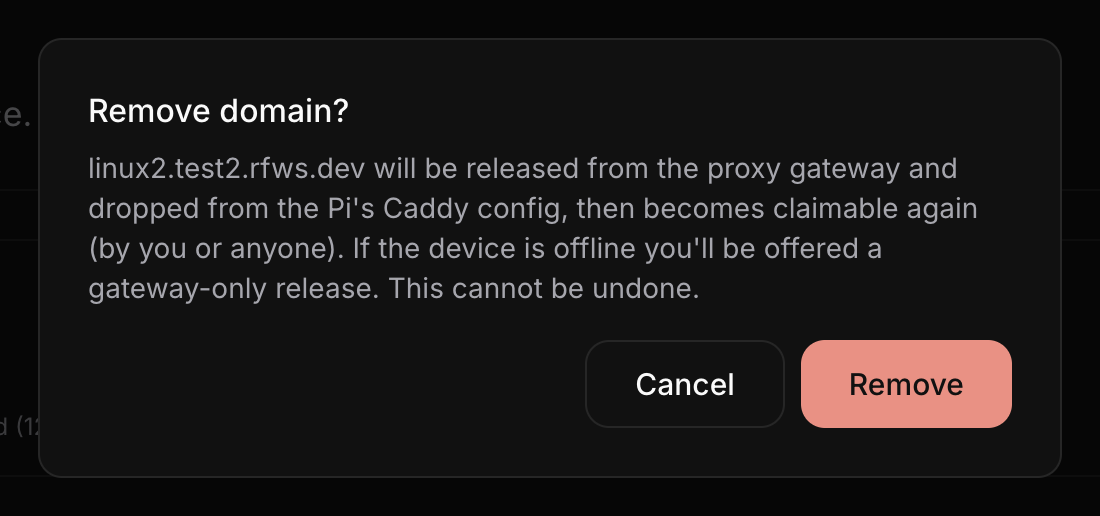
When the device cannot be reached
If the device is offline the webapp asks: "Couldn't reach notes.example.com's device… Force-release it from the gateway?" Click Force release. The name is freed at the gateway right away; the device cleans up by itself the next time it comes online. Use this when the device is gone for good, or when you need the name on another device now.
Deleting a device or your account
Removing a device from Obacht releases every address on it. The dialog says how many: "N addresses will be released… claimable again, by you or by anyone". Deleting your account does the same for all devices, and also removes your protected zones. See Update, restart, remove and Your data.
A released name is first come, first served again, unless it sits inside a protected zone of your account. If you want to keep a name, add it to another device before you remove the old one.
Removing an app keeps its address
When you remove an app, its address stays yours and stays on the device. It just points at nothing anymore. In the Hosting tab you can point it at another app, or remove it here to free the name.