Install problems
Problems come in two kinds: setting up the device itself, and installing an app on it. The first half of this page is about the device, the second about apps.
The command stops with a message about snap Docker
Cause: Docker on this machine was installed as a snap package (common on Ubuntu Desktop). Obacht cannot work with it.
What to do: Remove it and run the install command again:
sudo snap remove docker
The installer then installs Docker itself.
"This install command has expired" or it was already used
Cause: An install command works once and expires after 7 days. It is also gone from the page once you reload it.
What to do: Go back to the device's setup page and click Create command again. If the page says "Your install command is gone", that is the same thing: create a new one and copy it fresh.
The SD card files do not connect the Pi
Cause: The files in the ZIP work once. If you flashed a second card with the same files, or the first boot already used them up, the Pi cannot register.
What to do: On the setup page click Reset and download again, copy the new files onto the bootfs drive and let the Pi boot again. Also check that you flashed Raspberry Pi OS Lite (64-bit), Bookworm or newer, and that you allowed the Imager files to be replaced, especially cmdline.txt.
The device connects, but the store is empty or every app is blocked
Cause: The operating system is 32-bit, or the hardware is an older ARM board (armv7). The agent runs there, but apps are built for 64-bit only.
What to do: On a Pi 4 or 5, flash the 64-bit image and set the Pi up again. On older boards there is no fix. Which hardware works: Which device?.
"Needs N RAM" or "Needs N free disk"
Cause: The app declares what it needs and your device has less. The message tells you both numbers.
What to do: Free up disk by removing apps or files, or pick a smaller option in the app's settings if it offers one. RAM cannot be freed in a useful way; choose a lighter app or a bigger device. Full list of blockers: When an app cannot be installed.
An app shows "State mismatch" or "Something went wrong"
Cause: The app should be running but is not, or an install step failed on the device. Common reasons are a disk that filled up during the download, a wrong setting that the app refuses to start with, or a download that broke off.
What to do:
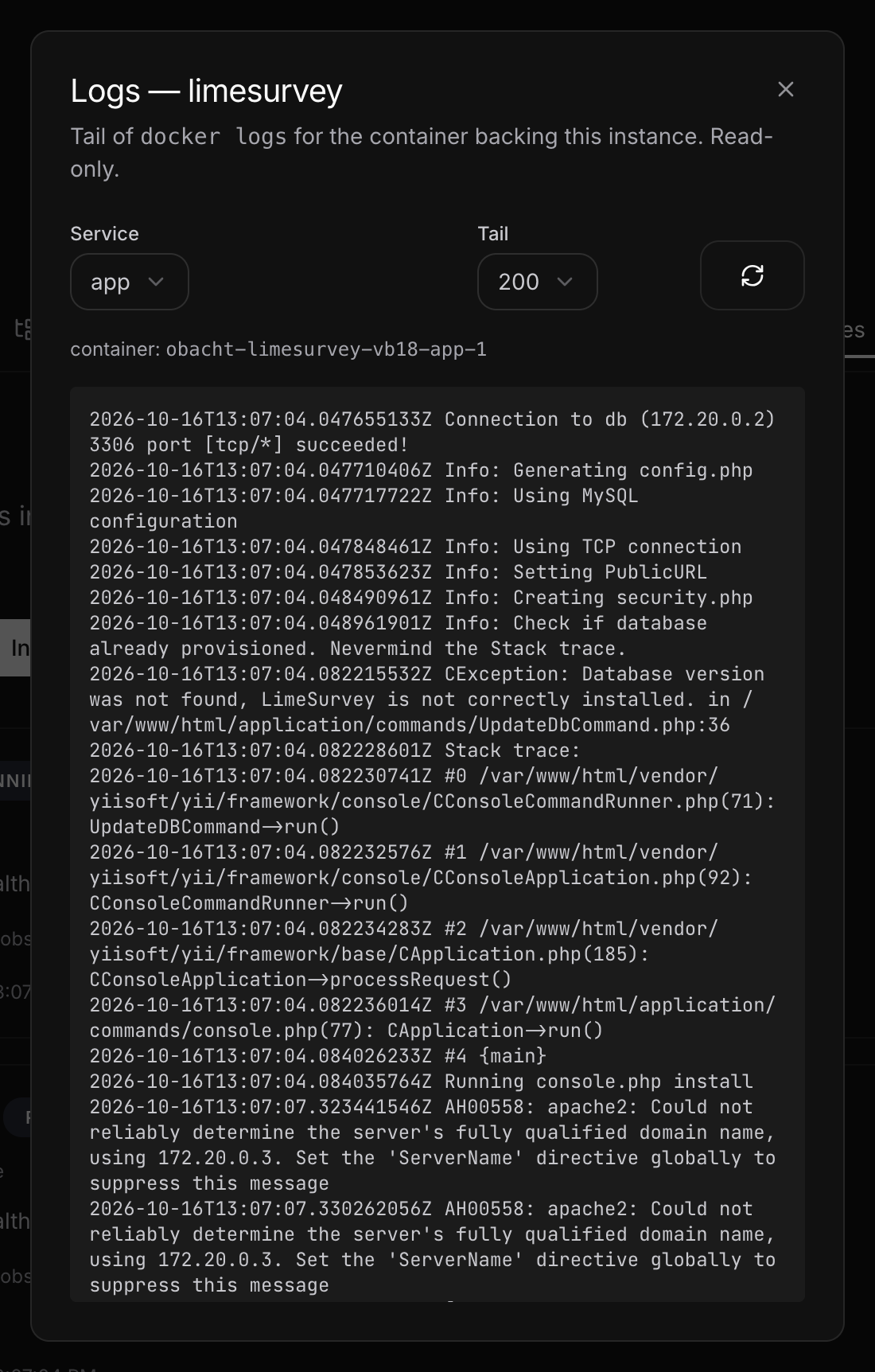
- Click View logs on the app's row. The last lines usually name the problem.
- Click Stop, wait until it shows stopped, then Start.
- If it still fails, check Settings on the app page for a value that looks wrong and save it. The device recreates the container.
- As a last resort Remove the app and install it again. Its data is removed with it.
Large bundles take 10 to 30 minutes to install. While the row says "Installing …" or "Pulling image …", just wait.
"This device can't install anything yet"
Cause: This is a Mac that has not trusted your device key yet. Without the pinned key the Mac rejects every change, including installs.
What to do: Open the Mac app, go through the trust step (Trust your device key, compare the fingerprint with the one in the webapp, Confirm & trust), then install again. See Your device key.
Running the same device's install command a second time is safe. It upgrades the agent in place and keeps your apps.