Install an app
When you are done, the app runs on your device and opens in your browser under its own web address. You need a device that is online and your device key (the key that signs every change to your device, see Your device key).
Find the app
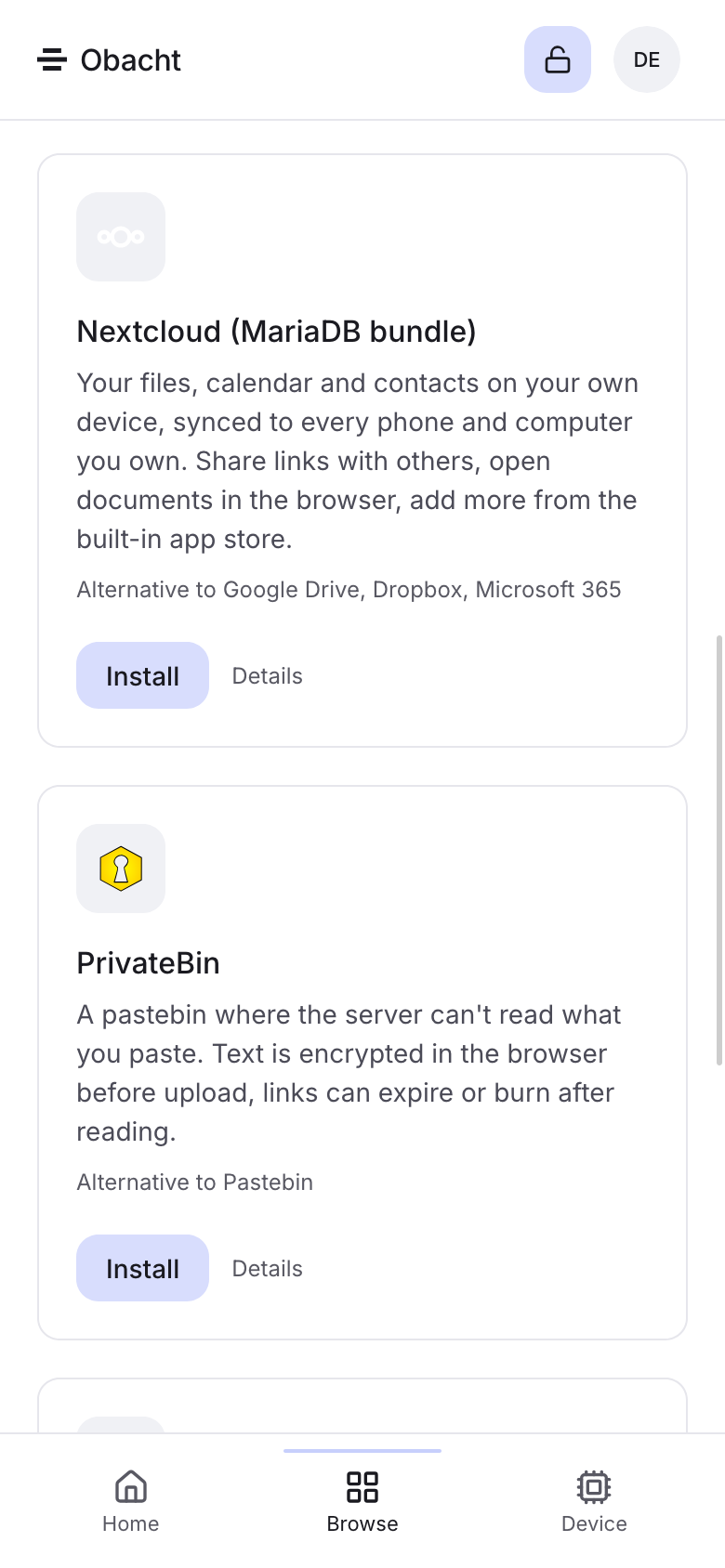
- Open Browse in the top navigation. The catalogue is sorted into categories such as "Your own cloud", "Be visible online" or "Your own AI".
- Open a category and pick an app. The catalogue only shows apps your device can run. If an app shows a message instead of an install button, see When an app cannot be installed.
- The app page shows screenshots, "About this app" and links to the project. Click Install.
If you have more than one device, start from the device page instead and click Add an app there. The right device is then preselected.
Address
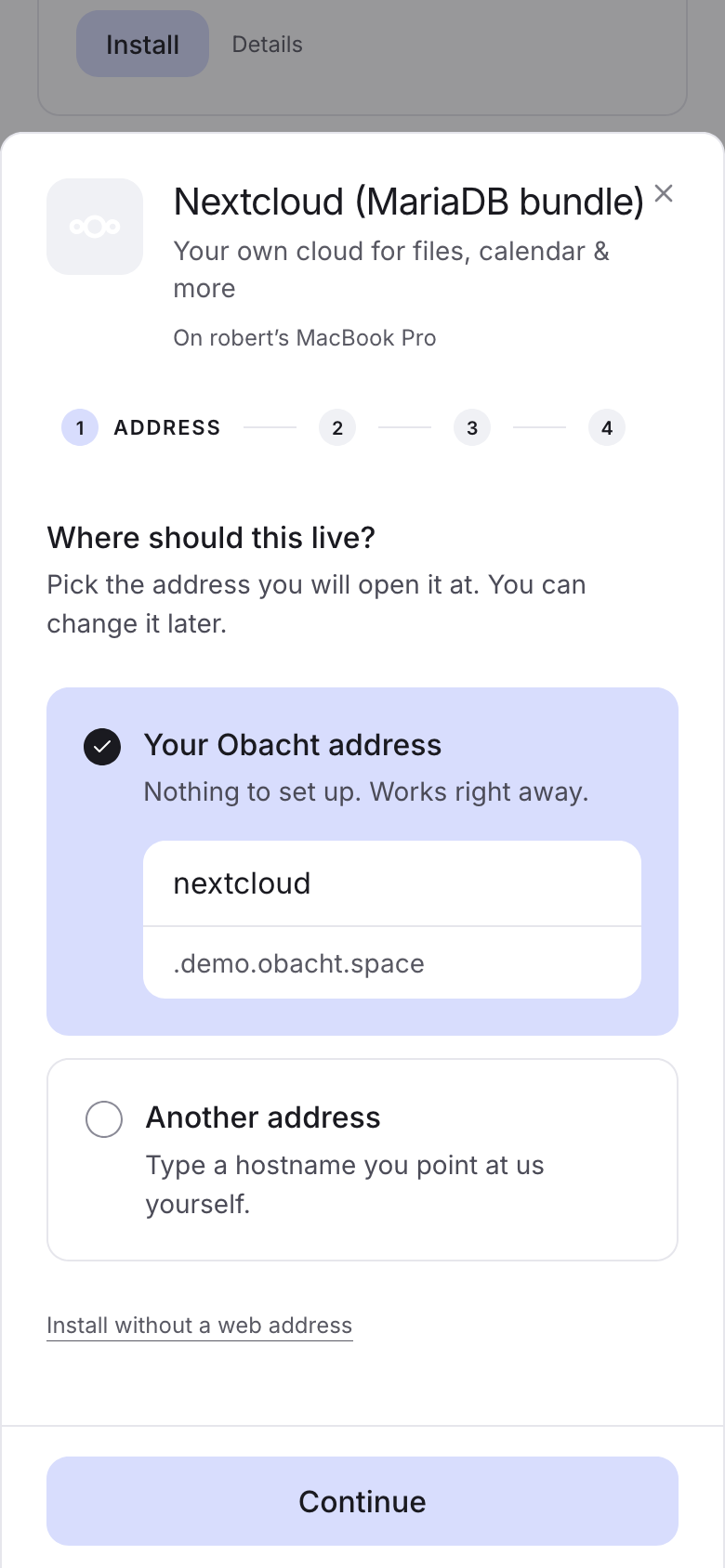
The install sheet opens with "Where should this live?". There are four options.
| Option | What it means |
|---|---|
| Your Obacht address | <app>.<you>.obacht.space, preselected. "Nothing to set up. Works right away." |
| Your own domain | A name under a domain you have protected before, for example notes.example.com. See Use your own domain. |
| Another address | Any hostname you point at Obacht yourself with one DNS record. See Point one domain at a device. |
| Install without a web address | The app runs but has no address yet. "You can add one later from the app page." |
In easy mode the address and the settings share one screen. In advanced mode the address is a step of its own.
Settings
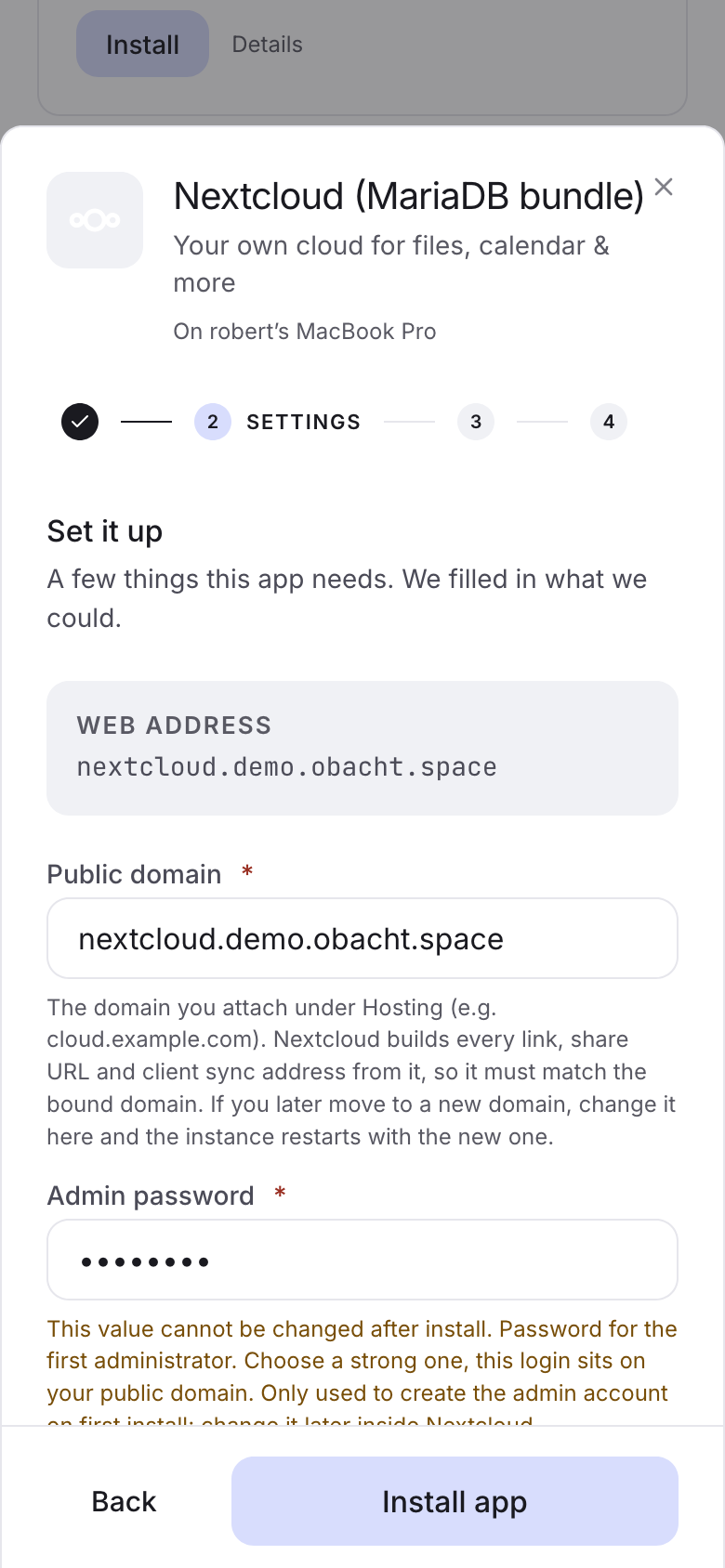
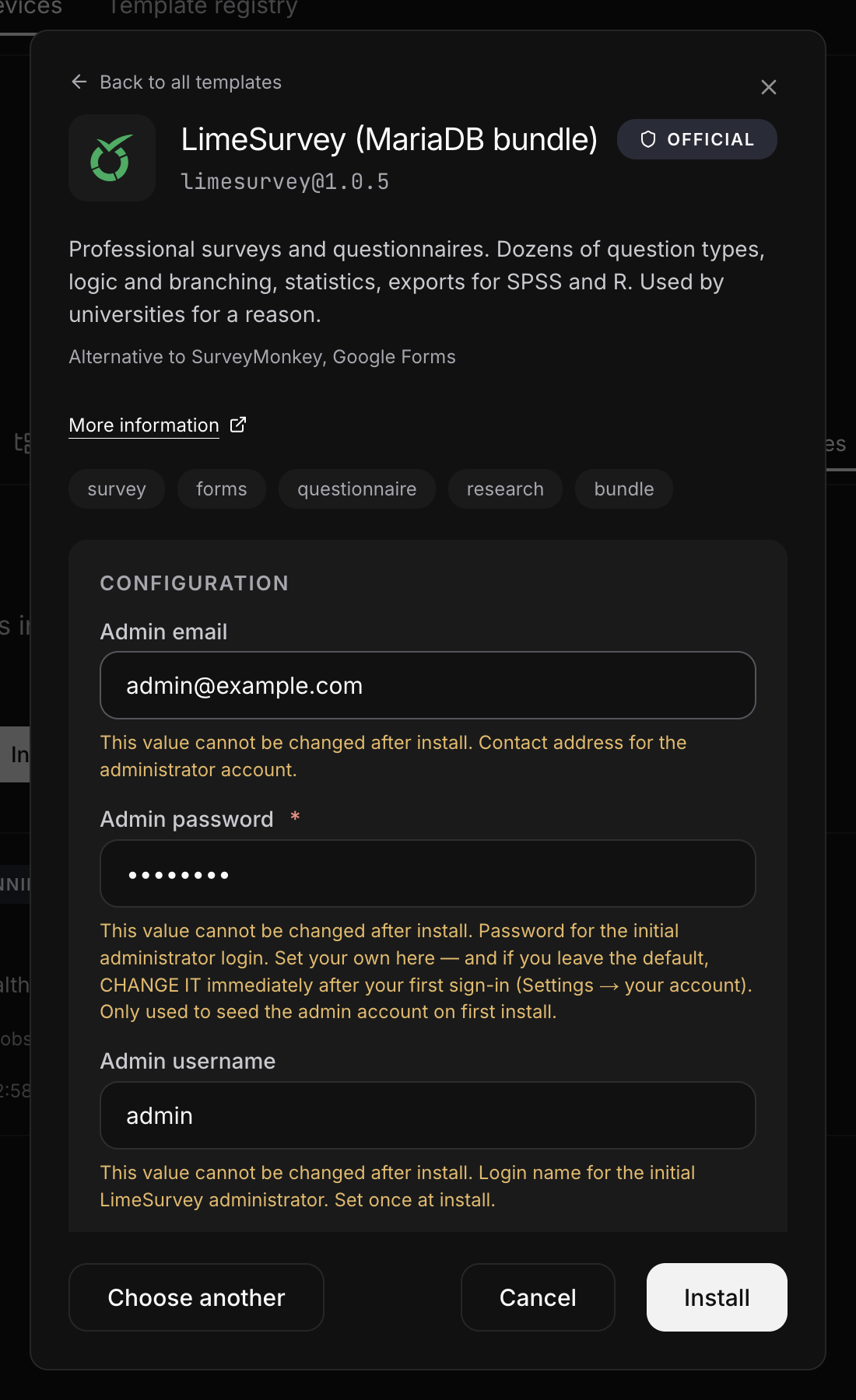
"Set it up" lists what the app needs: text, numbers, on/off switches, drop-downs, passwords, an email address or a time zone. Fields that hold a URL are filled in from the address you chose.
- Fields marked "This value cannot be changed after install." are fixed once the app runs. Read them twice.
- In easy mode, rarely needed fields are folded behind Advanced options (N). Advanced mode shows every field inline and adds a Name for the installed copy.
- If the app recommends it, a Password protection block appears. Set a username and a password and the address asks for them before the app loads. Details in Password protection.
Confirm the install. Your browser asks for the passphrase of your device key ("Unlock your device key") unless you unlocked it earlier in this tab.
Installing
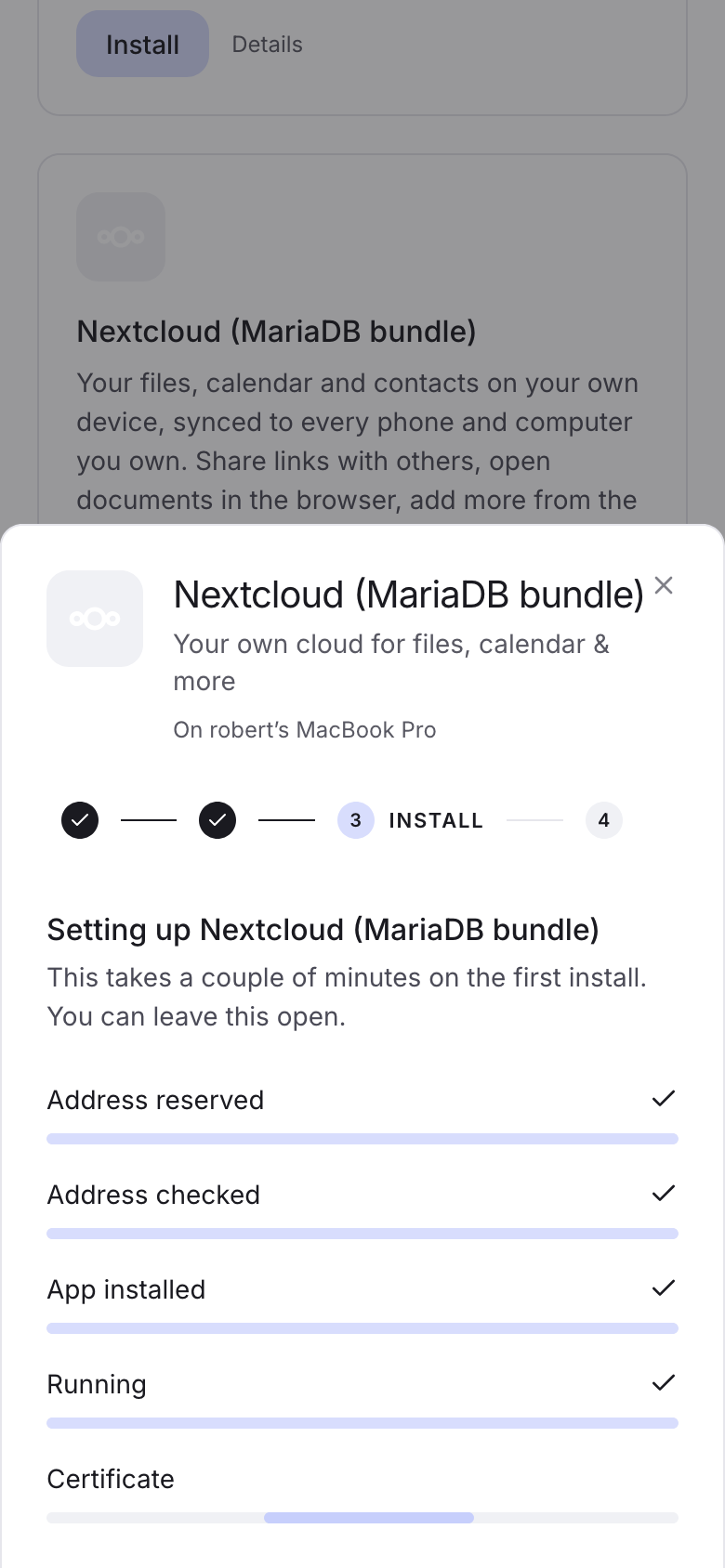
The sheet shows the stages: "Address reserved", "Address checked", "App installed", "Running", "Certificate", "Password protection", "Done". A single app takes a few minutes. Large bundles with several containers take 10 to 30 minutes, mostly for downloading.
If the address cannot be set up, the install keeps going: "The app is installing. We couldn't set the address up, you can add one later." If the install itself fails you see "That did not work: … Check the settings and try again." The error text comes from the device and usually names the field that is wrong.
Ready
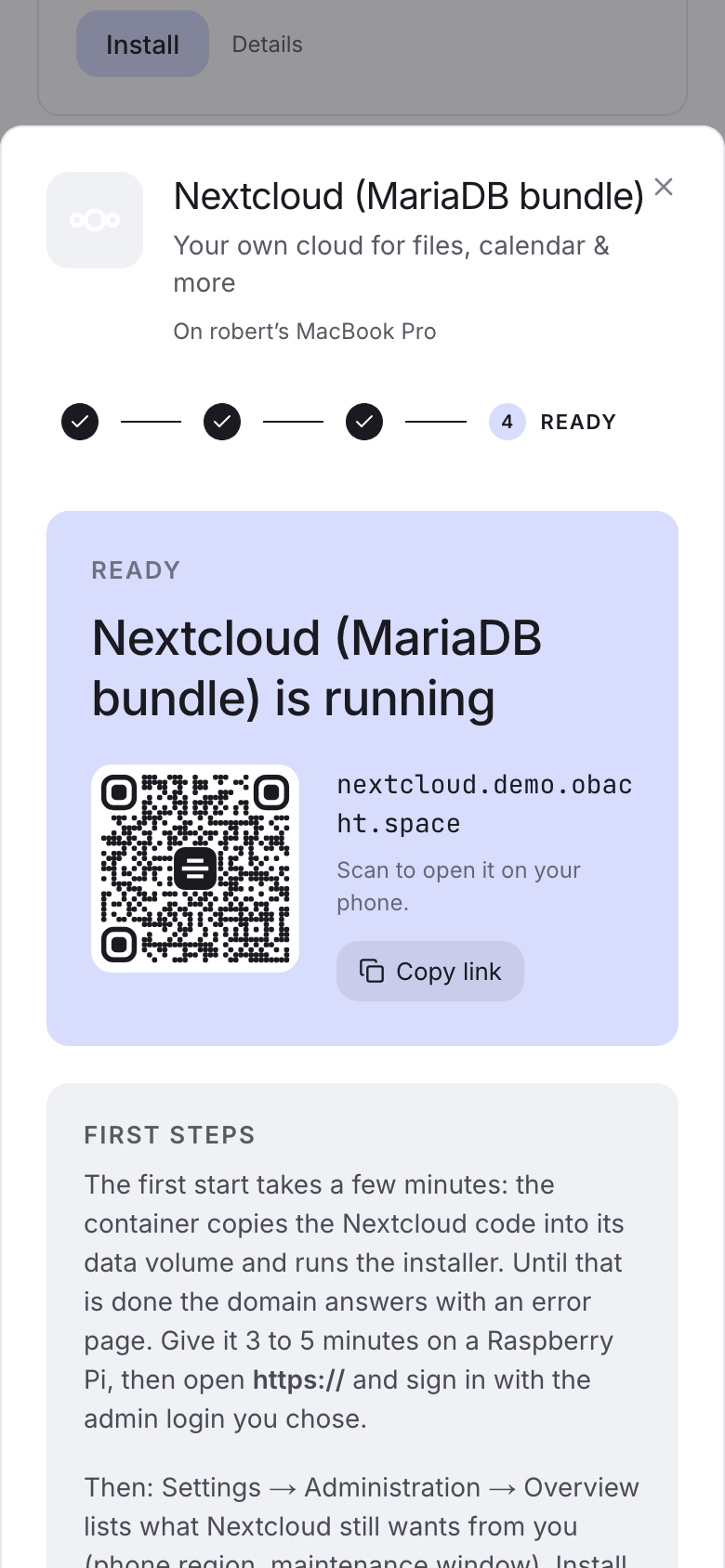
The sheet says "Nextcloud is running" (with the name of your app) and shows a QR code ("Scan to open it on your phone"), Copy link and First steps with the first things to do inside the app, such as the default login.
The certificate (what turns the address into https://) is made on your device and can take a moment longer than the install. Until it is there the sheet says "Address is being set up". Wait a minute, then open the address. If it stays that way, see Address or certificate not ready.
On a Mac, the Mac app has to trust your device key before anything can be installed. If you see "This device can't install anything yet. Open the Mac app and trust your management key, then come back.", do that first. See Mac with the Obacht app.
Next: Manage an app.