Point one domain at a device
When you are done, one name such as app.example.org opens an app on your device over https://. You need the name, access to its DNS settings at the registrar, and a device that is online. If you want many names under one domain, protect the domain once instead, see Use your own domain.
Where to start
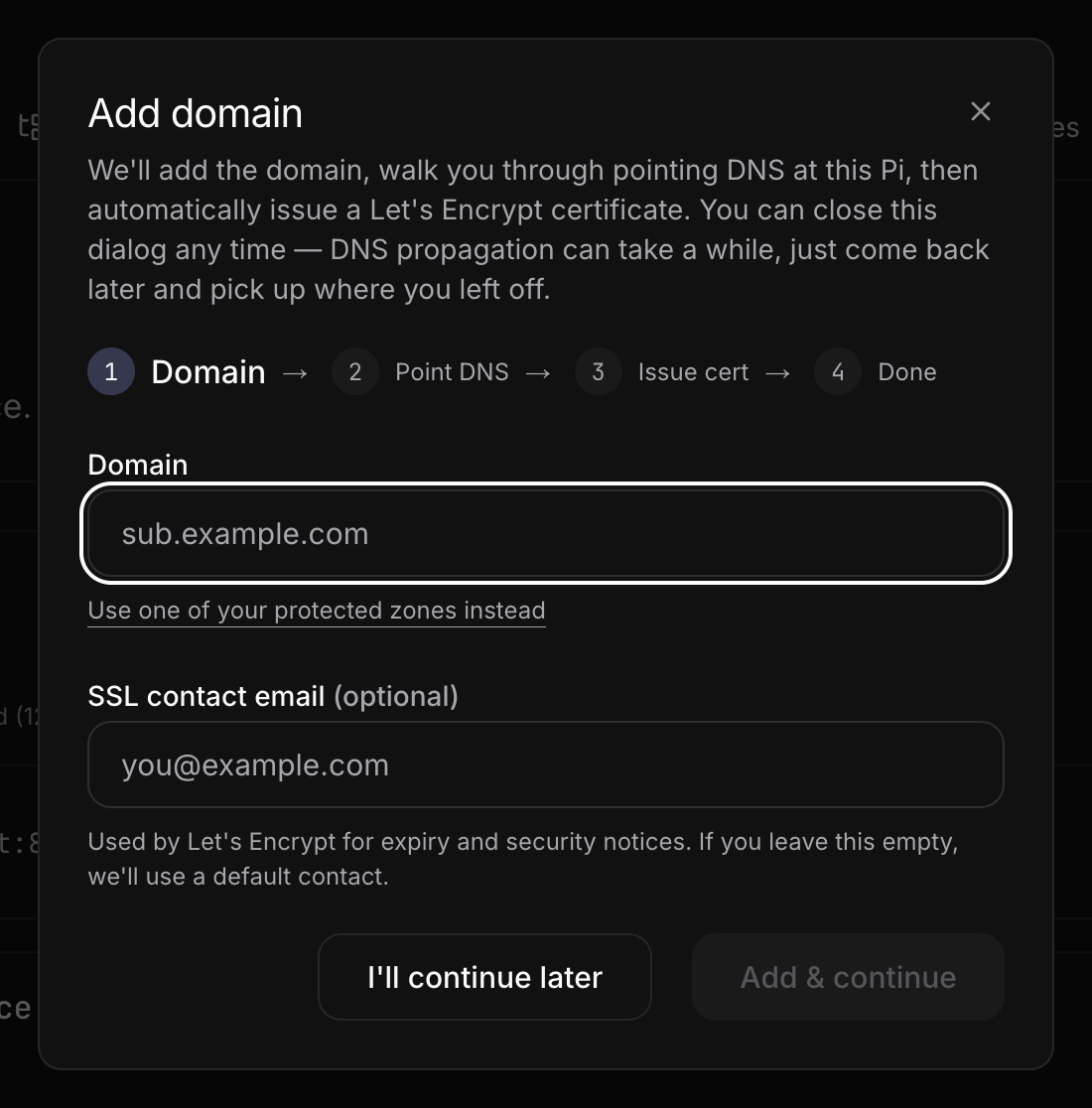
- In the install sheet: pick Another address and type the name. The install goes on even if the name is not ready yet ("We couldn't set the address up, you can add one later"), and you finish it in the Hosting tab.
- On a device: open the device, Open advanced view in easy mode, then the Hosting tab. Start the wizard there. It has the steps Domain → A record → Verify DNS → certificate, and you can leave and come back at any step with I'll continue later.
Domain
Type the full name, for example app.example.org. If you already have a protected zone, pick it from the drop-down and type only the part in front; the DNS step is then skipped. The "SSL contact email" is optional. Let's Encrypt uses it to warn you if a certificate cannot be renewed.
A record
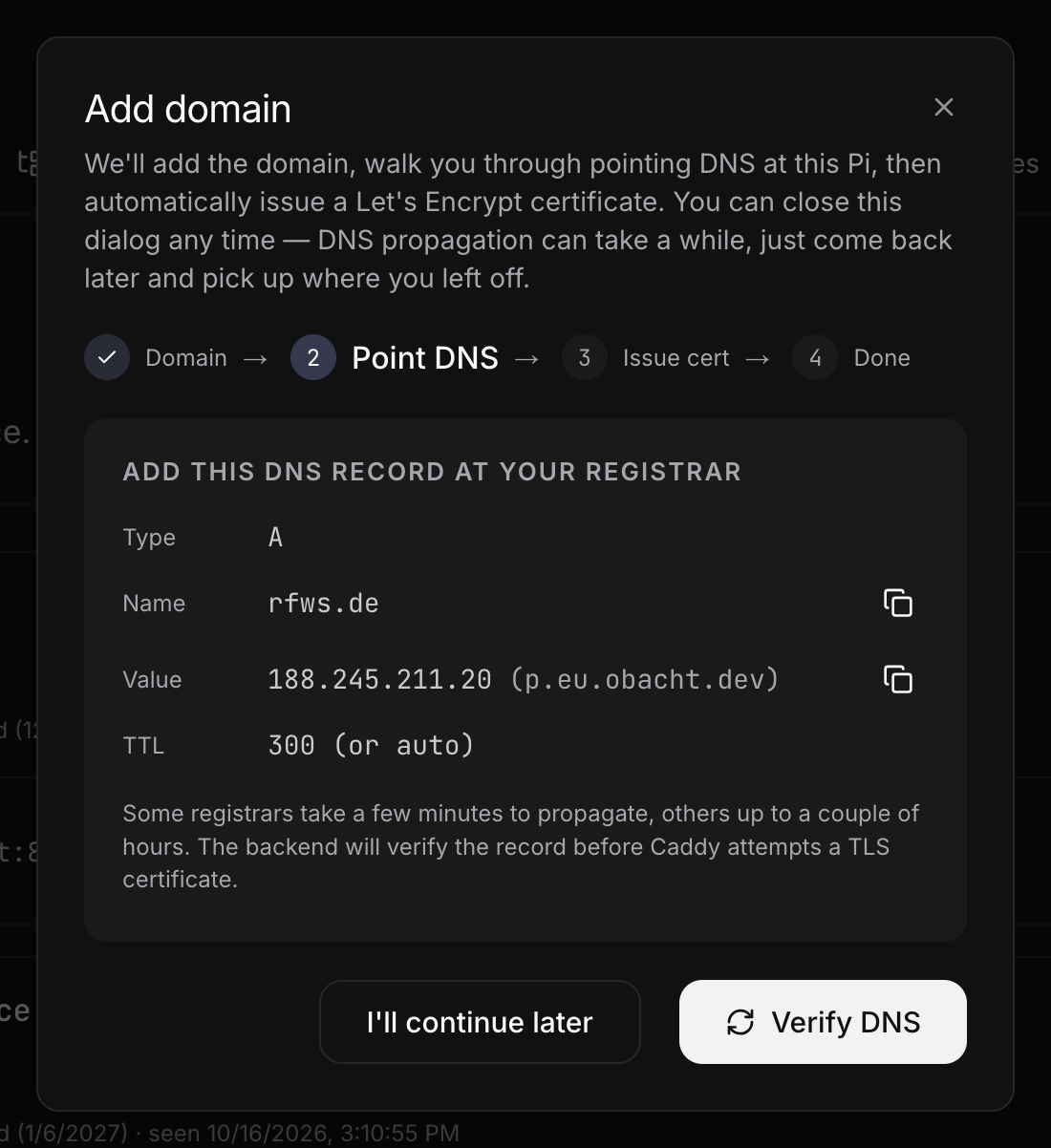
The wizard says "Add this DNS record at your registrar" and shows one record.
| Type | Name | Value | TTL |
|---|---|---|---|
| A | the name (app.example.org) | the gateway IP shown in the wizard | 300 or auto |
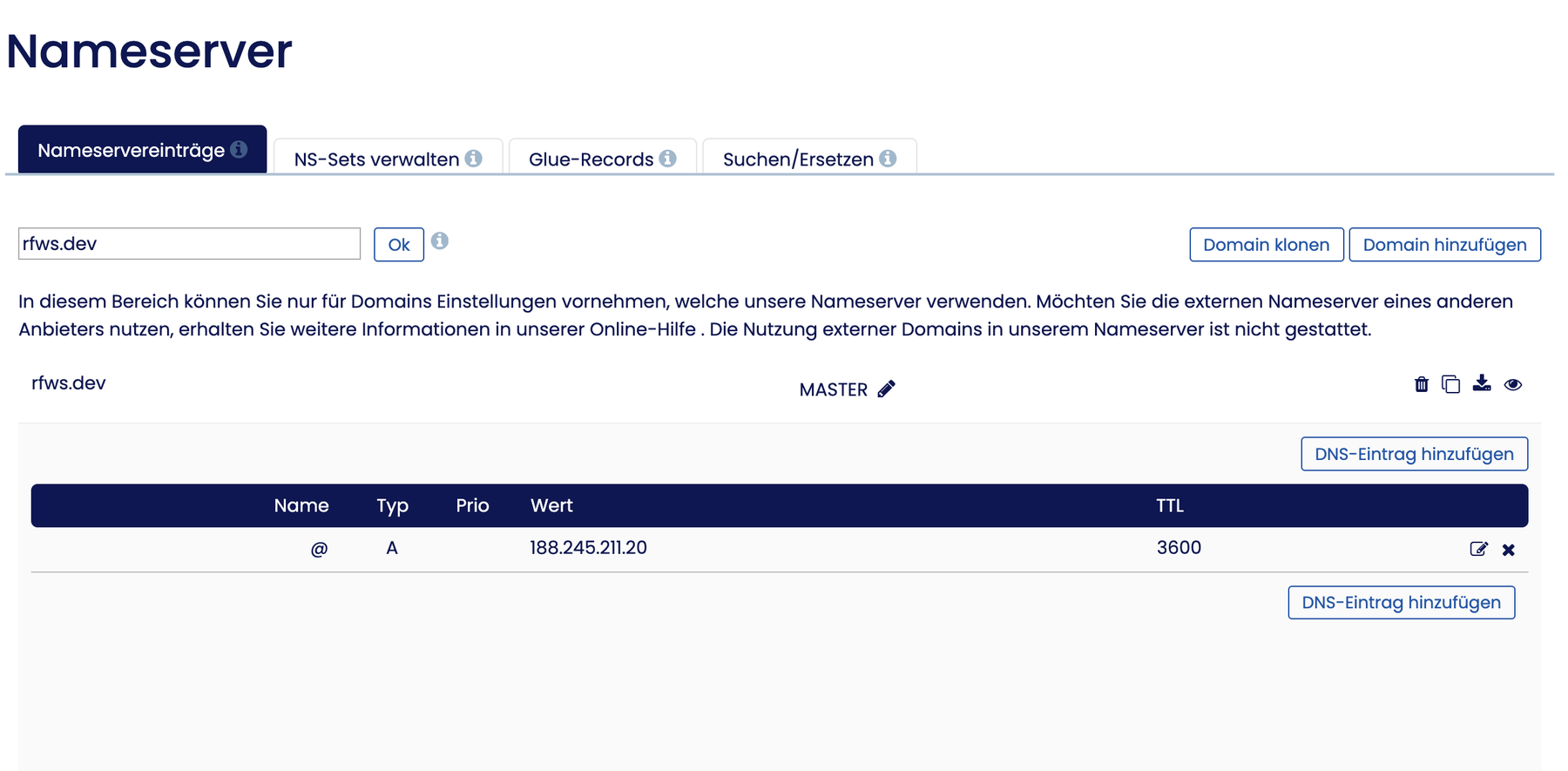
Some registrars want only the part in front of the domain in the Name field (app), others want the full name. If you had an old A record for the same name, replace it; two A records with different addresses make the check fail.
Verify DNS
Click Verify DNS. The wizard shows what the name currently resolves to next to what it expects. DNS changes take from a minute to an hour to spread; if they differ, wait and click Re-check DNS.
Certificate
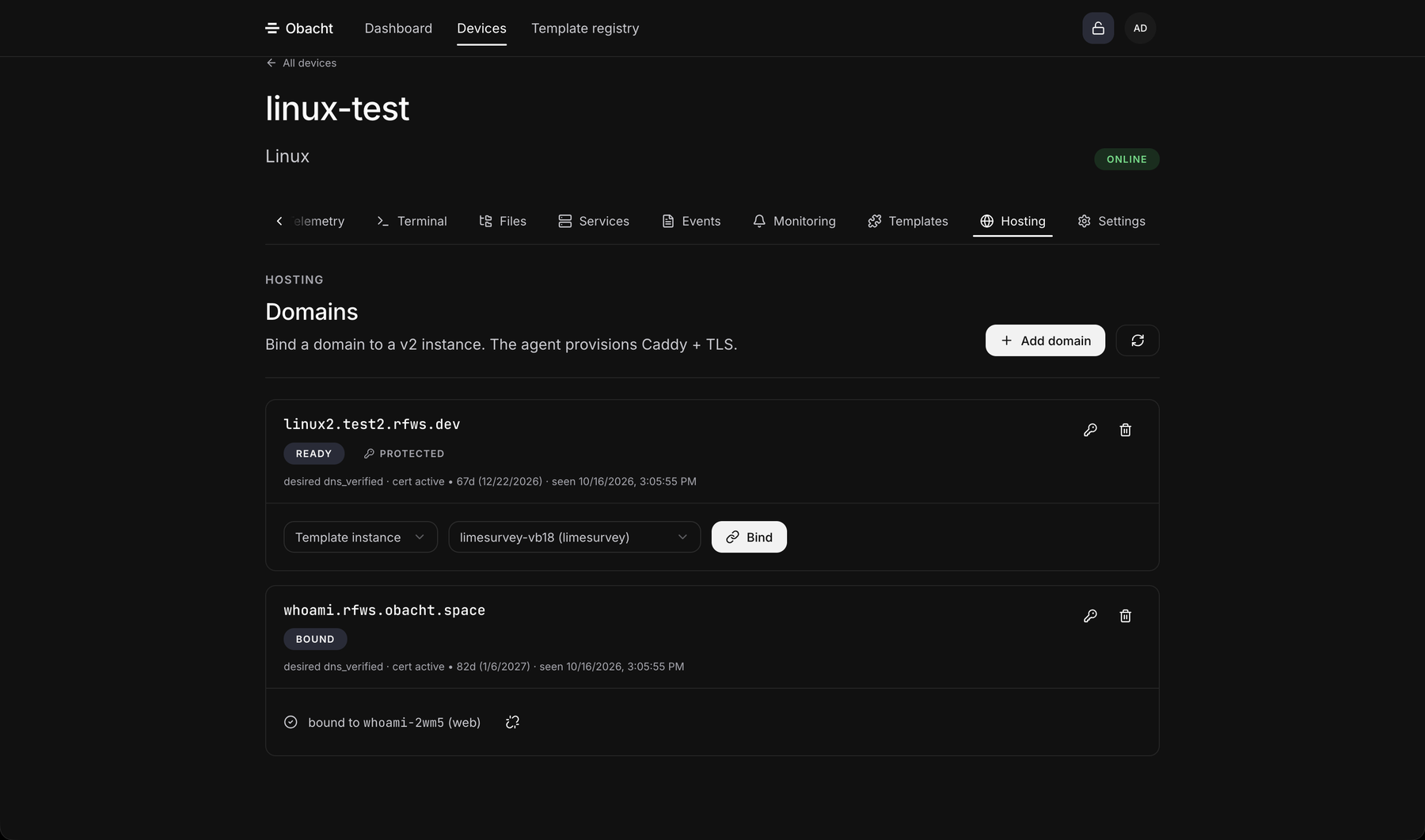
Once DNS checks out, your device claims the name, signed with your device key, and requests a certificate from Let's Encrypt. That usually takes under two minutes. The wizard ends with "Certificate active". If it fails, for example because the record was changed in between, click Retry certificate.
Then point the name at an app: in the Hosting tab, choose the app in the bind control and confirm. An address can also point at a port, see Point an address at a port.
When the name belongs to someone else's zone
If another account has protected the domain the name sits under, the wizard stops with "This hostname is protected… verify it under Settings → Protected Domains first". Only the account that proves ownership of the zone can use names under it. If the domain is yours, protect it (Use your own domain) and come back. If it is not, ask the owner for a name outside their zone.
Outside protected zones names are first come, first served. If a name you own is already taken by another account, see Remove an address for what frees a name.
Next: Point an address at a port.