Use your own domain
When you are done, example.com (or a part of it, such as home.example.com) is a protected zone of your account. Every app can then take a name under it from the install sheet, and no other Obacht account can claim names there. You need access to the DNS settings of your domain at your registrar, the company you bought the domain from.
Start the wizard
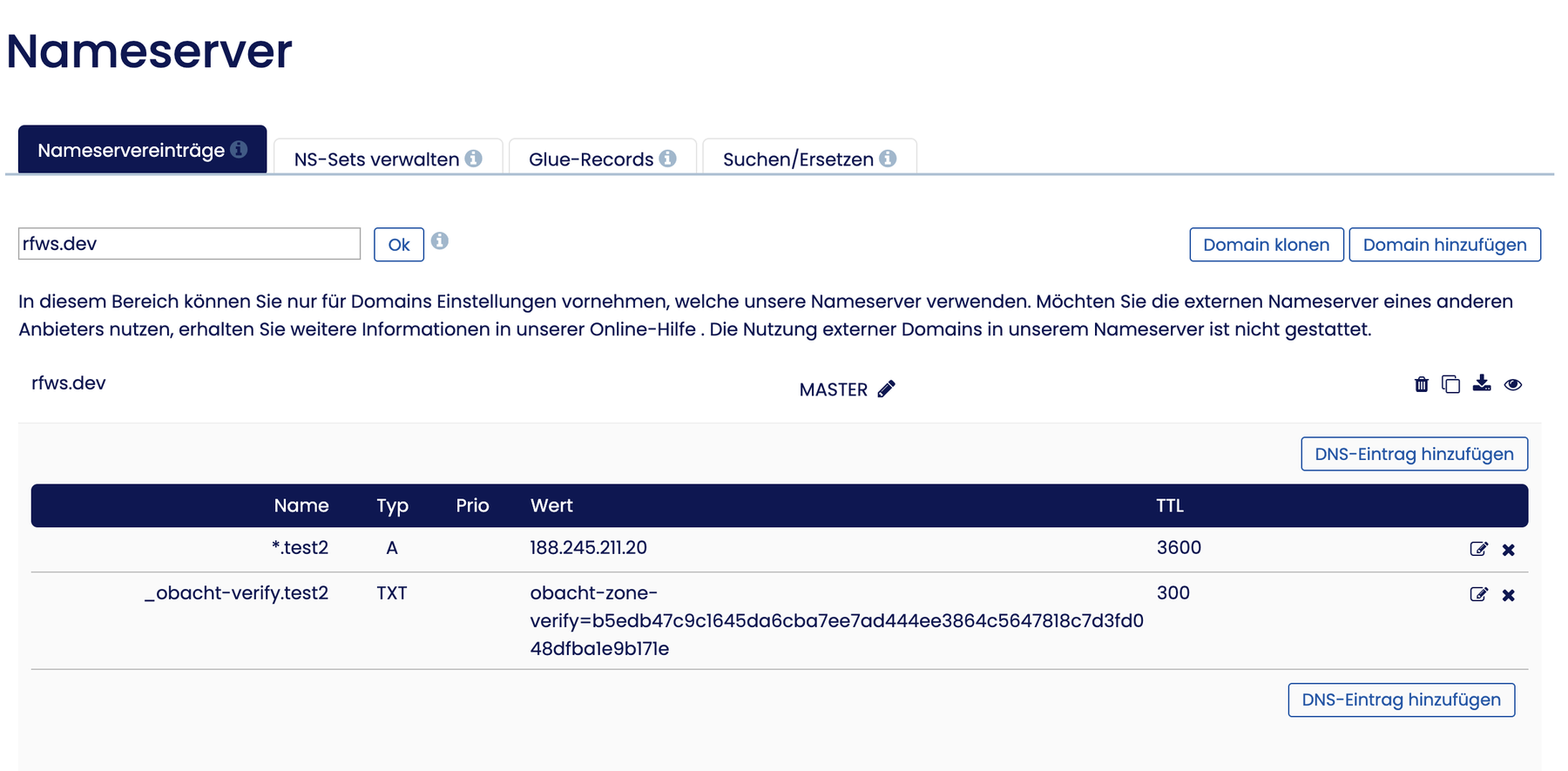
- Easy mode: account menu → Web address (this opens Settings → Web address, "Where your apps live"), then Add your domain.
- Advanced mode: account menu → Web address opens "Protected Domains". Click Protect a domain.
The wizard has the steps Zone → DNS records → Done. You can close it and come back; an unfinished zone shows as "Pending" with Finish setup.
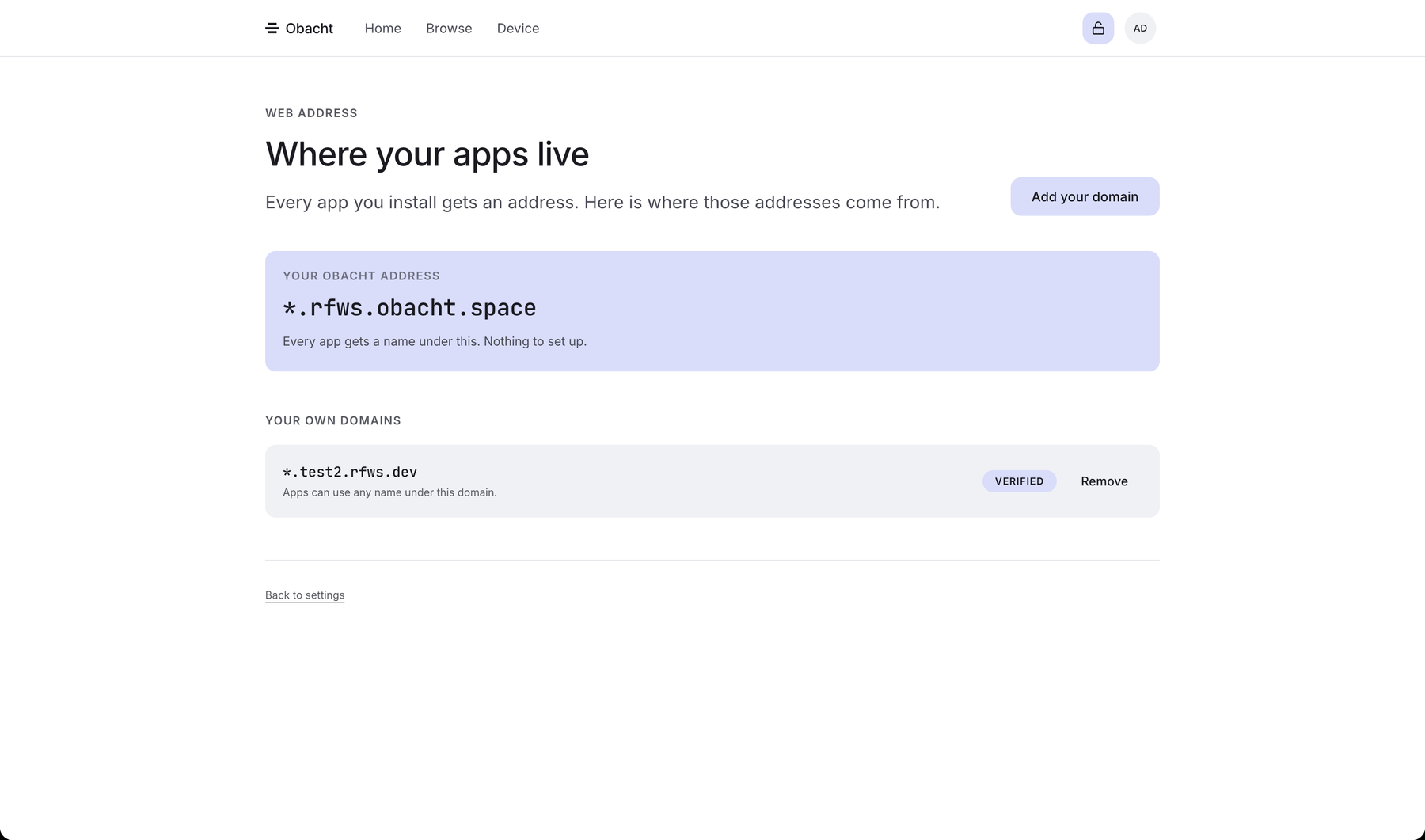
Zone
Type the zone, for example example.com or home.example.com. A leading *. is fine, the wizard strips it. Everything under that name becomes yours.
Zones cannot overlap. While home.example.com is protected by any account, nobody can also protect example.com or dev.home.example.com. If you see an overlap error and the other zone is yours, delete it first and protect the wider one.
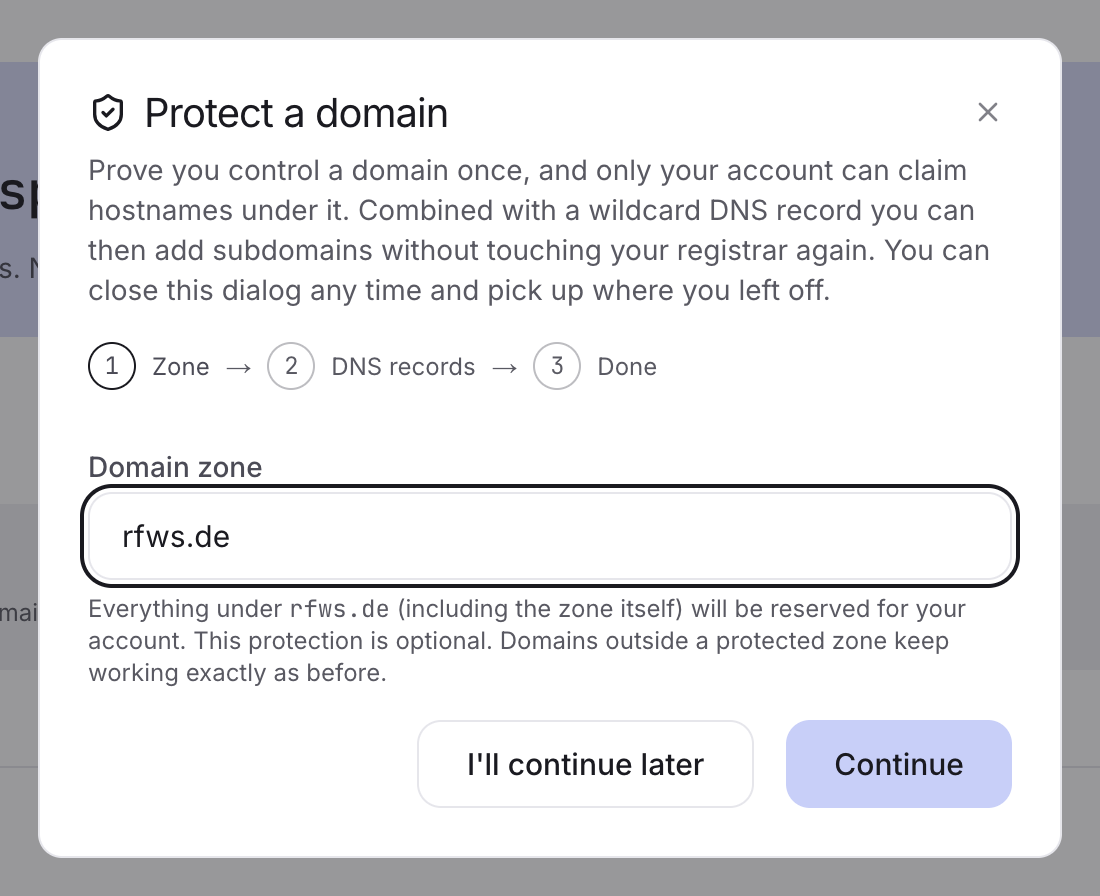
DNS records
The wizard shows two records to add at your registrar.
| Type | Name | Value | TTL |
|---|---|---|---|
| TXT | _obacht-verify.<zone> | the text shown in the wizard | 300 or auto |
| A | *.<zone> | the gateway IP shown in the wizard | 300 or auto |
The TXT record proves the domain is yours. Keep it in place; it is checked again later. The wildcard A record sends every name under the zone to Obacht, so no app needs its own record afterwards.
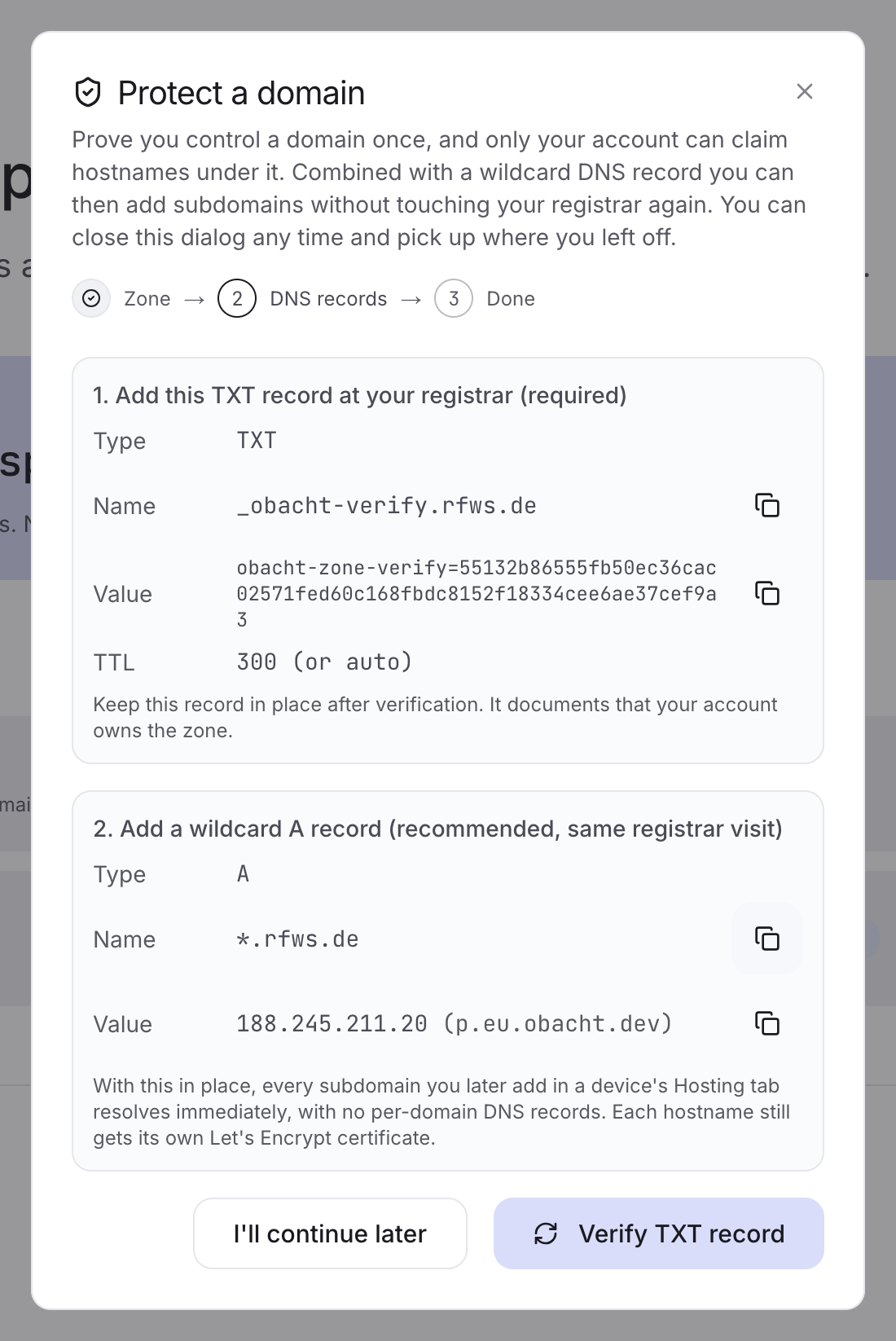
Some registrars want only the part in front of your domain in the Name field (_obacht-verify and *), others want the full name. The wizard shows the full name; shorten it if your registrar adds the domain itself.
Verify
Back in the wizard, click Verify TXT record. DNS changes take a while to spread, from a minute to an hour. If the check fails, wait and click Re-check TXT record. Rapid clicking gives "Please wait a few seconds between checks".
When the check passes the wizard shows Done: only your account can claim names under the zone.
Use it
In the install sheet, pick Your own domain and choose the zone. You type only the part in front, for example notes. The DNS step is skipped because the wildcard record already resolves, and the certificate is requested right away. Each name still gets its own certificate on your device.
In a device's Hosting tab the wizard for a single domain offers your zones in a drop-down the same way.
Names that other accounts claimed under your domain before you protected it keep working. The wizard tells you how many there are. Protection only governs new claims.
Remove the protection
On the Web address page click Remove next to the zone, in advanced mode delete it on the Protected Domains page. "Addresses already claimed under home.example.com keep working. You just stop being the only account that can claim new ones." Your apps and their addresses stay as they are. If you want the names themselves gone, remove them from the device, see Remove an address.
Next: Point one domain at a device.