Using GitHub CLI on your Device
This guide walks through installing the GitHub CLI (gh) on a device via the obacht web terminal, authenticating with a GitHub Personal Access Token, and cloning a private repository.
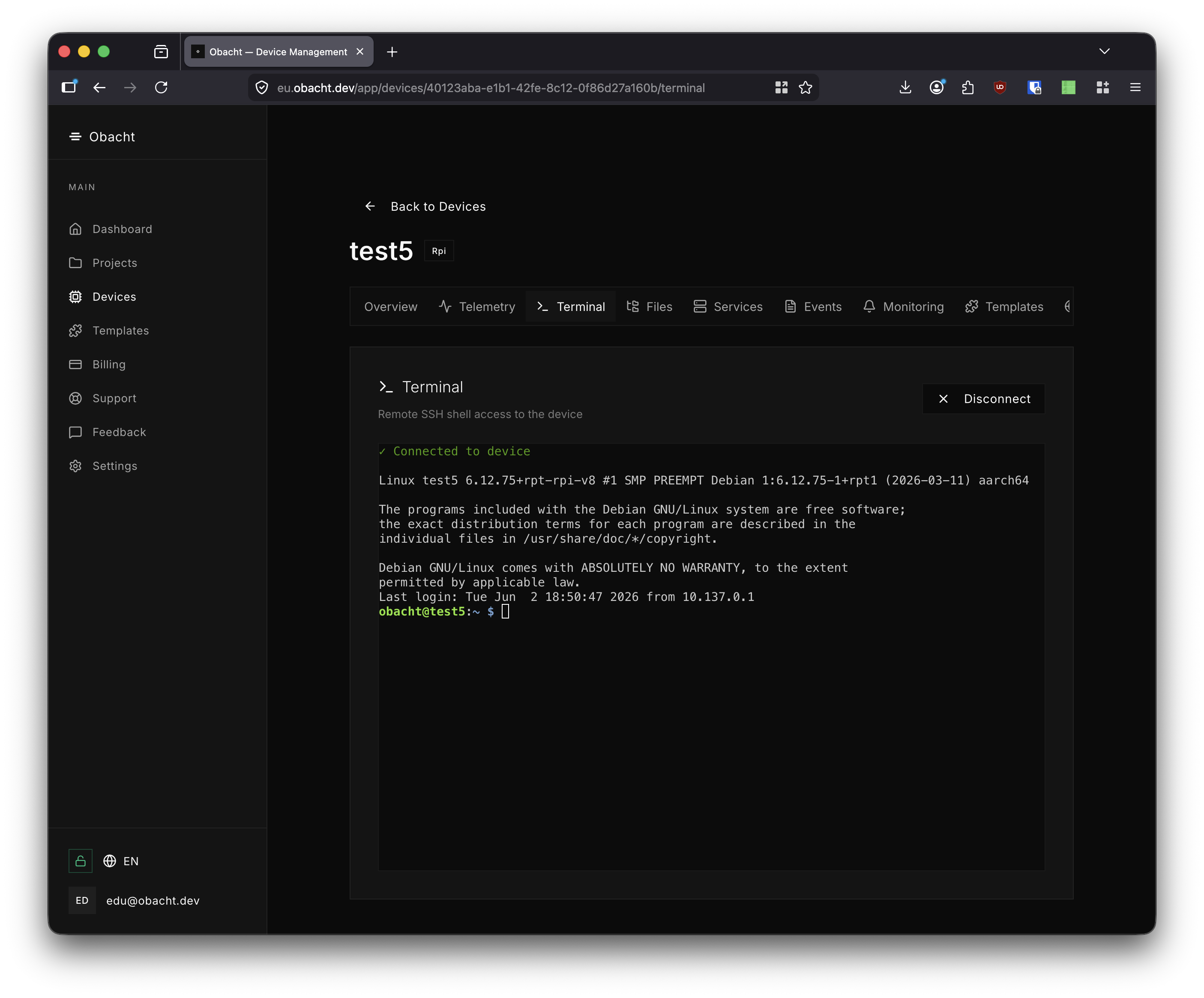
1. Open the Terminal
Navigate to the device in obacht and confirm it is Online.
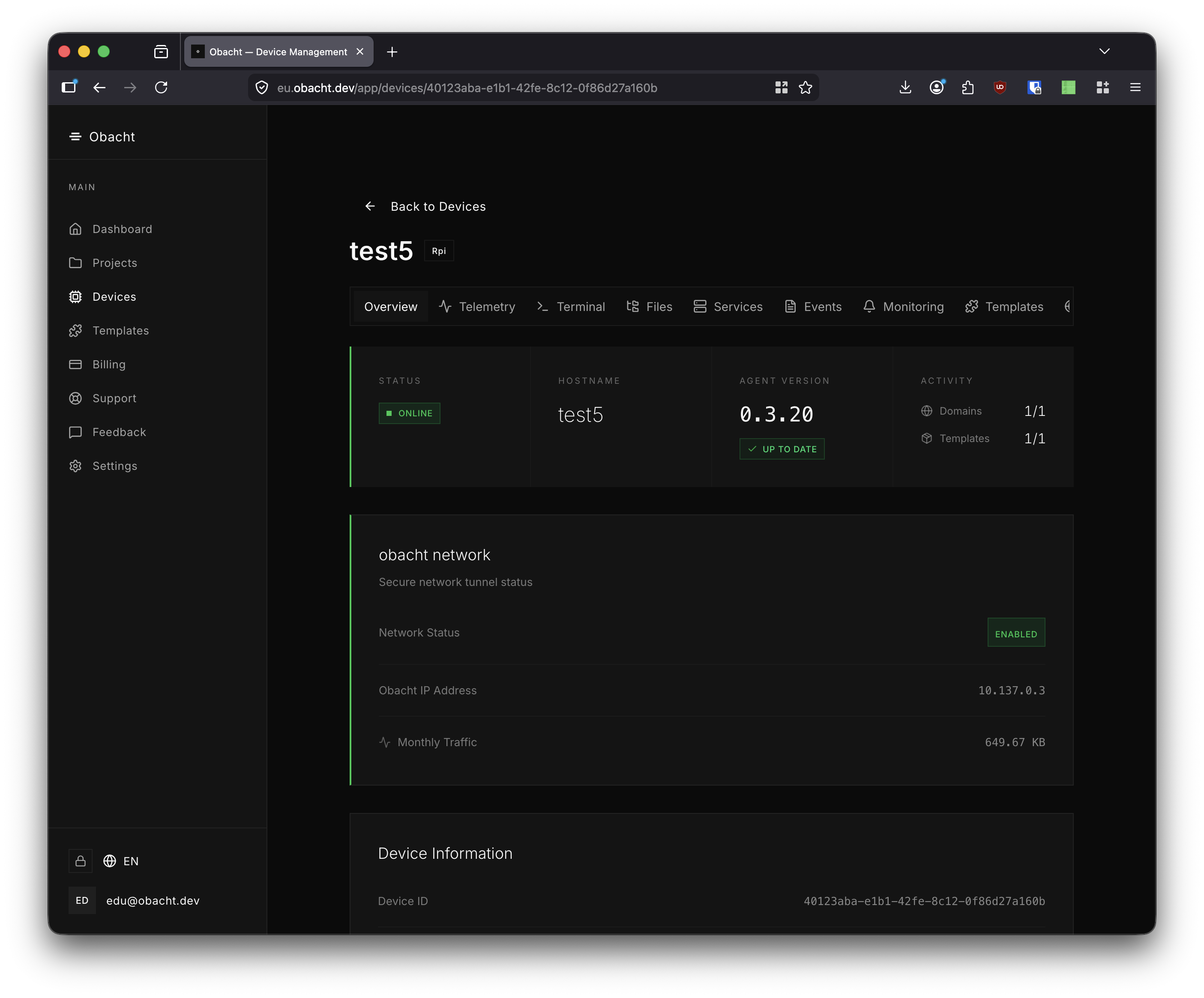
Go to the Terminal tab and click Connect.
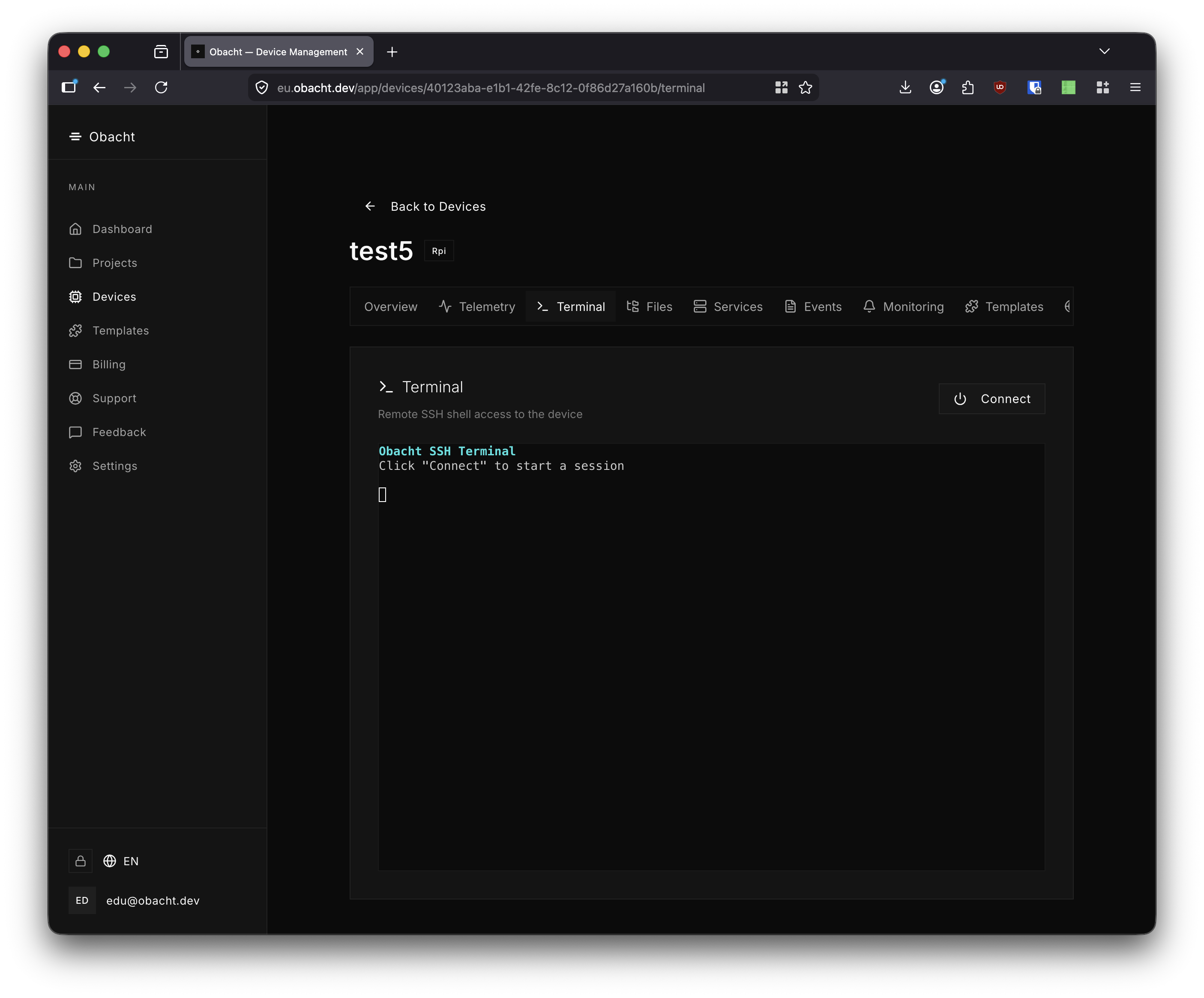
If your SSH key has a passphrase, enter it when prompted.
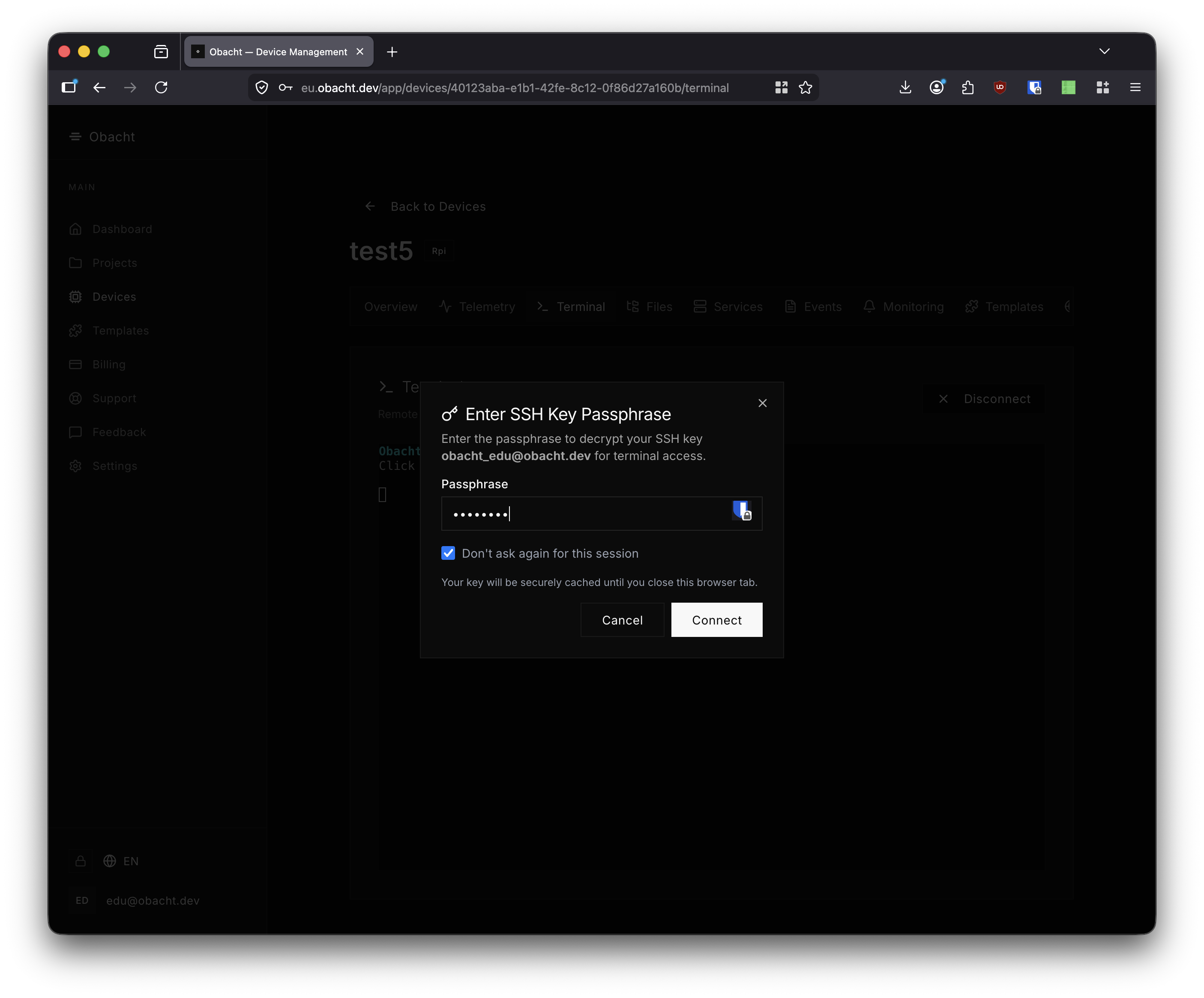
The terminal connects to the device via the obacht SSH gateway.
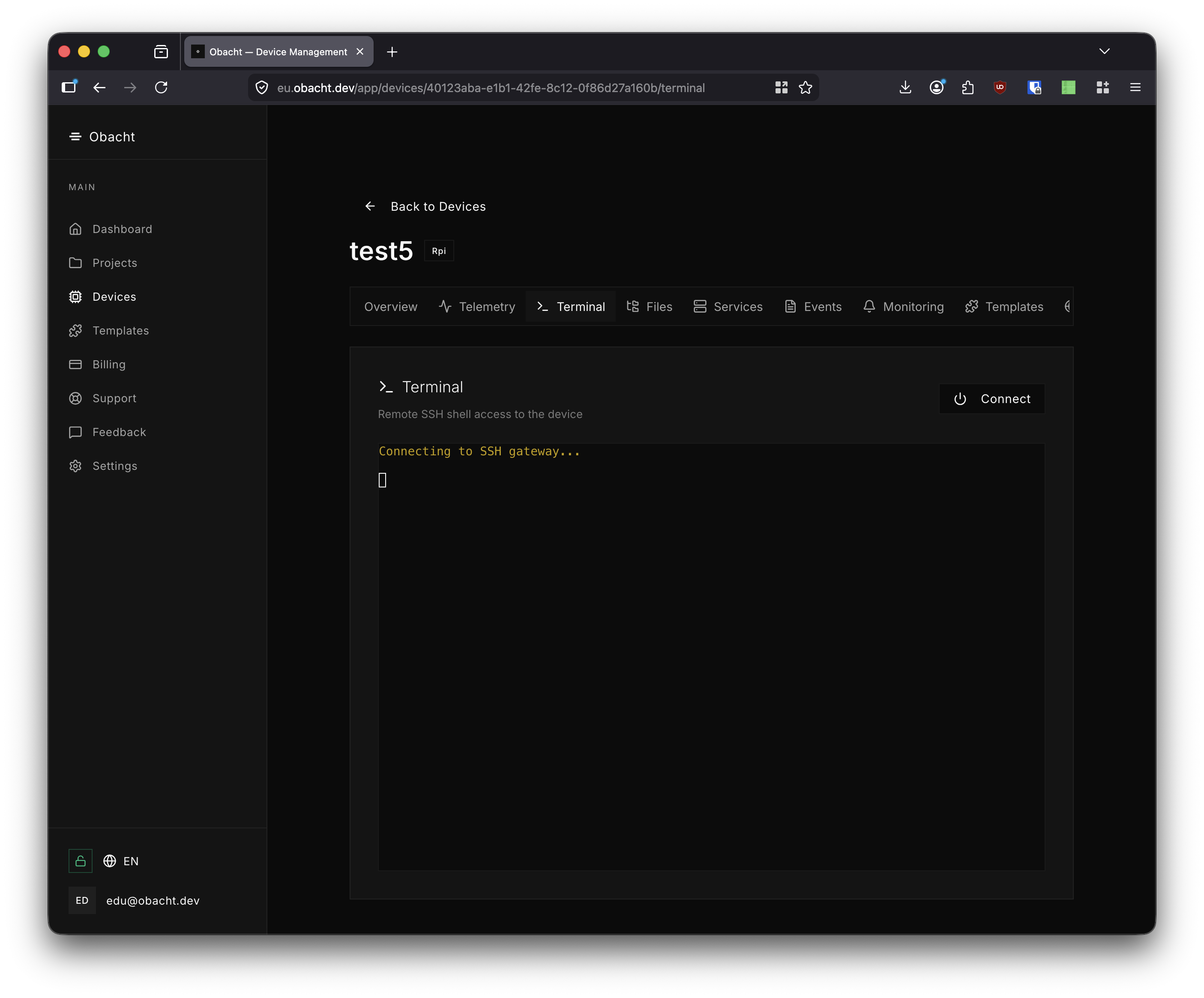
Once connected you have a full shell as the obacht user.
2. Install the GitHub CLI
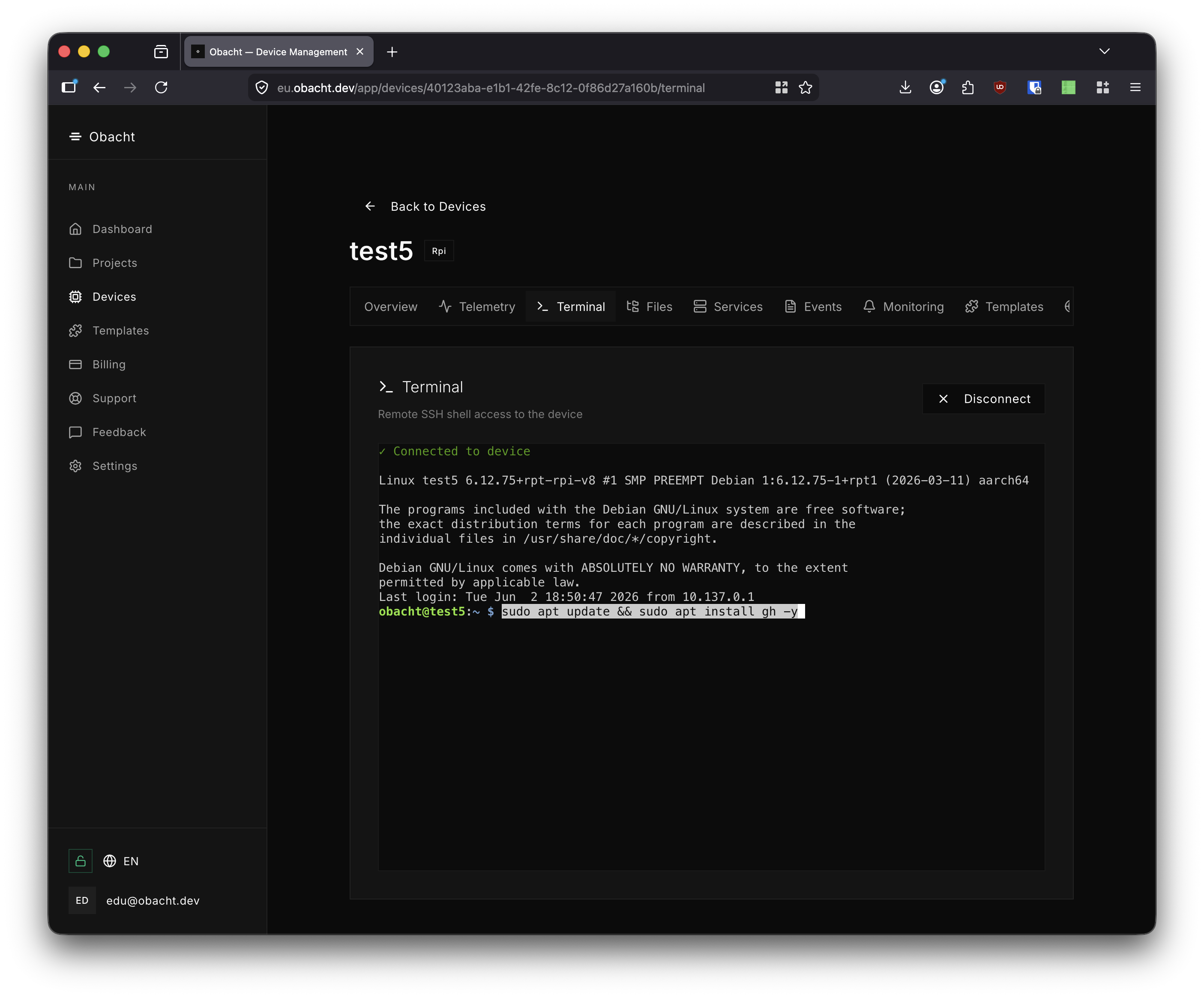
Run the following command to update the package index and install gh:
sudo apt update && sudo apt install gh -y
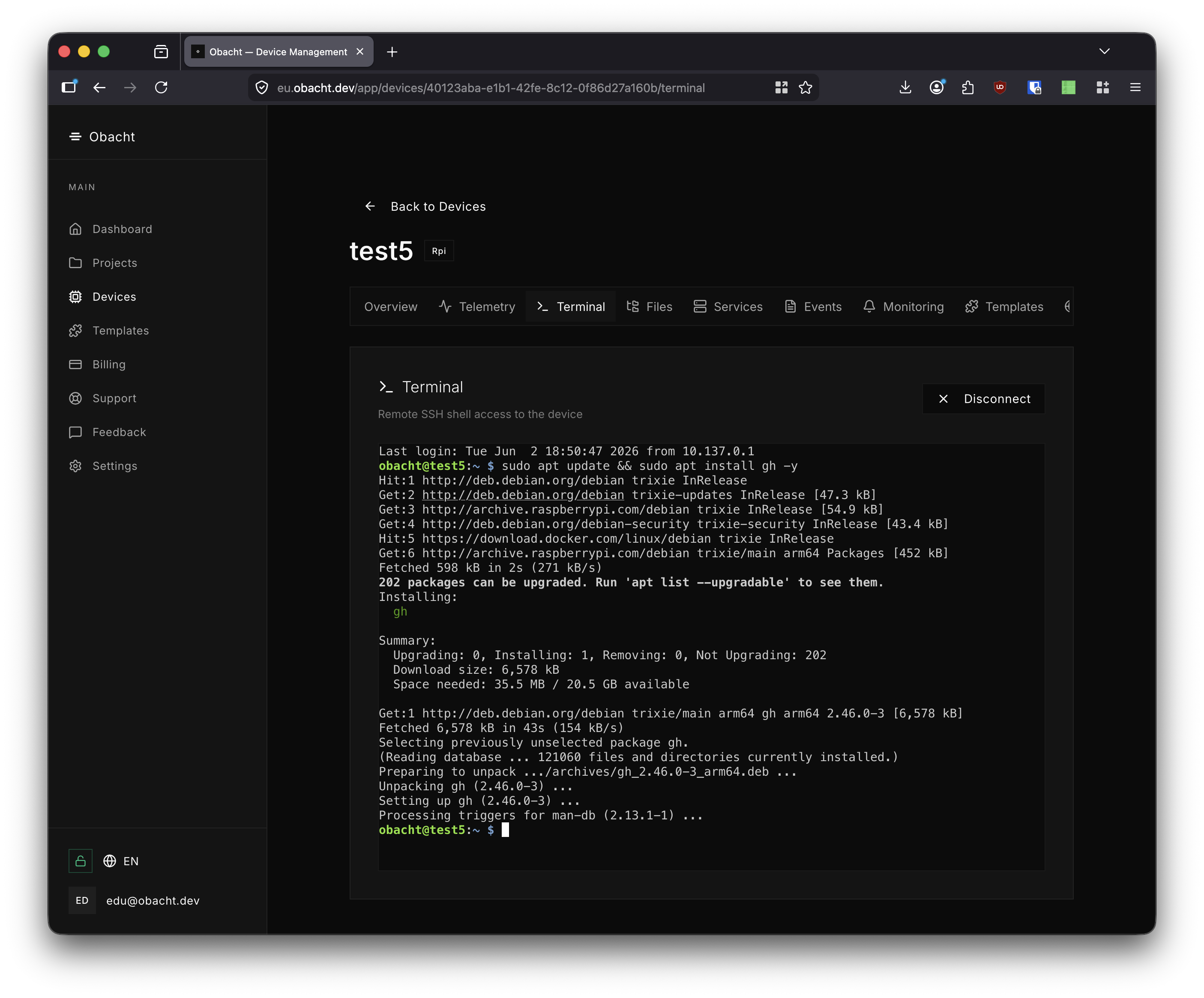
apt fetches and installs the gh package. Installation takes about 30 seconds.
3. Authenticate with GitHub
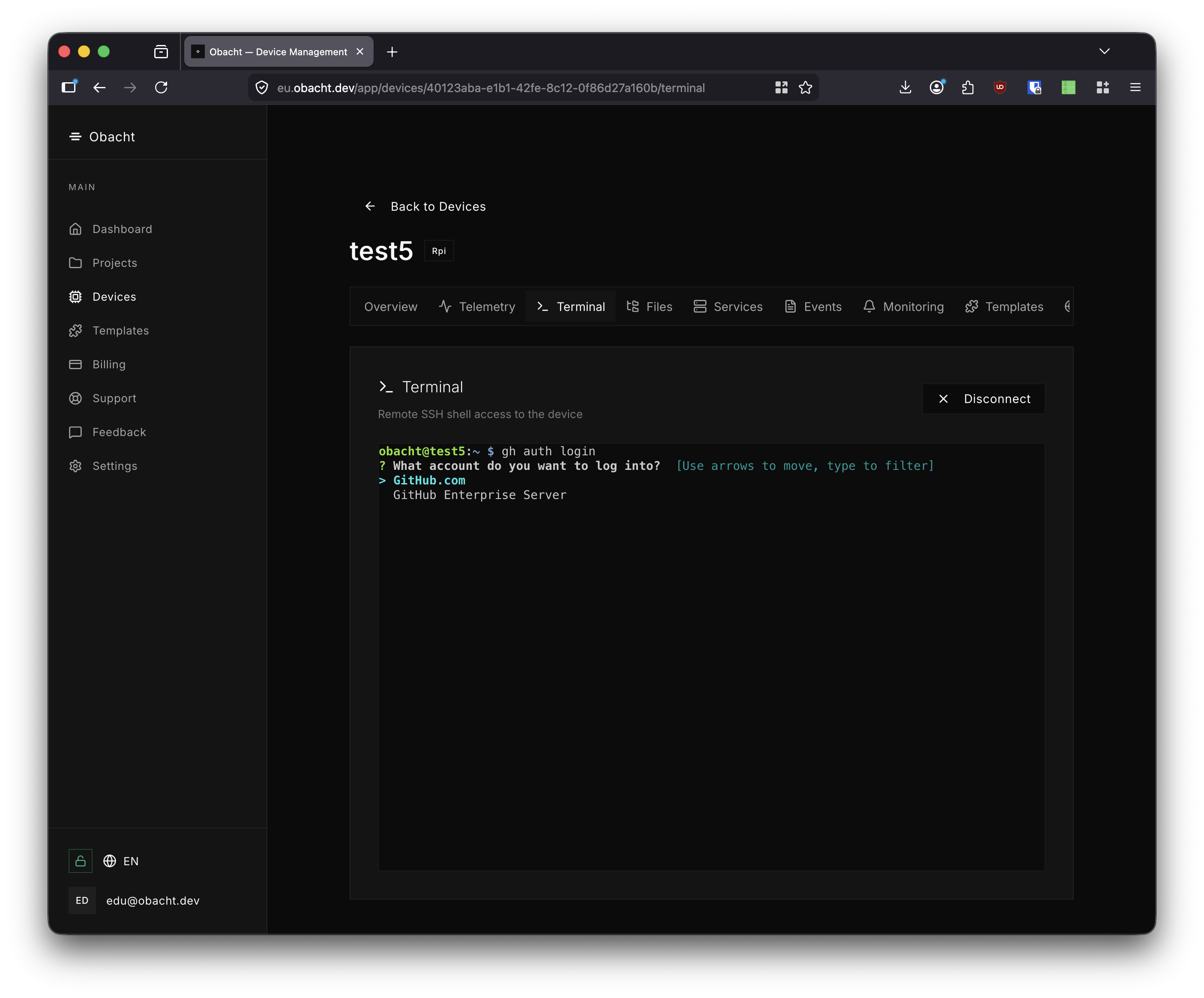
Run gh auth login to start the interactive authentication flow.
gh auth login
What account do you want to log into? — select GitHub.com.
What is your preferred protocol for Git operations on this host? — select HTTPS.
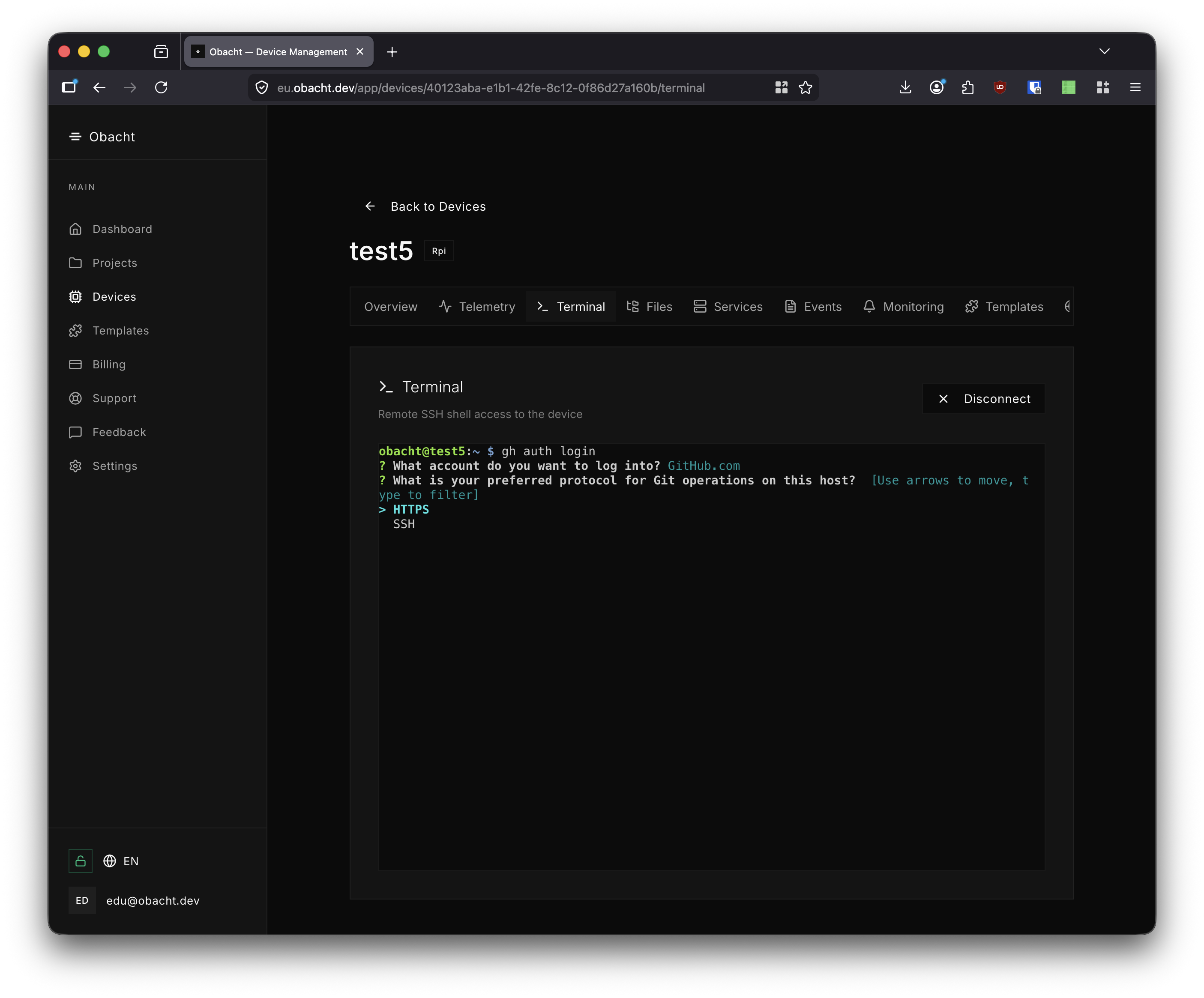
Authenticate Git with your GitHub credentials? — confirm with Y.
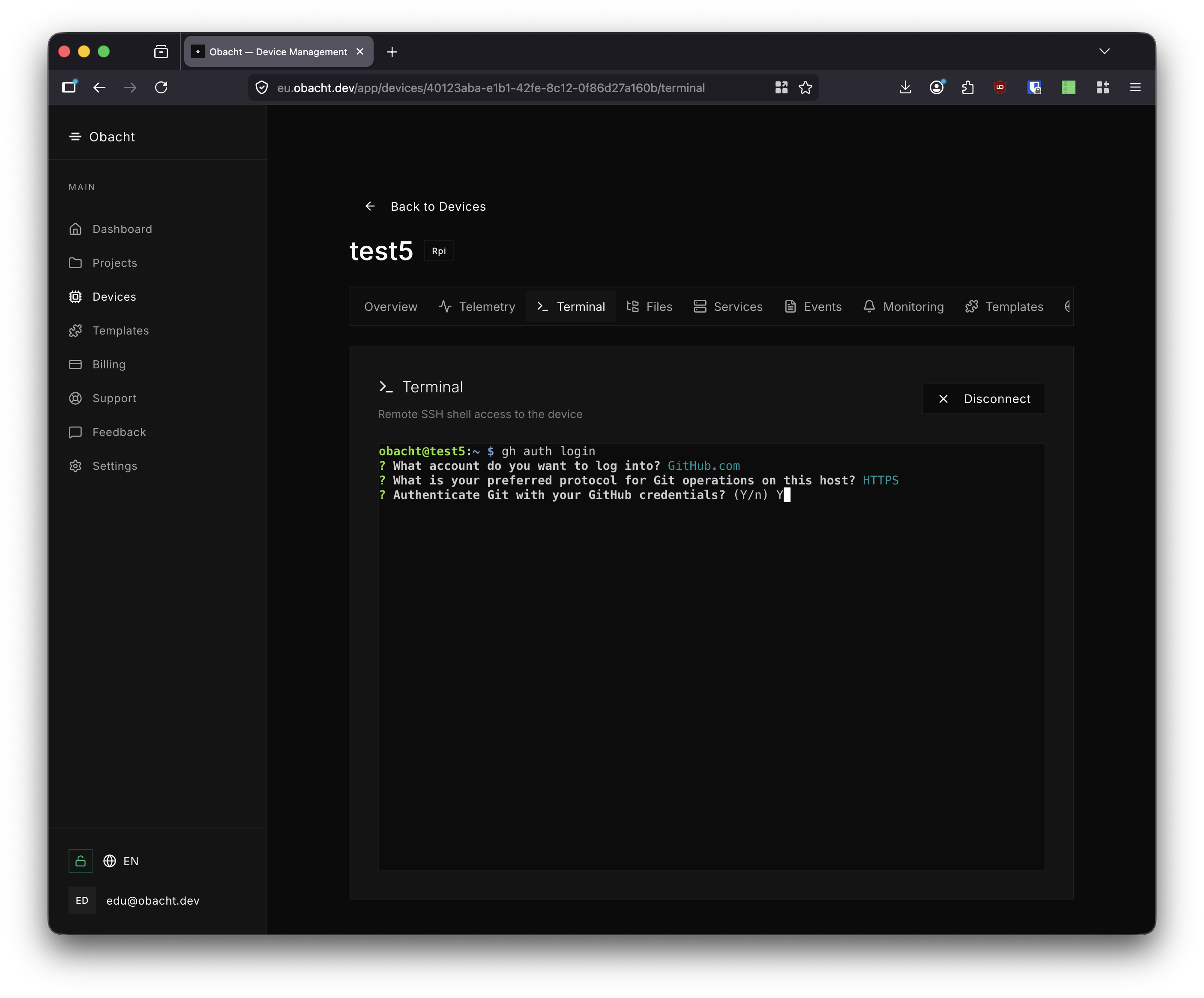
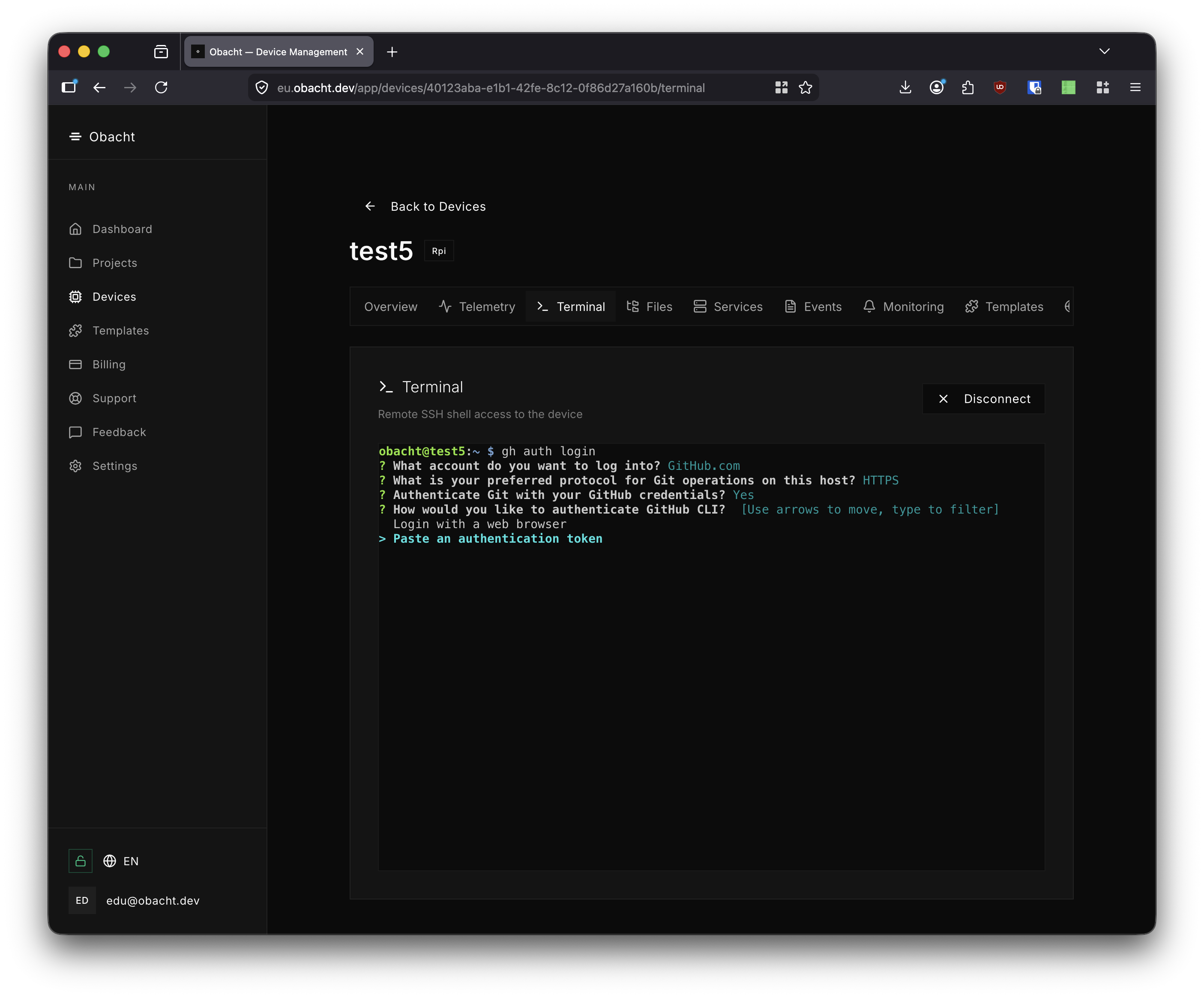
How would you like to authenticate GitHub CLI? — select Paste an authentication token.
The "Login with a web browser" option requires a browser on the device and does not work headlessly. Use a token instead.
4. Create a Personal Access Token
In a separate browser tab, go to github.com/settings/tokens and click Generate new token → Generate new token (classic).
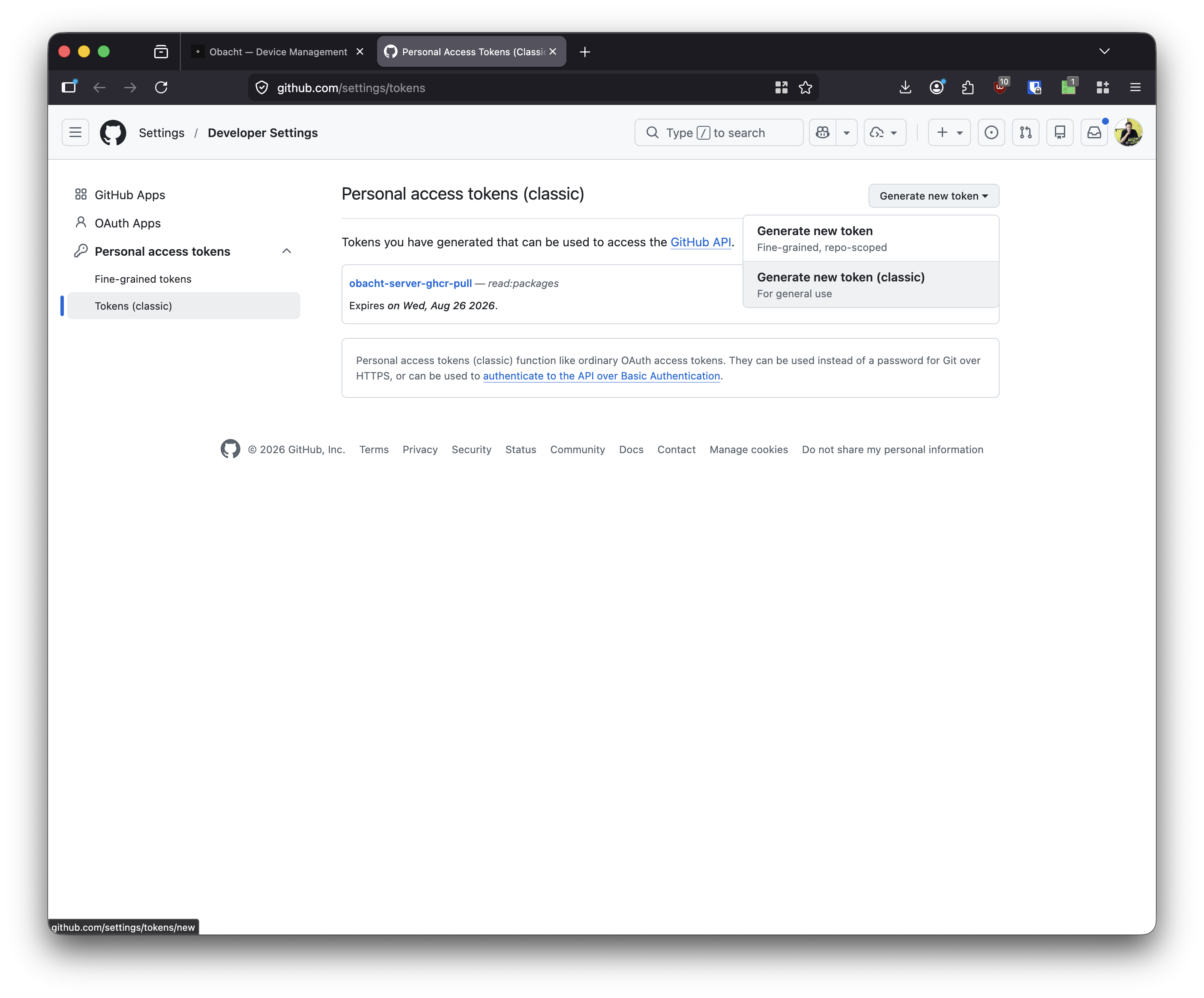
Give the token a name, set an expiration, and check the repo scope. This grants full access to private repositories.
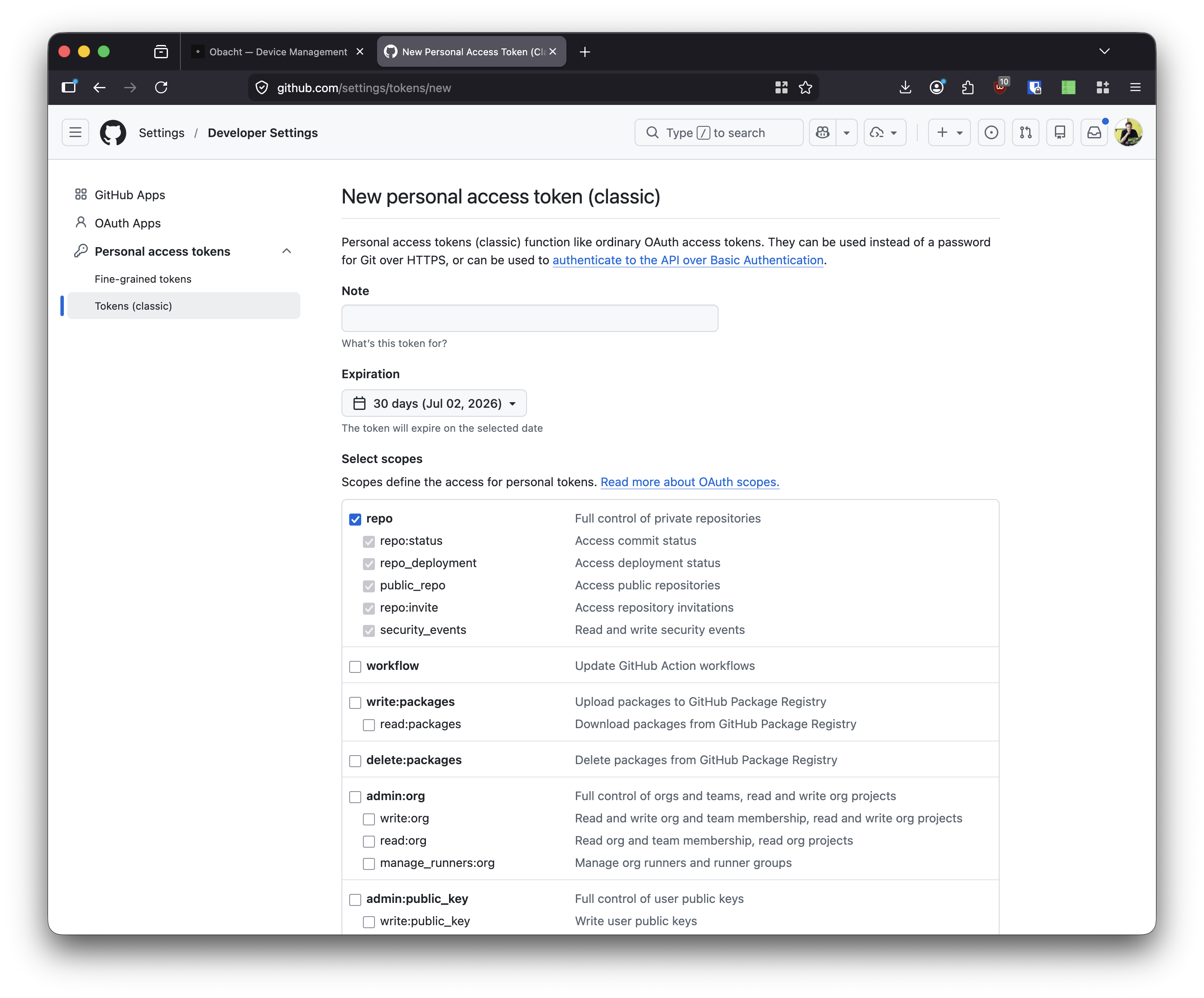
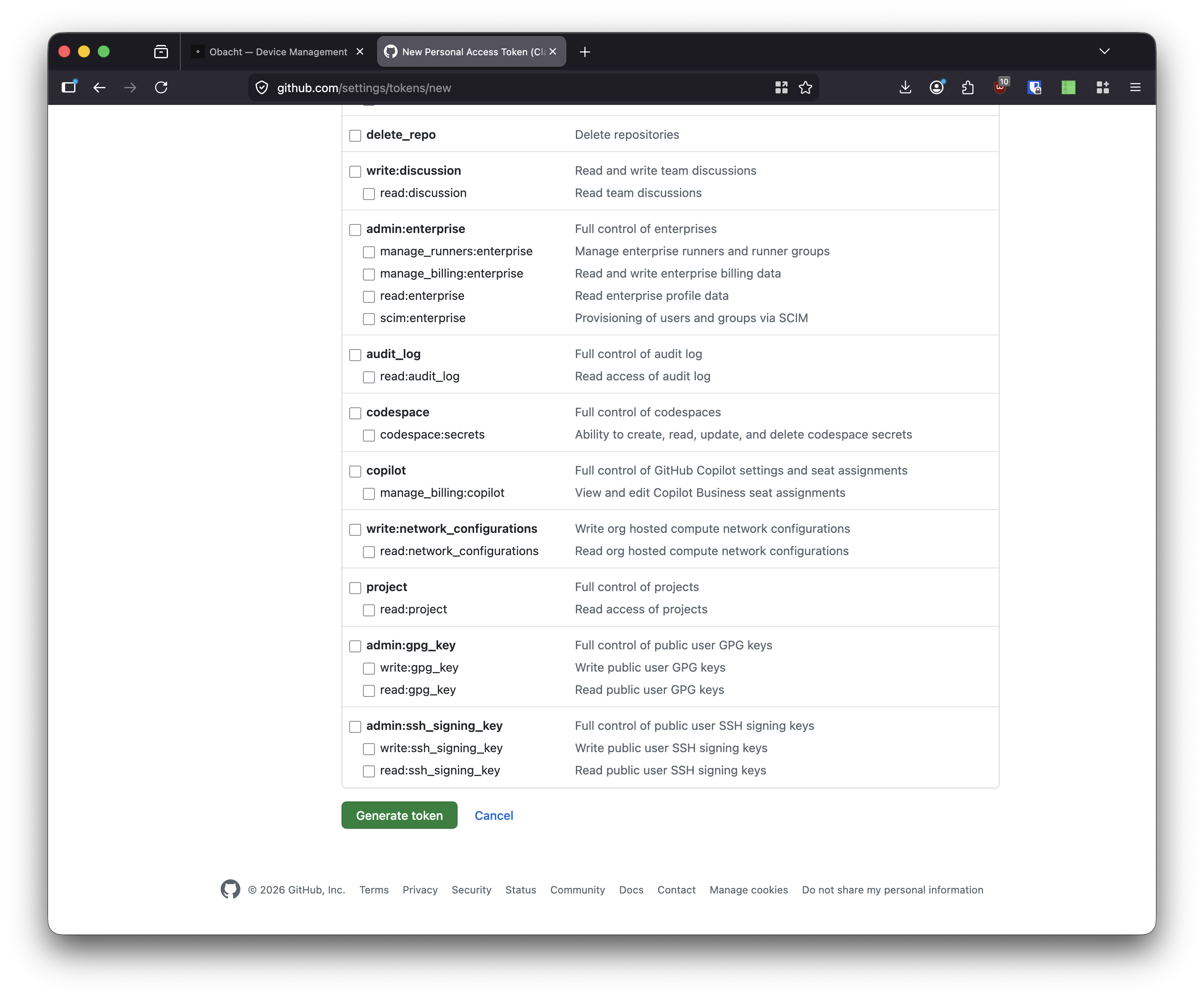
Scroll to the bottom and click Generate token. Copy the token immediately — GitHub will not show it again.
5. Paste the Token
Back in the terminal, paste the token at the Paste your authentication token: prompt and press Enter.
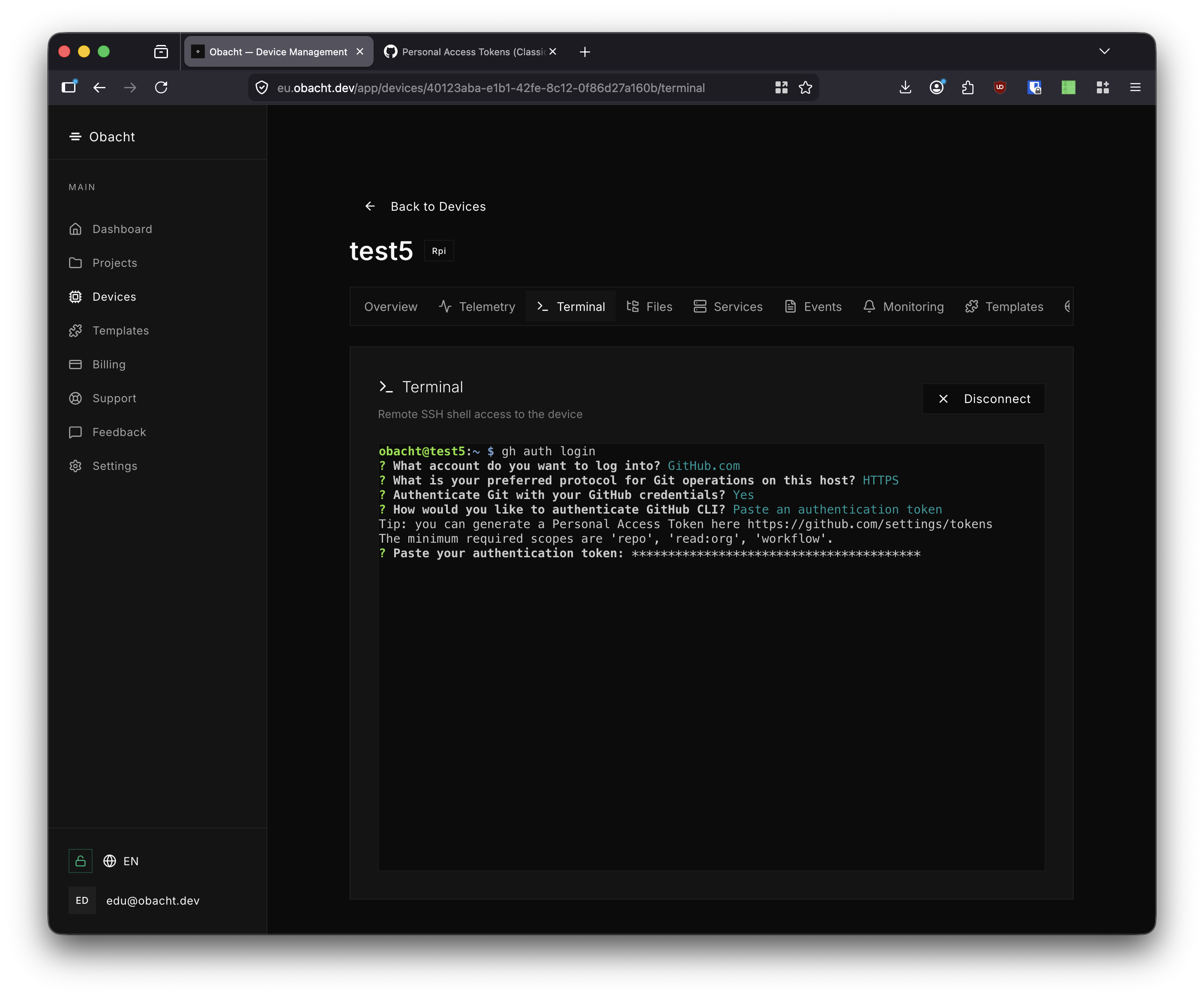
gh validates the token and stores the credentials. You are now authenticated.
6. Clone a Private Repository
Use gh repo clone followed by the repository name (or owner/repo for repositories outside your account) to clone it.
gh repo clone <repository-name>
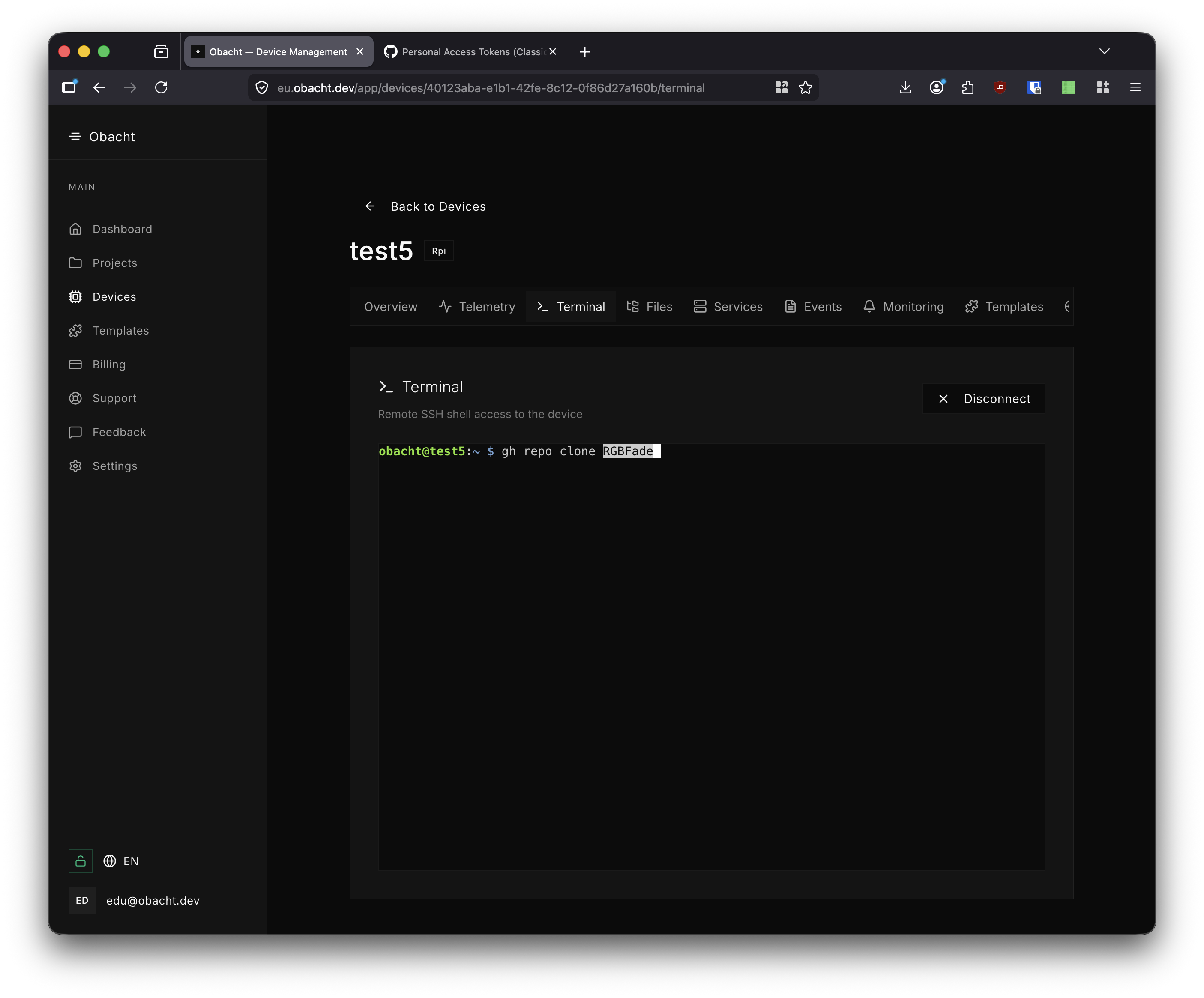
The repository is cloned into the current directory.
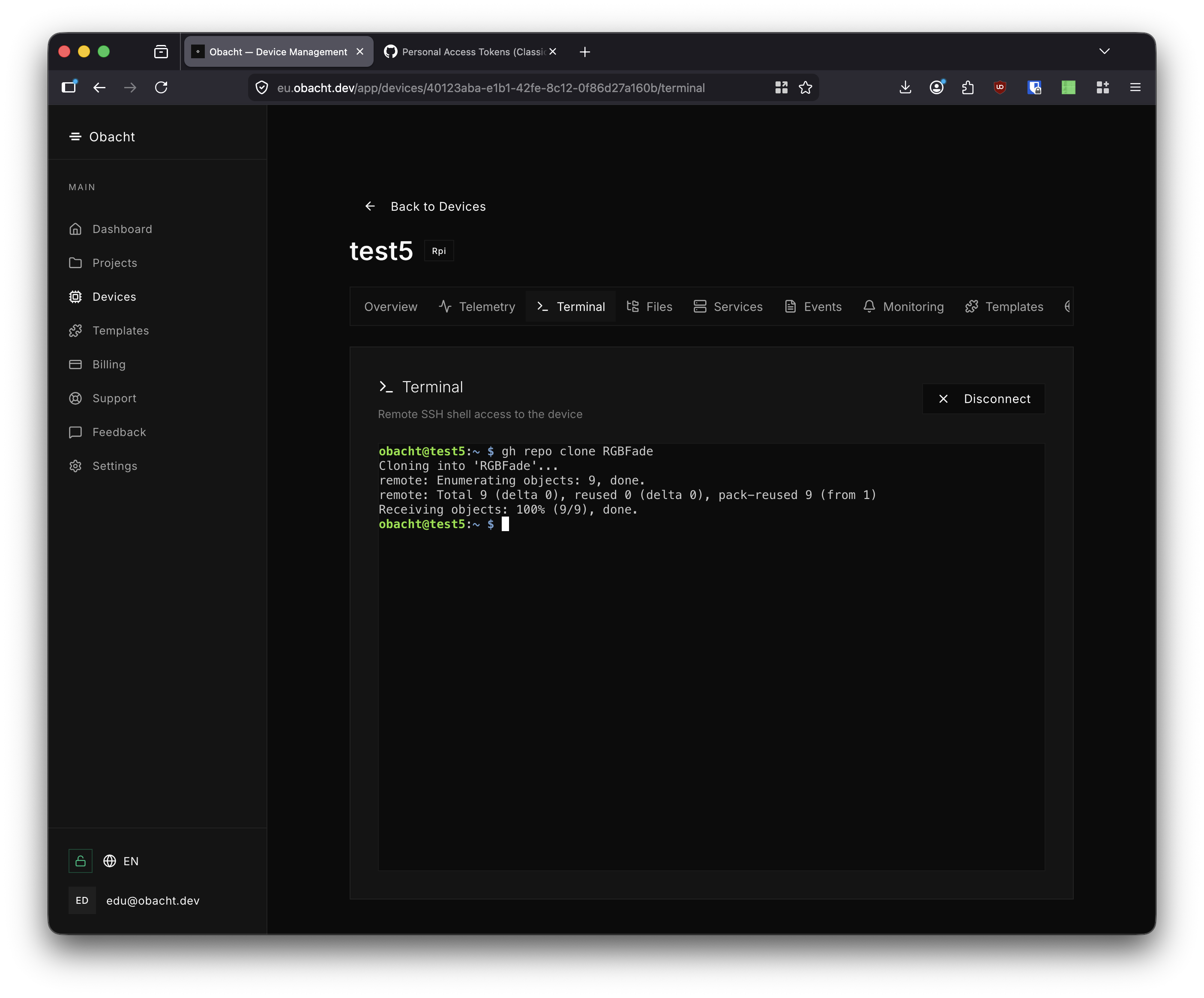
The clone is complete. You can now work with the repository directly on the device.